What's in the menu and the top bar?

Everything that isn't your timeline lives in two places: the menu (the sidebar on desktop, the ☰ button on a phone) and the thin bar across the top. Here's what each thing does.
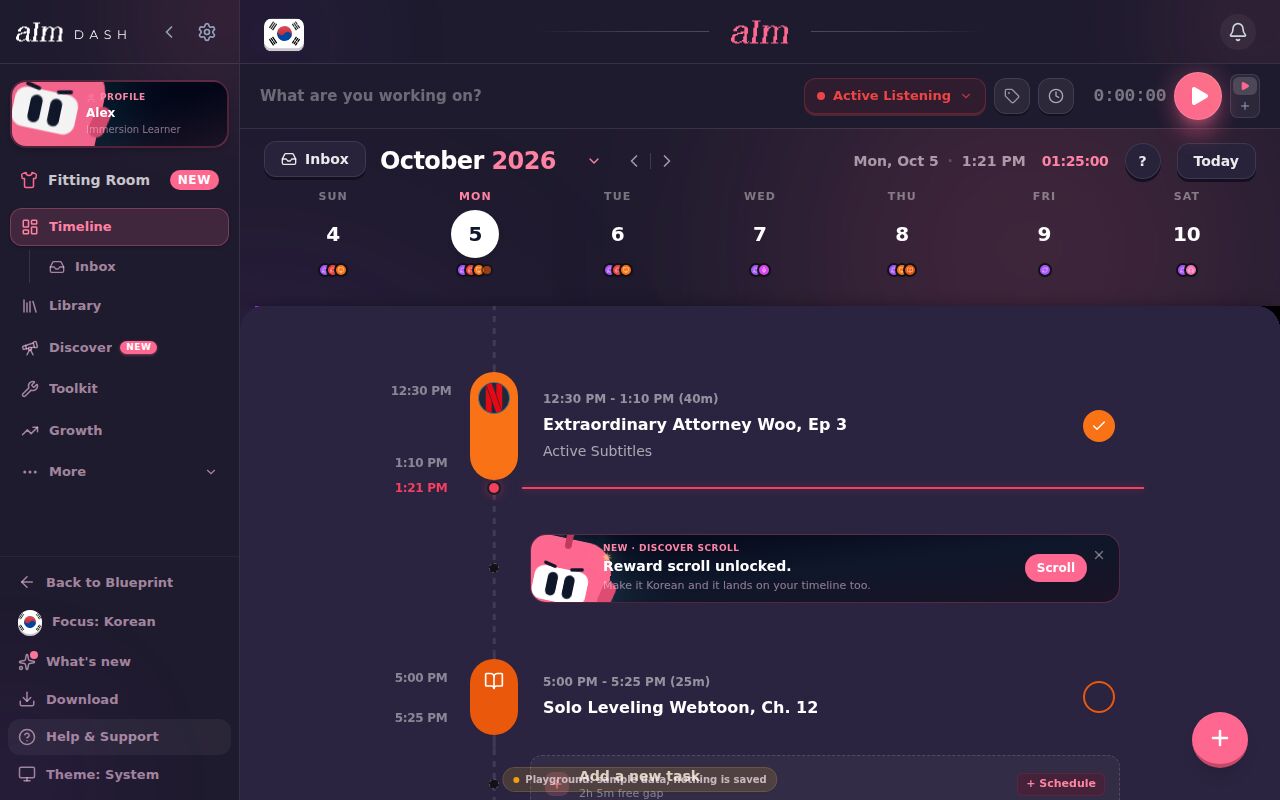
The top bar
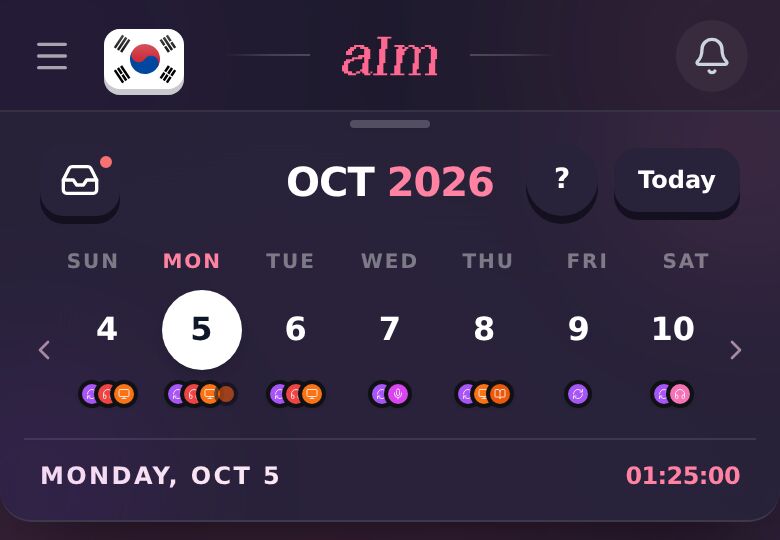
From left to right:
- ☰ (phone only). Opens the menu. On desktop the menu is always there on the left.
- The flag. The language you're focused on. Tap it to switch languages or add one. See How do I switch between languages?.
- The Aim logo in the middle. Tap it to scroll back to the top of the page you're on.
- The bell. Your notifications. See What's under the bell?.
There's no Log button up here anymore. To log time you already spent, see I forgot to start the timer. How do I log it afterward?.
The menu
On desktop the menu is the sidebar on the left. On a phone, tap ☰ at the top left, and tap the X (or anywhere outside it) to close it.
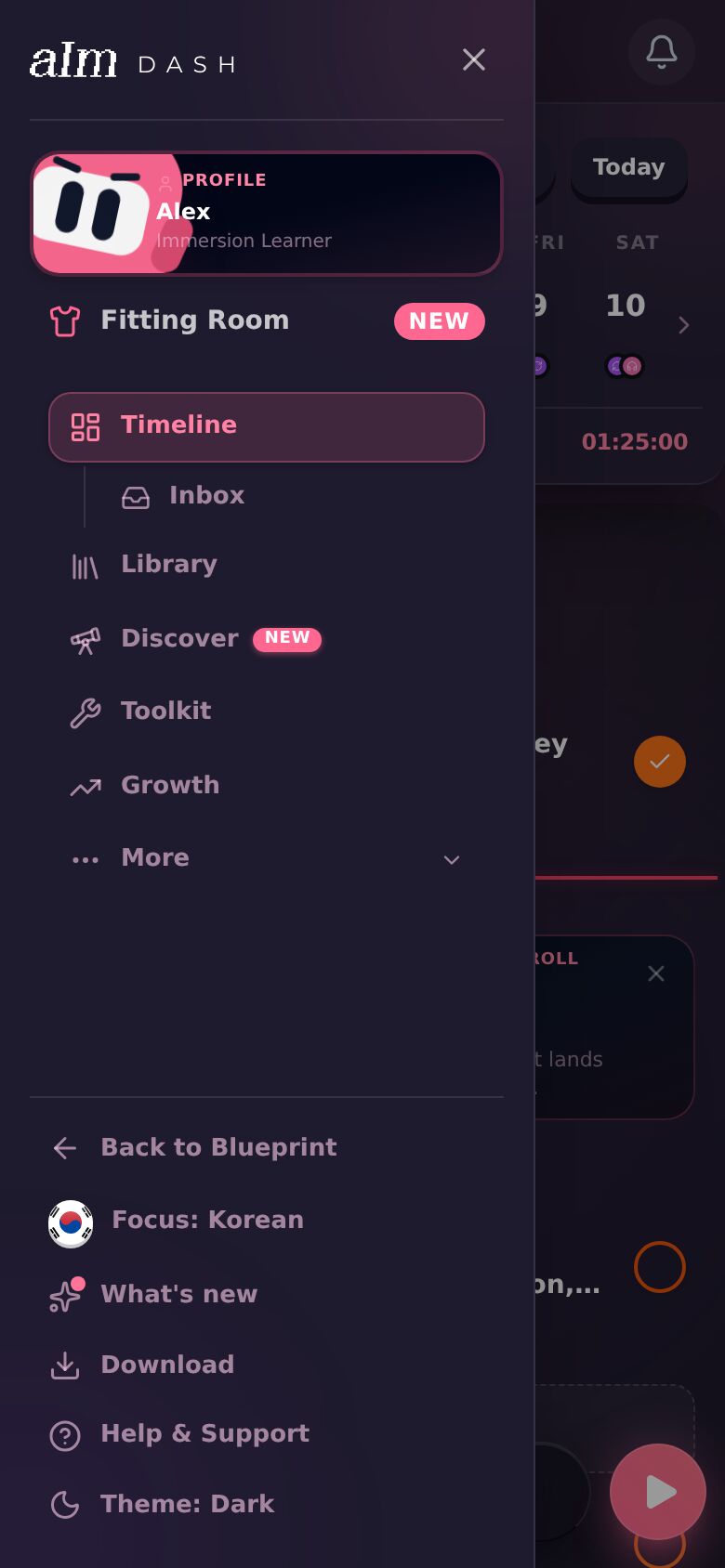
At the top:
-
Your profile card (your name and email, with Aim peeking in). Tap it to open your profile: your time, streak and record, your languages, your level, and the gear for Settings.
-
Fitting Room. Dress Aim up. A pink New means an outfit just unlocked. See How do I change Aim's outfit?.
-
The gear (desktop). Opens Settings. It sits next to the arrow at the very top of the sidebar.
The pages:
- Timeline, with Inbox tucked under it
- Sprints
- Library
- Discover
- Toolkit
- Growth
At the bottom:
- Back to Blueprint. Takes you back to your blueprint.
- Focus: Korean (or whatever language you're on). Same as the flag: switch or add a language.
- What's new. The latest changes in Aim, one card at a time. A pink dot means there's something you haven't seen. Tap Next to go through them, Later to close, or the pink-outlined button to try that feature.
- Download. Put Aim on your phone or computer. See How do I install Aim on my phone or computer?.
- Help & Support. See below.
- Theme. Each tap moves to the next one: Light, Dark, then System (follows your device). The row shows which one you're on, like "Theme: Dark".
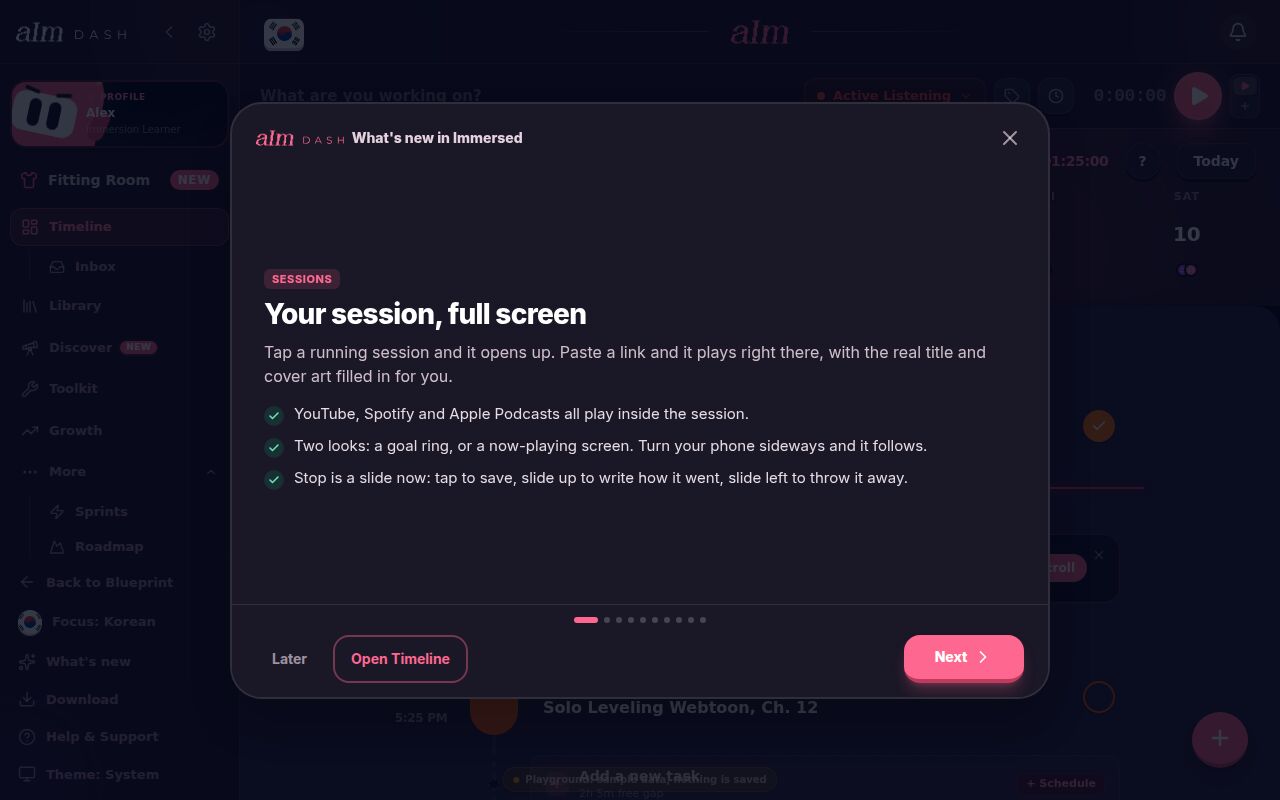
What's in Help & Support?
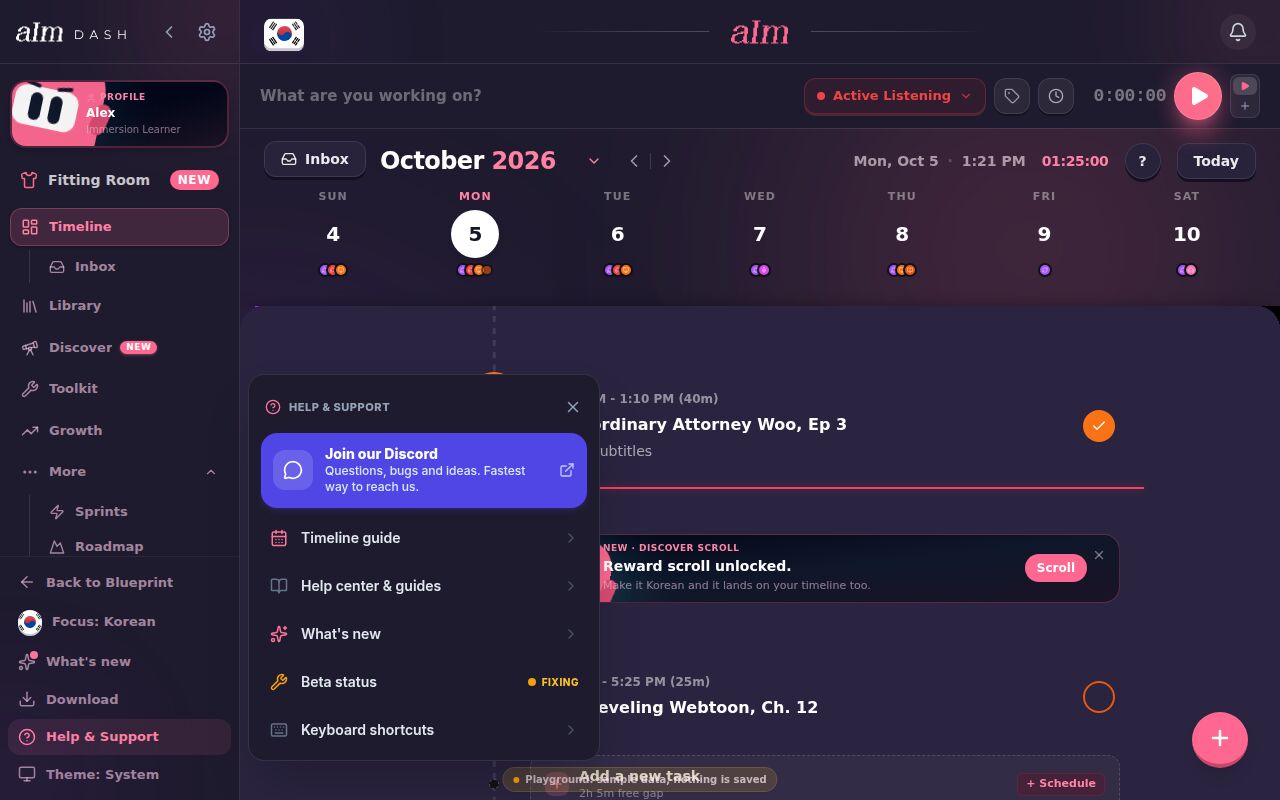
- Join our Discord. Questions, bugs and ideas. It's the fastest way to reach me.
- Timeline guide. Every trick on the timeline. See How do I use the timeline guide (the ? button)?.
- Help center & guides. All of these articles.
- What's new. Same as the menu row.
- Live status. Shows up with a little "Fixing" tag when I'm working on something you might notice. Tap it to see what.
- Keyboard shortcuts (desktop only). See What keyboard shortcuts can I use on desktop?.
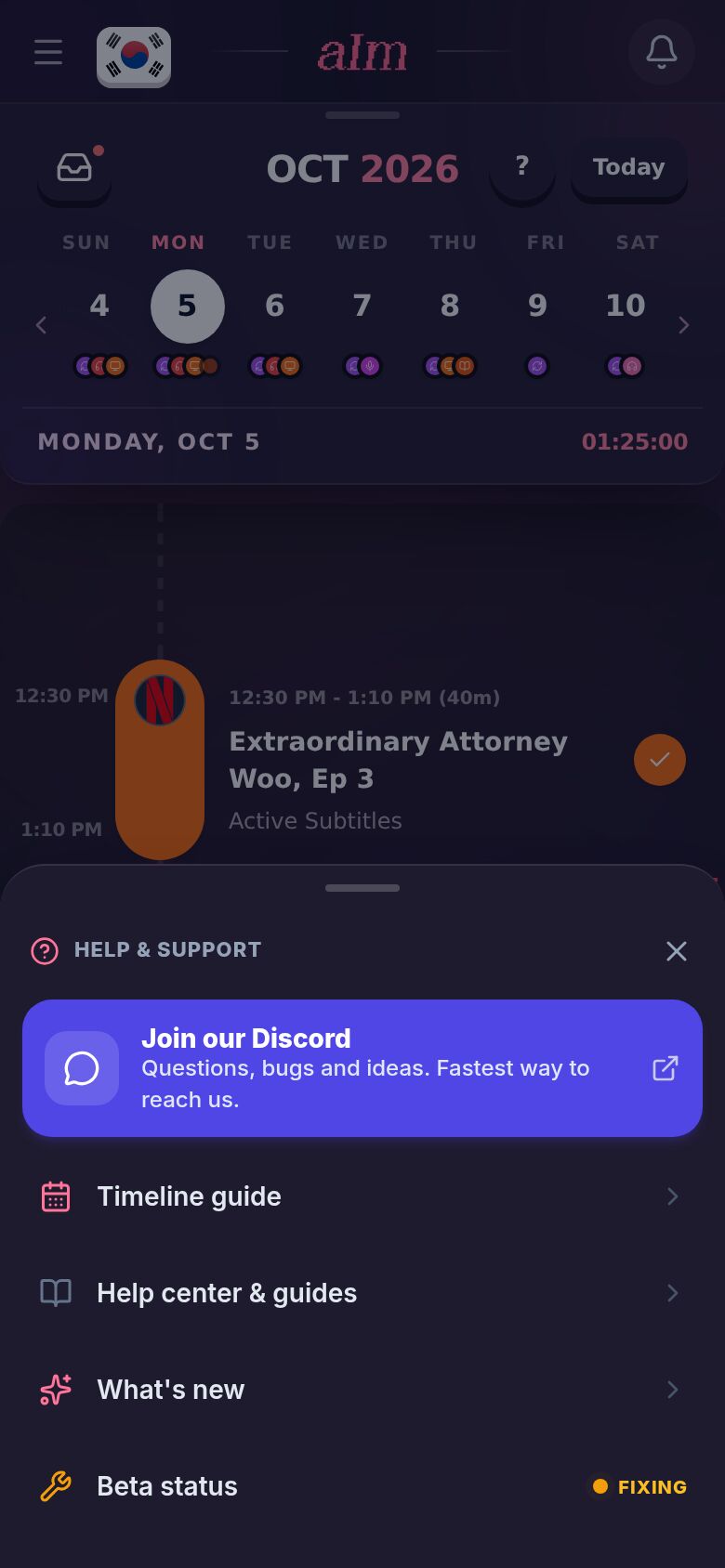
On a phone it slides up from the bottom.
What's the cloud button next to the bell?
It only appears when you're offline or something hasn't synced. Tap it to sync. See Why doesn't something show up on my other device?.
What's under the bell?
Tap the bell for Notifications: reminders, streaks, your weekly summary, milestones and news. When I'm fixing something, a Live status card sits at the top.
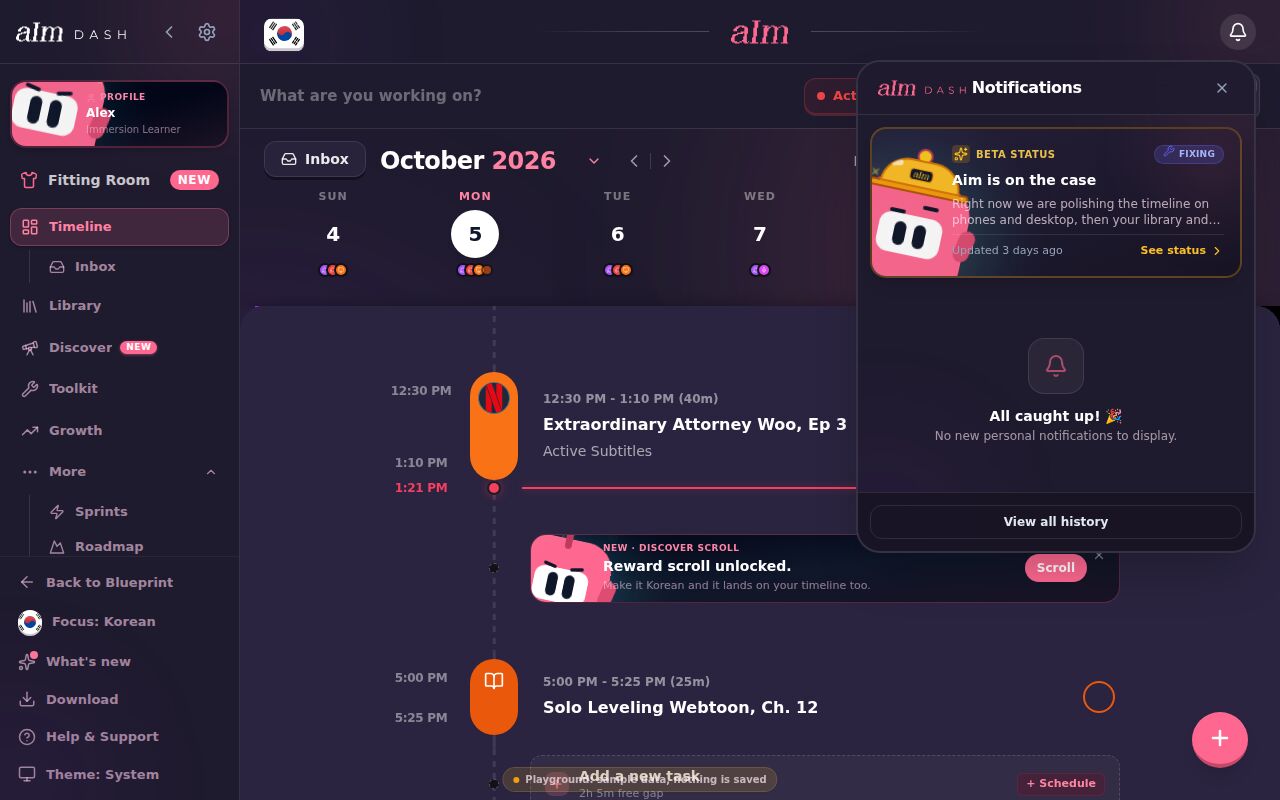
- Tap one to open what it's about. Mark read marks it as read, and the X dismisses it.
- View all history shows the older ones. Clear all empties the list.
- Nothing new? It says "All caught up! 🎉".
To choose which ones you get, see How do I choose which notifications I get?.
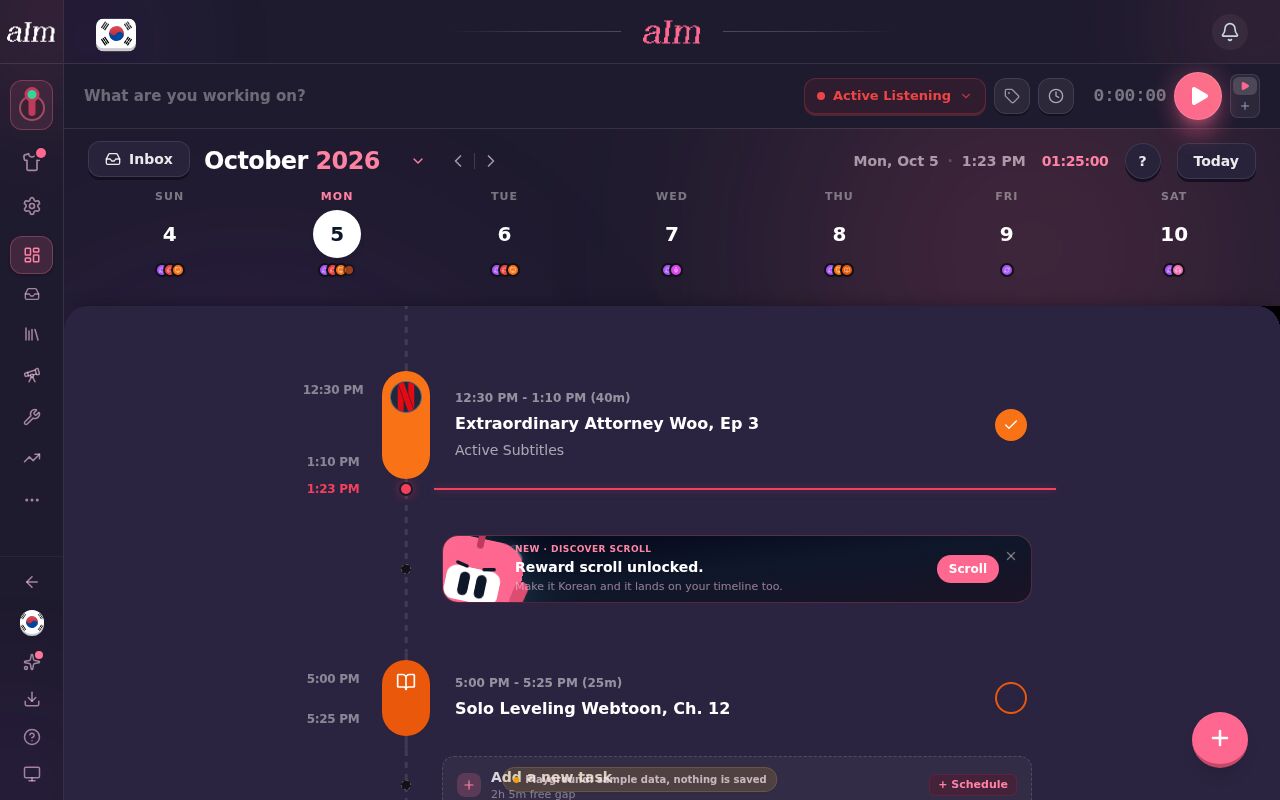
Can I make the desktop sidebar smaller?
Yes. Tap the < arrow at the top of the sidebar. It folds down to icons, and hovering one shows its name. Tap the Aim logo at the top to open it back up. Aim remembers your choice on that computer.
The bar at the bottom (phone)
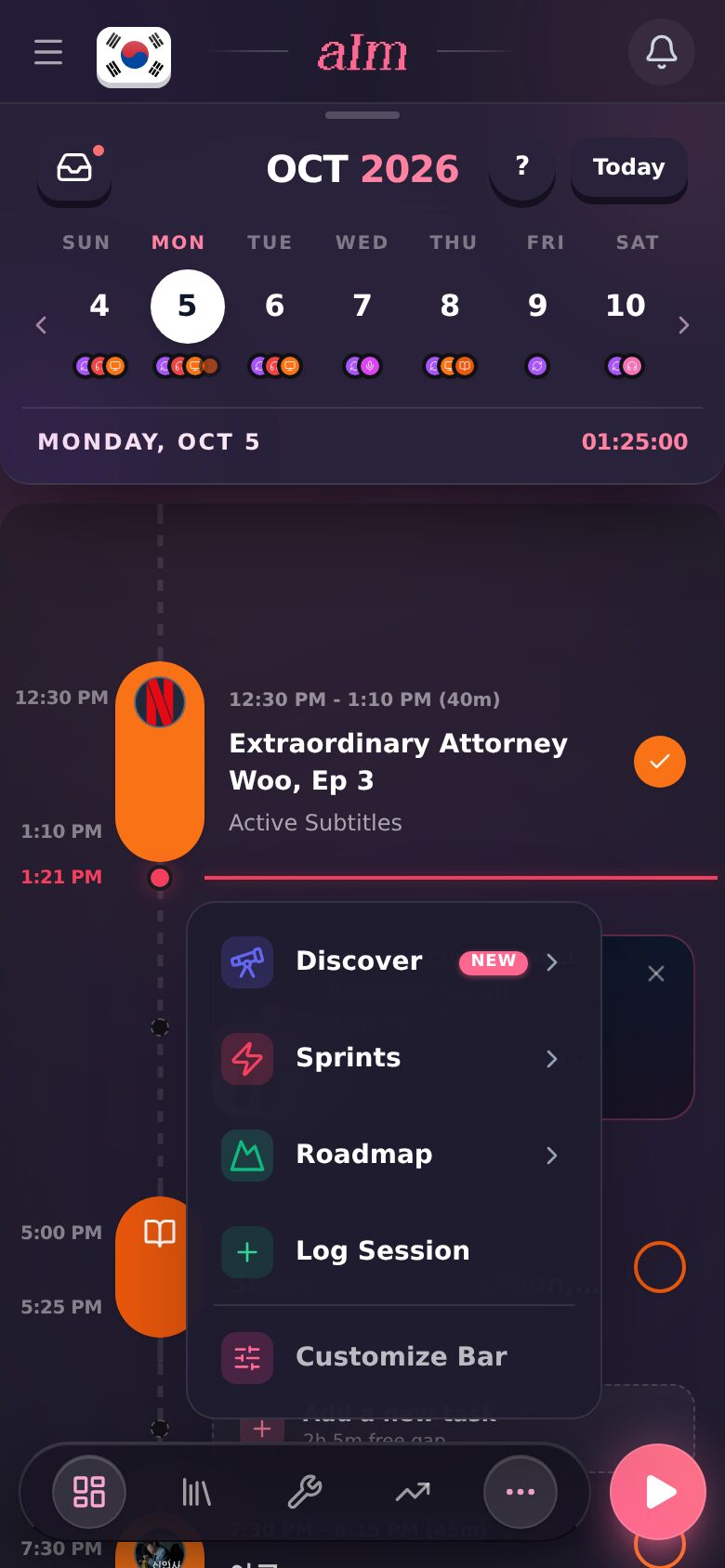
On a phone, the bar at the bottom holds four pages plus ⋯ (More), with the play button next to it. Out of the box the four are Timeline, Sprints, Library and Growth.
Tap ⋯ for the rest: Discover, Toolkit, Log Session and Customize Bar.
How do I change what's on the bar?
- Tap ⋯, then Customize Bar.
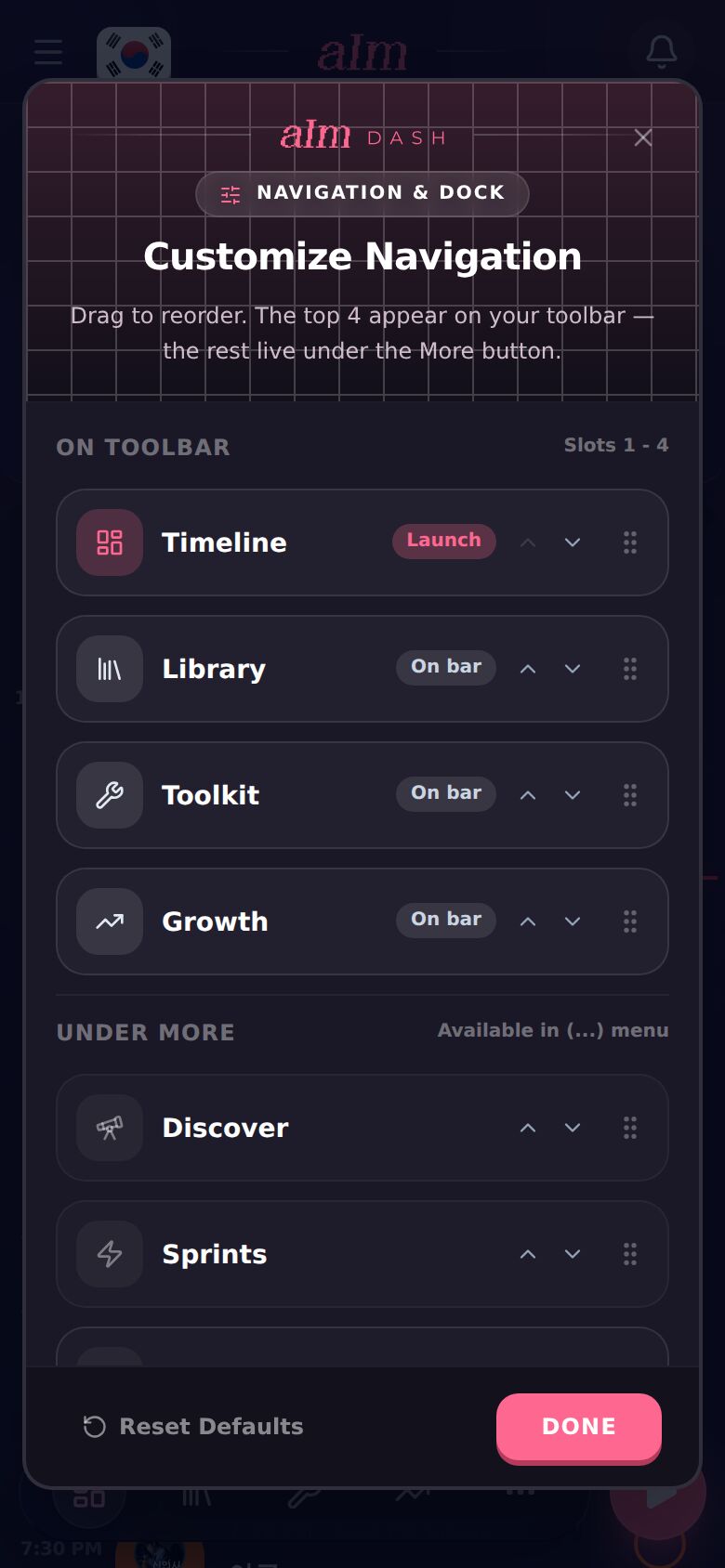
- Drag the rows (or use the little arrows) to reorder them. The top four go On toolbar. The rest go Under more. Timeline is tagged Launch: it's where Aim opens.
- Tap Done. Reset Defaults puts it back the way it was.
Good to know
- Settings opens from the gear on desktop, or from your profile (the gear at the top left) on any device. See How do I change my name, email or password?.
- Keyboard shortcuts on desktop: T switches the theme, N opens the notifications, I opens the inbox.
- Try it first. The sample app has the same menu. Pages that need an account ask you to make one. See Can I try Aim without an account?.