What's on the Toolkit page?

The Toolkit is where you keep the tools you actually use: your dictionary, translator, flashcards and the rest. Pin your favorites into seven spots, add your own links, and browse every tool I've collected for your language. It's part of Pro.
How do I open it?
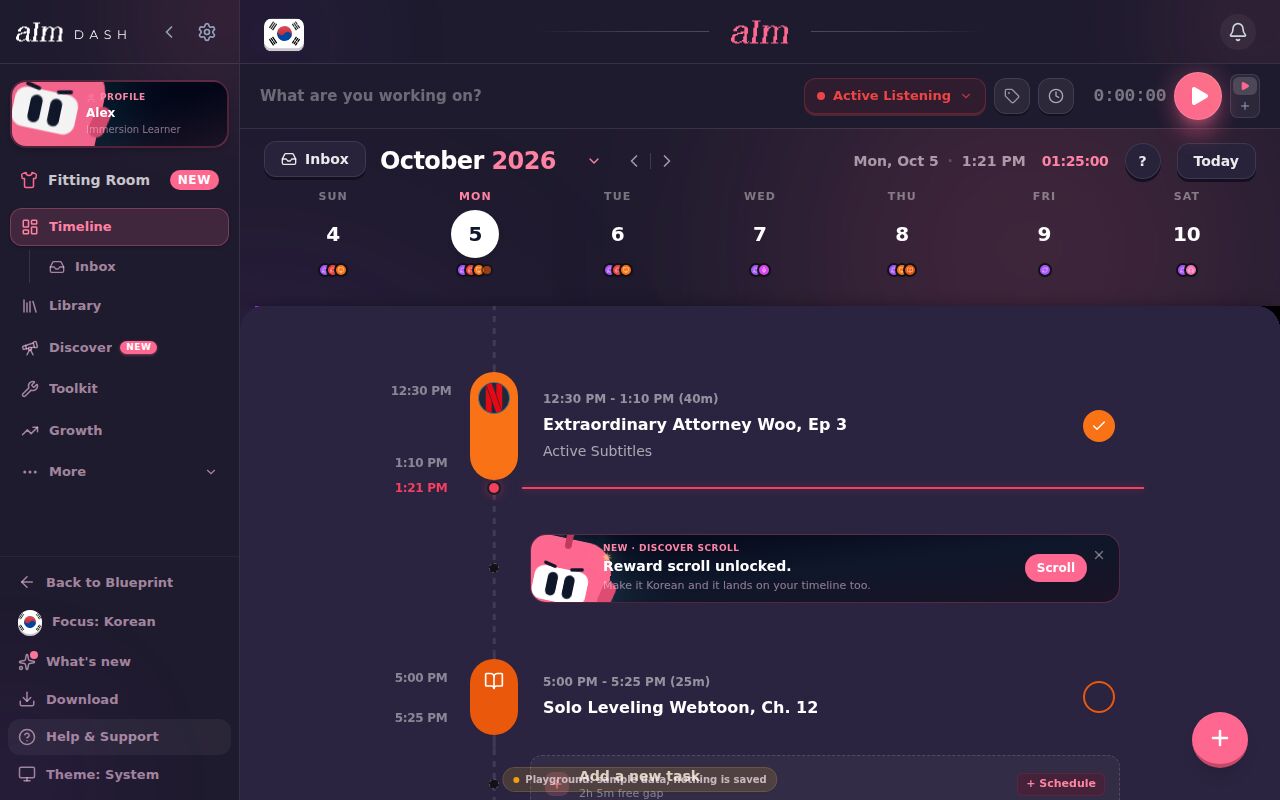
- Desktop: tap Toolkit in the sidebar.
- Phone: tap the wrench in the bar at the bottom. If you've moved things around, it may be under the three dots instead. See What's in the menu and the top bar?.
Your seven spots
At the top sits a big card called Immersion Tools: "Your personal Korean Toolkit" (or whatever your language is). It has seven spots:
- Dictionary
- Translator
- Grammar
- Flashcards
- Immersion Helper. A browser extension or study site that helps while you watch, like Language Reactor or Migaku.
- Speaking
- Writing
-
Swipe the spots left or right, tap the arrows on the sides, or tap a dot underneath to move between them.
-
Tap the spot in the middle to open it. A filled spot shows the tool's details: what it is, Immersion Strategy (how I'd use it), and GET IMMERSED to open it. Double-tap a filled spot to go straight to the tool's site.
-
An empty spot has a little +. Tap it and you get "Dictionary Slot (Empty)" (or whichever spot it is), with three ways to fill it:
- Fill Slot next to my Blueprint Recommendation, when your blueprint has one.
- Find Dictionary filters the tool cards below to dictionaries and scrolls down to them.
- Custom Link lets you add your own tool. See How do I add my own tool?.
Reload Blueprint Tools, under the card's title, puts the tools from your blueprint back into the spots. It only shows when your blueprint has a toolkit.
How do I pin a tool to a spot?
-
Scroll down to the tool cards. Each one has the tool's name, its type, a short description, and tags for how hard it is and what it costs. ⭐ Recommended means it's on your blueprint.
-
Tap the bookmark next to GET IMMERSED. A list called Pin to Core Toolkit Slots slides up.
-
Tap the spot you want. If something's already there, the row says "Replaces: …" so you know what you're swapping out.
The bookmark turns into a tick once a tool is pinned. Tap the tick to take it out of its spot.
GET IMMERSED opens the tool's own site in a new tab. Tap anywhere else on a card to read more about it first.
How do I find a tool?
The bar at the top stays put while you scroll.
- Search. Type a name or what you need. The pill on the right counts the results.
- The dice picks a random tool from what you're looking at and opens it.
- Sort, Category, Skill Focus, Difficulty and Cost narrow the list. A small x on a pill clears it. Category has your seven toolkit spots first, then more kinds of tools (Writing System, Graded Readers & Books, Subtitles, Word Lists, Games and so on). It only lists kinds your language has tools for. The label on each tool card is one of these, so tapping the matching filter always shows it.
- Dictionary, Translator, Grammar, Flashcards, Immersion Helper, Speaking, Writing. One tap shows only tools that fit that spot.
How do I add my own tool?
- Tap an empty spot, then Custom Link.
- Fill in Tool Name and Website / App Link. Those two are the only must-haves.
- Pick a Resource Type & Toolkit Slot Fits, like Dictionary, Tutoring Platform or Writing Platform. That decides which spot it goes in.
- Add a Description / Usage Strategy if you like. Future you will thank you.
- Tick Share this tool with the community if you want other learners of your language to find it too.
- Tap Pin & Add Custom Tool. The Live Preview at the top shows what it'll look like.
What's on the second card?
Swipe the big card to the left for IMMERSED GAMES, "Made by Immersed". Aim Runner is always there. For the languages my listening games cover, you also get Numbers, Animals, Colors, Fruits, Time and Years. For other languages you get outside practice games instead, which open in a new tab.
How is this different from the Immersion Toolkit on my blueprint?
They're two different things with similar names.
- The Immersion Toolkit on your blueprint is five cards I picked for you, each with a strategy. It's free, and you read it, you don't edit it. See What tools does my blueprint give me?.
- The Toolkit page is in the dashboard, and it's yours. Every tool for your language, seven spots you fill however you want, your own custom tools, and the games. It's part of Pro.
Reload Blueprint Tools is the bridge between them: it copies your blueprint's picks into your spots.
Is there an Aim browser extension?
Yes: Immersed for Chrome. It works in Chrome, Edge, Brave and Arc. It puts Save and Immerse buttons on YouTube, an Add button on other video, audio and reading sites, and a session timer that follows you from tab to tab. Signing in is free; saving and sessions need Pro. The Download screen links to it too. The Immersion Helper spot is still for other people's extensions, like Language Reactor or Migaku, which you install from their sites. See How do I install Aim on my phone or computer?.
Good to know
- Pro. The Toolkit lives in the dashboard, which is part of Pro. The five-card toolkit on your blueprint stays free. See What can I do without Pro?.
- Removed a tool by mistake? Taking a tool out of a spot shows Undo for a few seconds. After that it waits in Recently deleted for 30 days. See How do I bring back something I deleted?.
- The tools belong to other companies. Many are free, some are paid. Migaku links go through my affiliate link. You get the same price, and it helps keep blueprints free.
- One language at a time. The Toolkit shows tools for the language you're focused on. Switch with the flag at the top. See How do I switch between languages?.
- Phone and desktop work the same. On a phone the filter lists slide up from the bottom.