I forgot to start the timer. How do I log it afterward?

No problem, the time still counts. If it was planned on your timeline, tick it off. If it wasn't, use Log Session (on a phone) or manual mode in the session bar (on desktop) and tell me when you did it.
Logging is part of the timeline, which is Pro (or your free week).
It was planned on my timeline
-
Find the task on your timeline and tap the circle on its right.
-
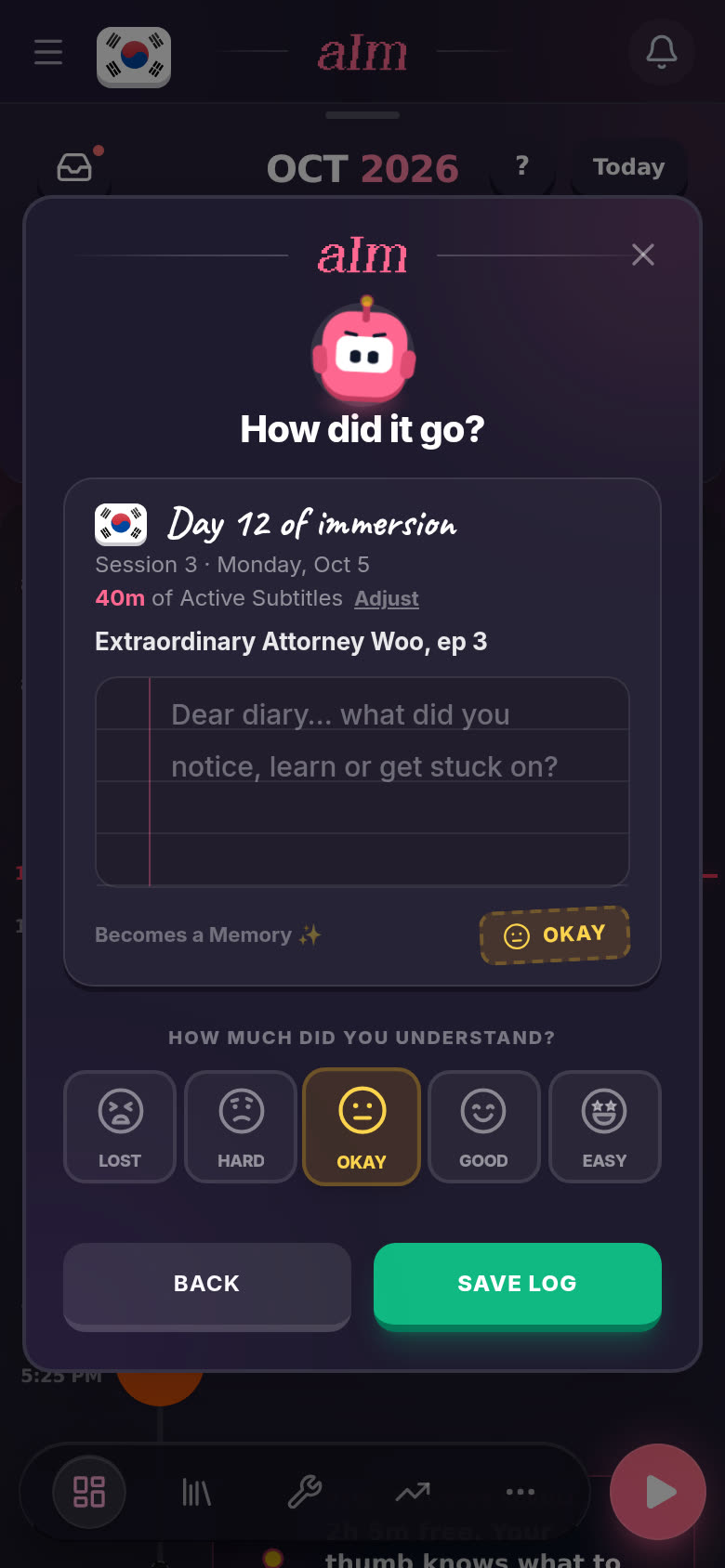
How did it go? opens with the task's planned time, like "40m of Active Subtitles". Did it take longer, or start later? Tap Adjust and fix the start, the end or the length. Then tap Confirm →.
-
Write a note if you like, pick how much you understood, and tap Save log. The circle gets a tick and the time counts.
If you close this box with the X, nothing is logged and the task stays as it was.
It wasn't planned (phone)
-
Tap ⋯ in the bottom bar, then Log Session.
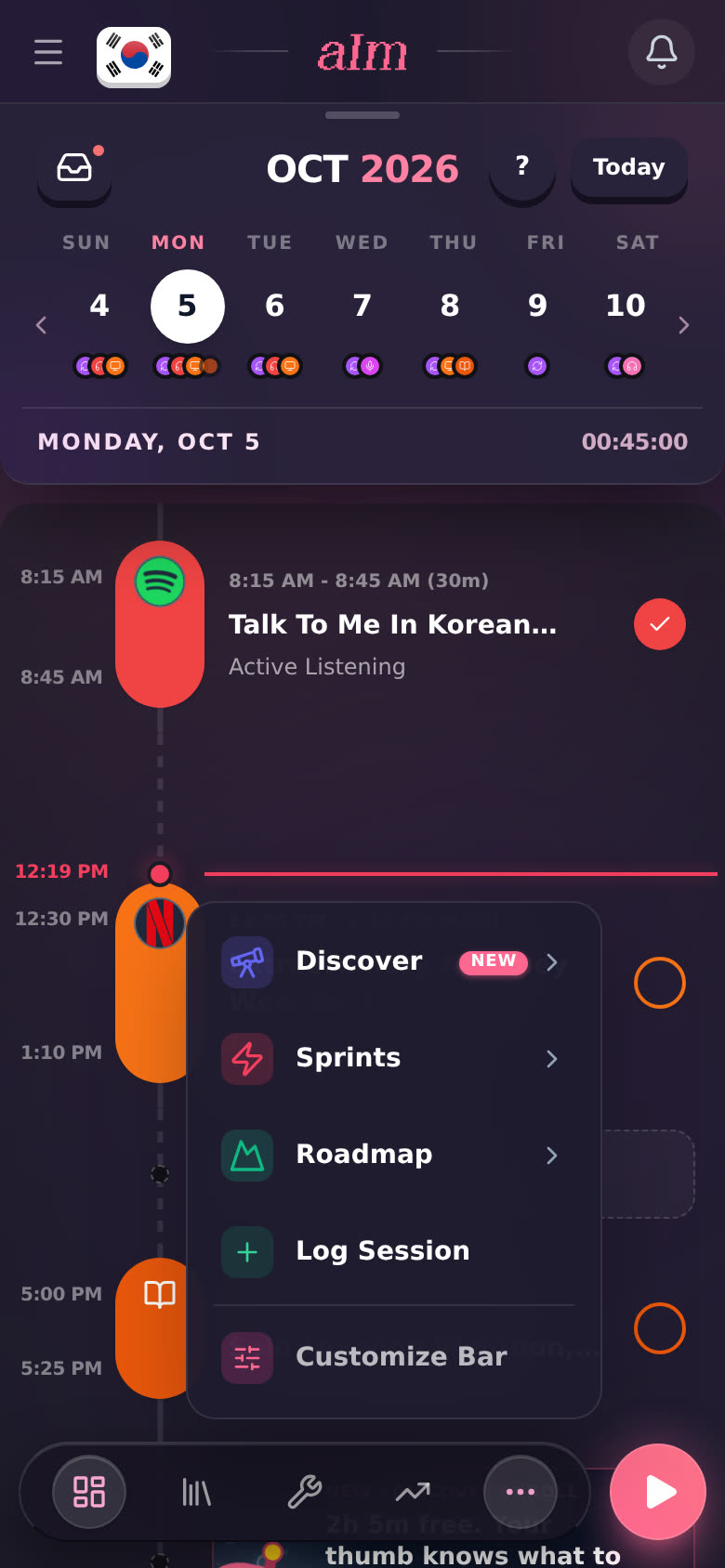
You can also open Growth and tap + Log under Recent activity.
-
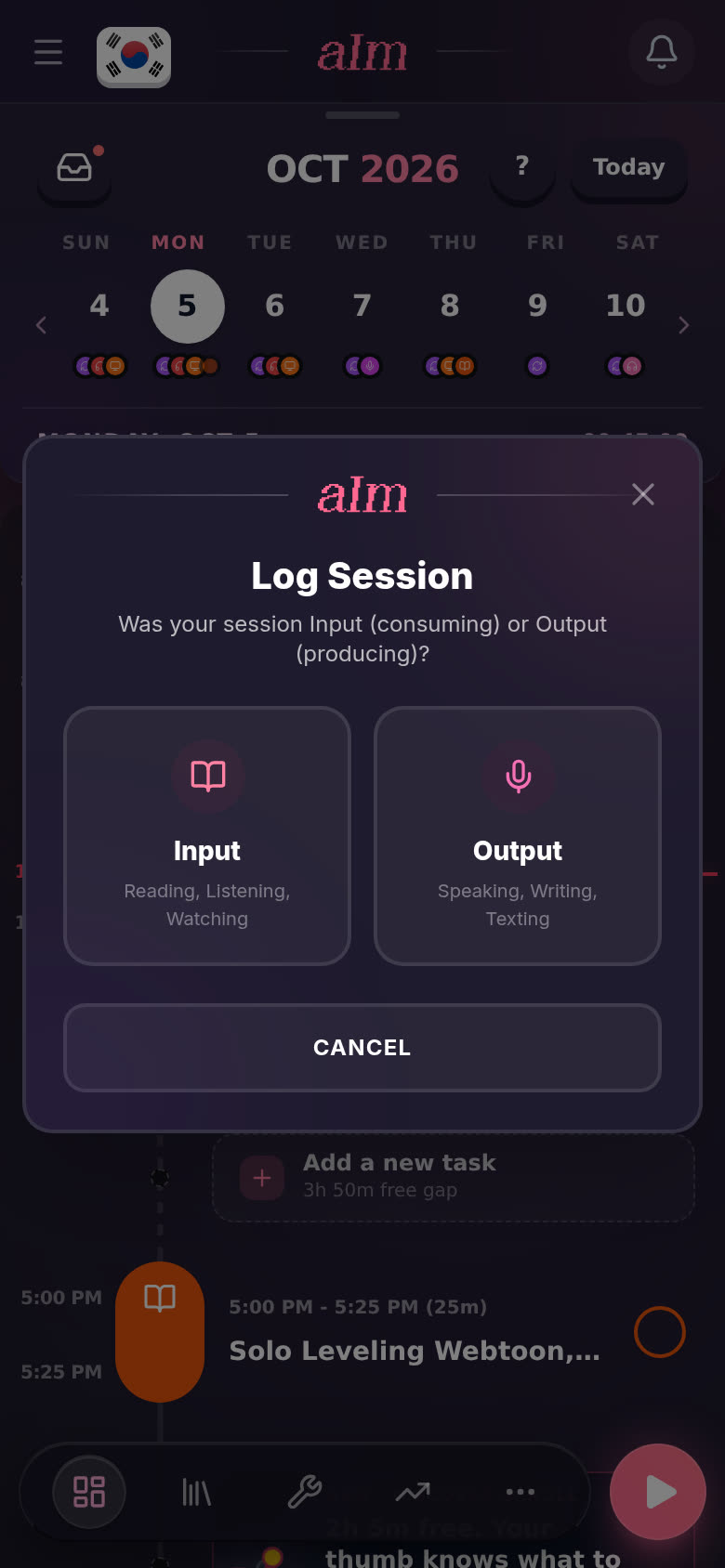
Log Session asks whether it was Input (reading, listening, watching) or Output (speaking, writing, texting). Tap one.
-
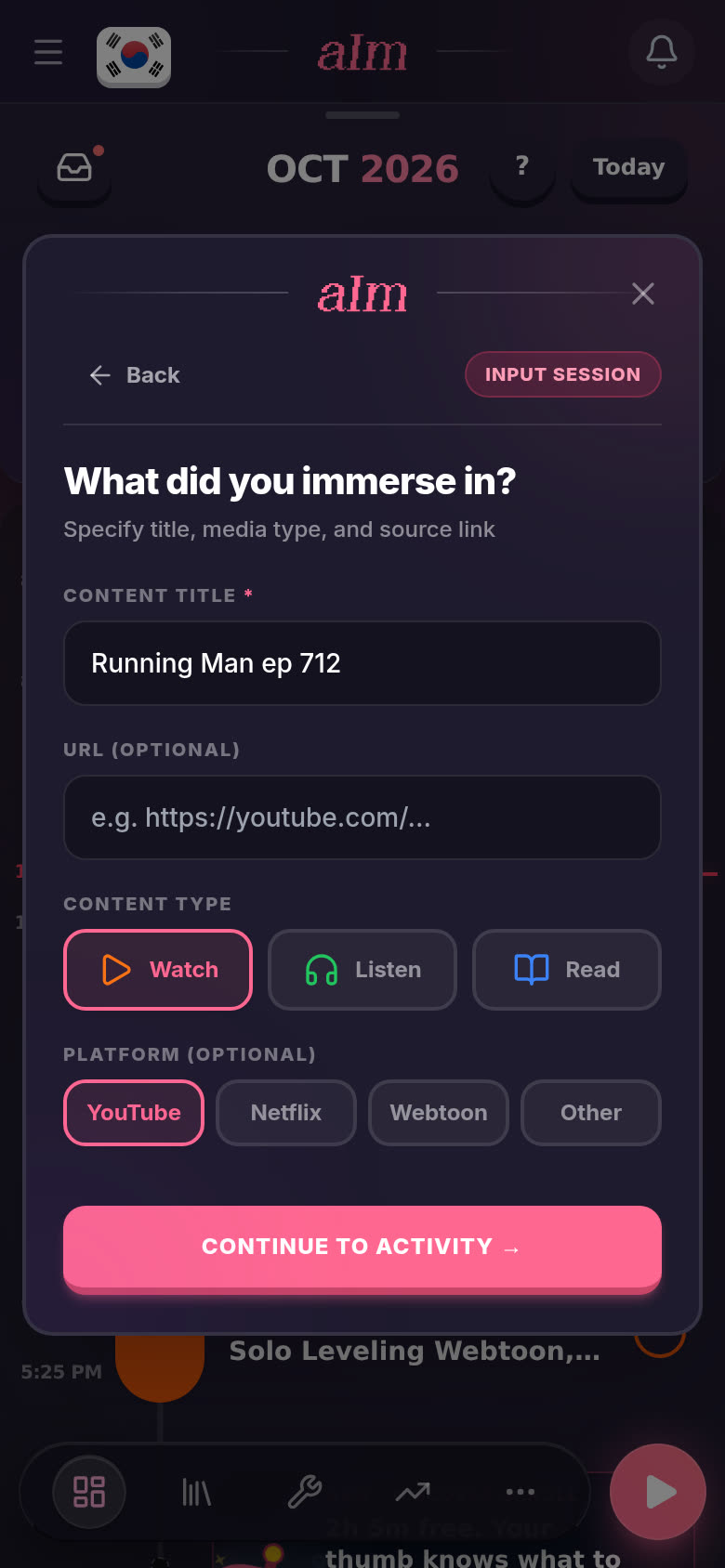
What did you immerse in? Type the title. A link and the platform are optional. Pick Watch, Listen or Read, then tap Continue to activity →.
-
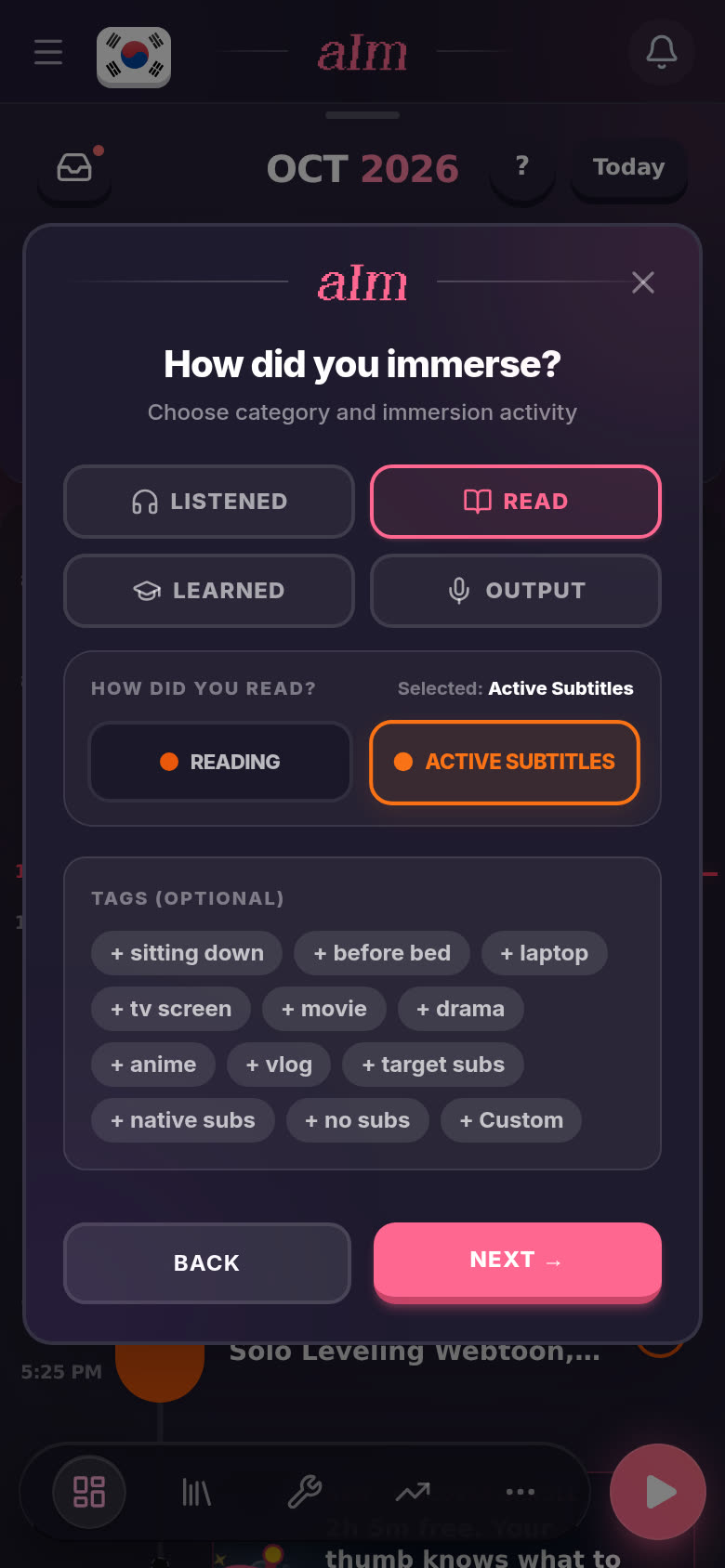
How did you immerse? Pick the kind (Listened, Read, Learned or Output) and the activity, like Active Subtitles. Tags are optional. Tap Next →.
-
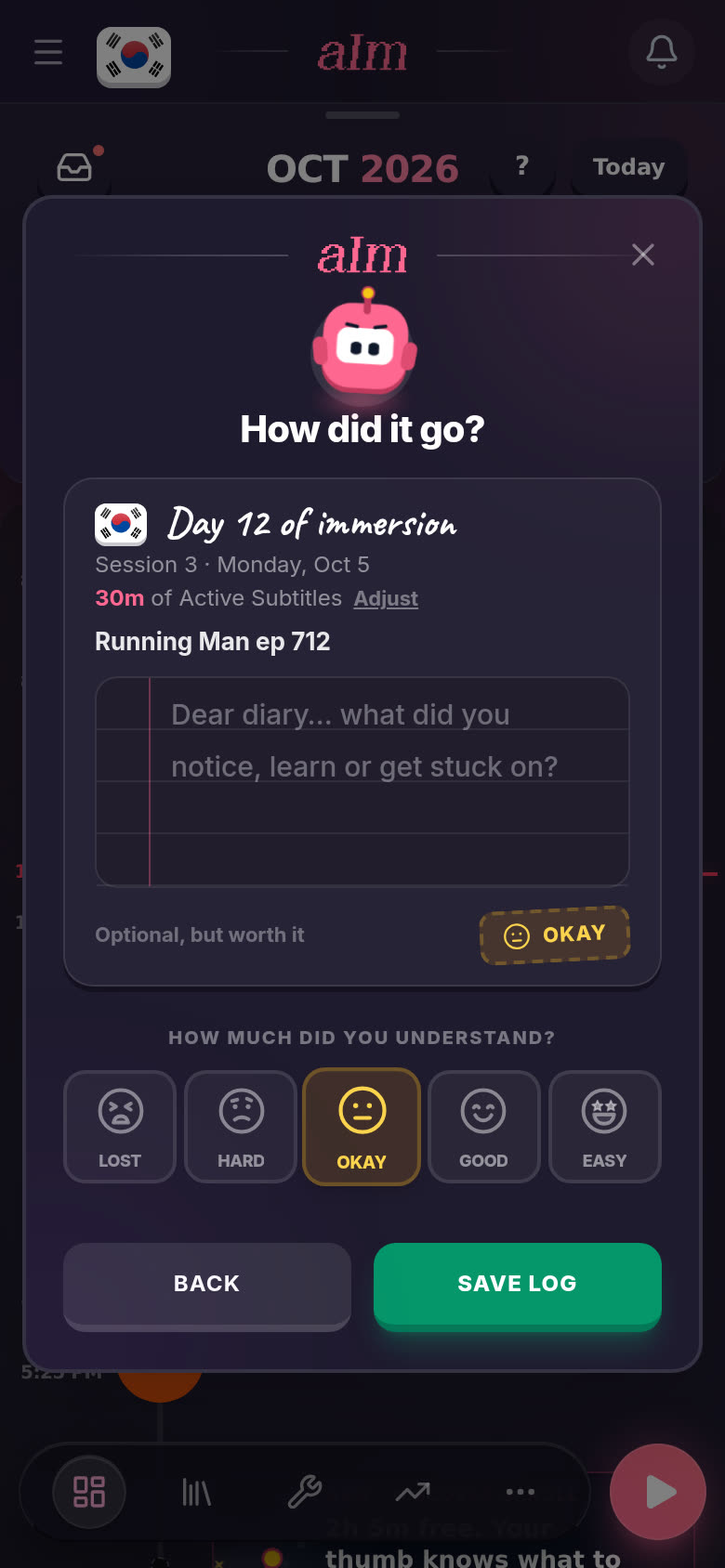
How did it go? shows what you're about to log: "30m of Active Subtitles". That's a guess: the last 30 minutes, ending now. Tap Adjust to set the real times.
-
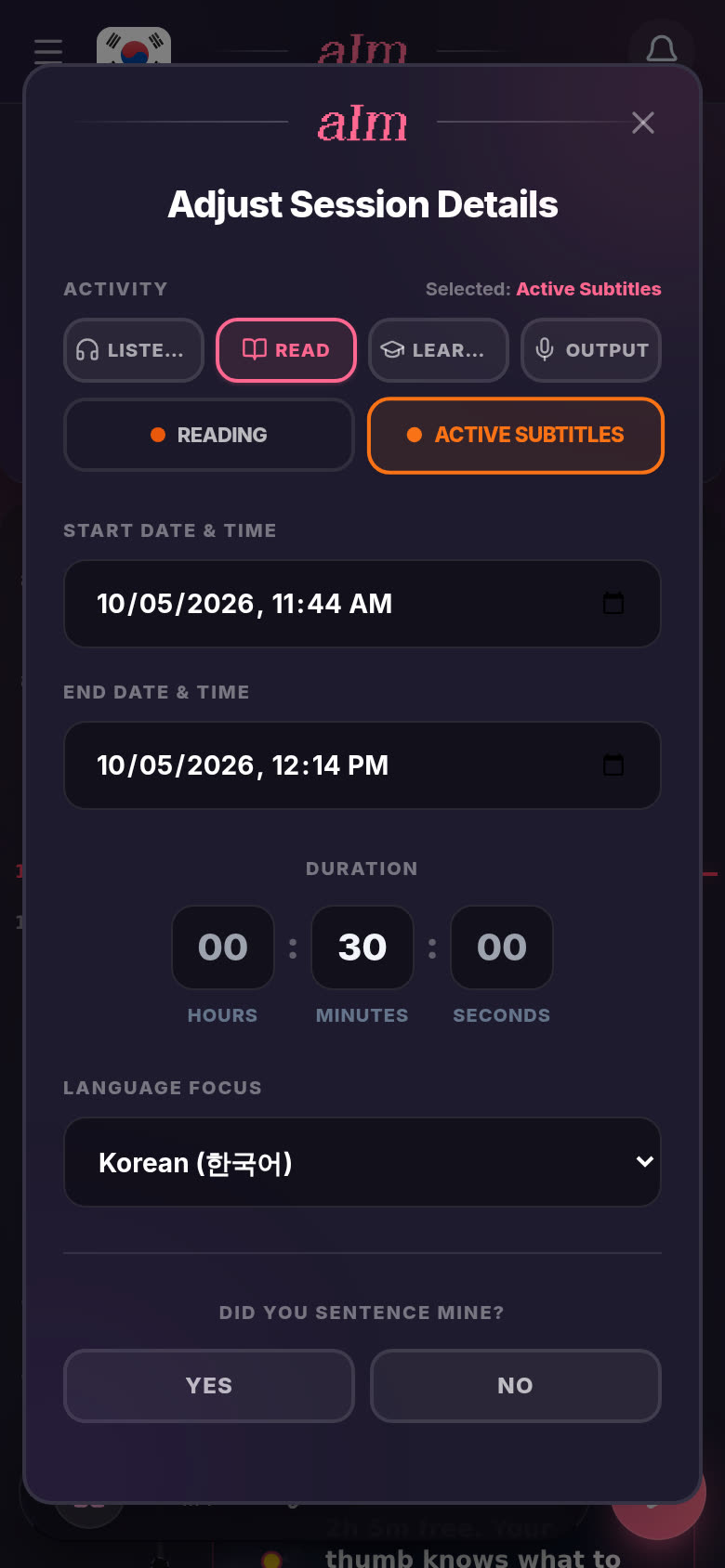
In Adjust Session Details, set the Start date & time and End date & time, or type the Duration in hours, minutes and seconds. You can also fix the activity, the language, and whether you sentence mined. Tap Confirm →.
-
Rate it if you like and tap Save log.
-
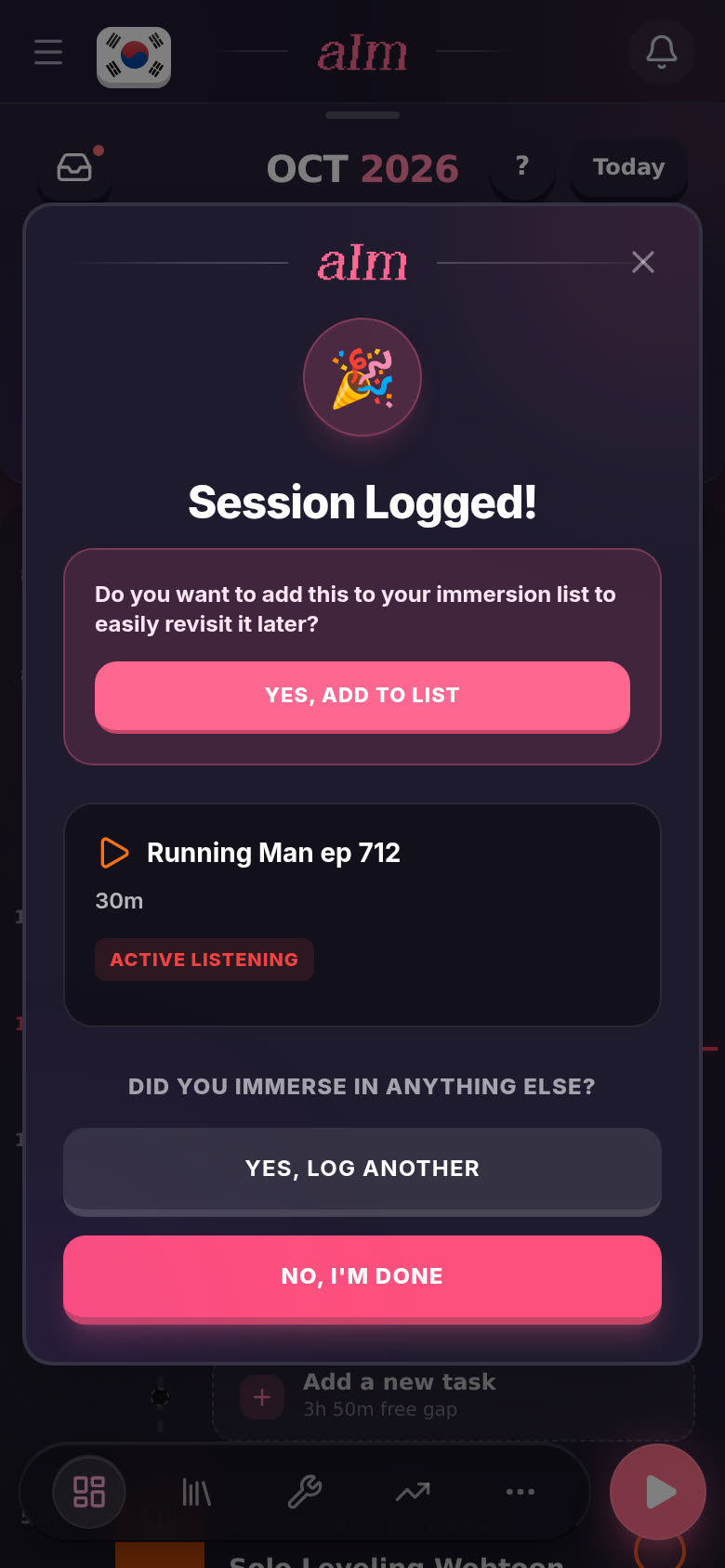
Session Logged! Tap No, I'm done, or Yes, log another if there's more. Yes, add to list saves it to your Immersion List so you can come back to it. The log is on your timeline at the time you set, already ticked.
It wasn't planned (desktop)
The session bar at the top has two modes, like a stopwatch and a notebook. The little switch right of the play button picks one: the play icon is timer mode, the + is manual mode ("add time you already spent").
-
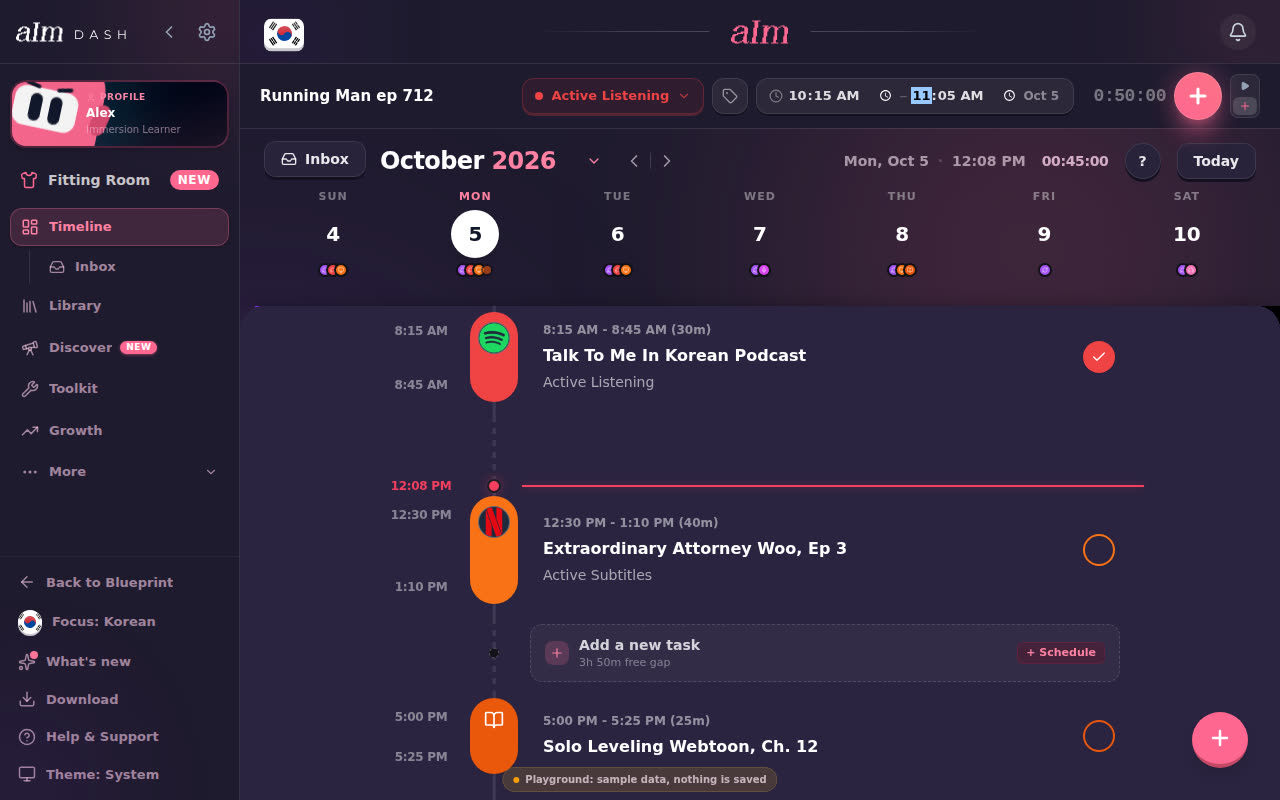
Click the + in the switch. The box now says "What have you done?".
-
Type what you did and pick the activity. Click the times to set when you started and stopped (or pick a length like 30m), click the day to change it, or click the total on the right to set how long it was.
-
Click the big + (Add this time). I say "Added 0:50:00 of Active Listening", and it's on your timeline with a tick.
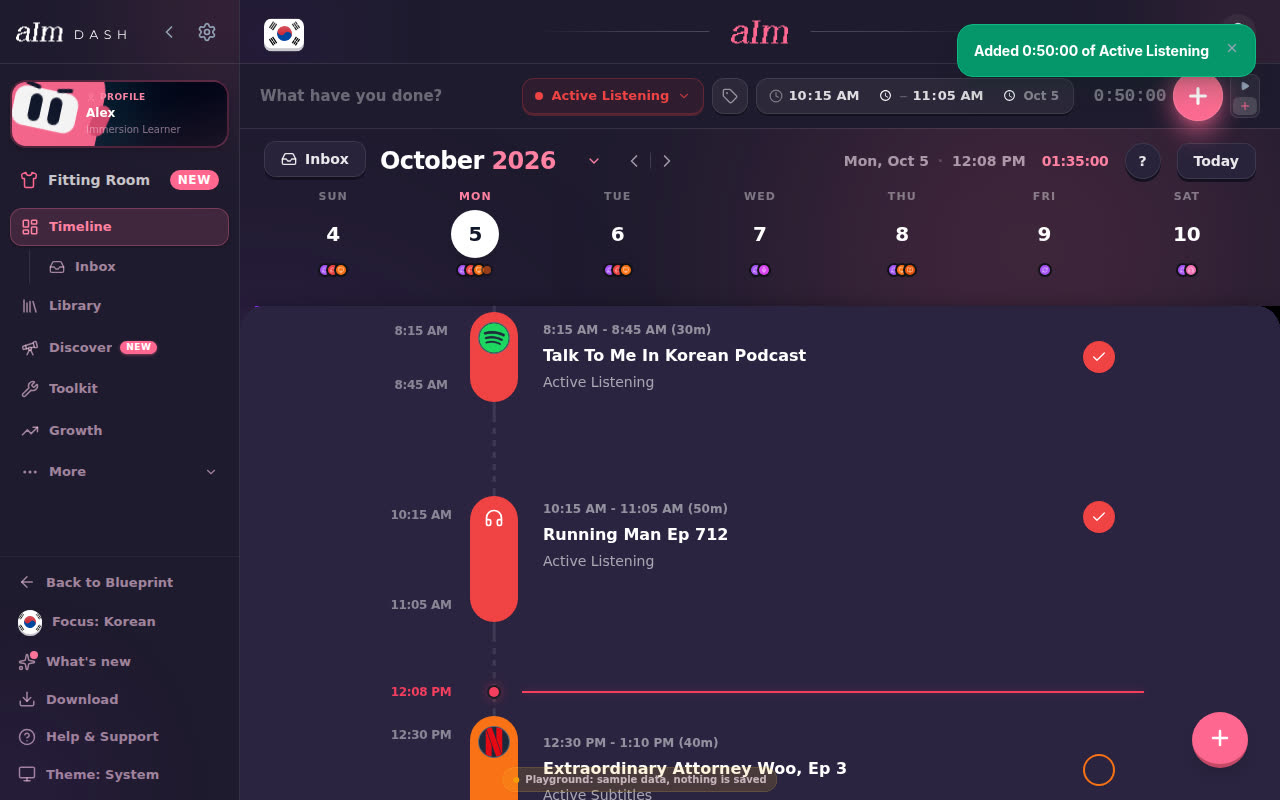
It has to be at least a minute. Click the play icon in the switch to go back to timer mode.
Started the timer late?
If the timer is running but you started watching ten minutes earlier, you can move the start back:
- Phone: tap the round picture on the left of the session bar to open the session's details. Tap the pencil next to the time and set how long you've really been going. I move the start back to match.
- Desktop: click the clock with the start time in the session bar (Change start time), or click the running time itself and set how long you've really been going.
Good to know
- The day you're on. Logs go on the day you set. In manual mode on desktop, it starts as the day you've got open on the timeline; click the day in the bar to pick another. The days you already immersed are pink.
- Got the time wrong? You can fix a log afterward. See How do I edit or delete something I logged?.
- Notes and ratings are optional. See What is "How did it go?" and do I have to fill it in?.
- Want the timer next time? See How do I start a session?.