How do I install Aim on my phone or computer?

Open Download in the menu. It shows the steps for the device you're on, and on a computer a QR code that puts Aim on your phone. Once it's installed, Aim gets its own icon and opens full screen, with no browser bar.
There's no App Store or Google Play app yet. You install Aim straight from the browser, and it's the same app with the same account.
Steps
-
Open Download. On a phone, tap the menu (top left) and then Download. On desktop, Download is near the bottom of the sidebar.
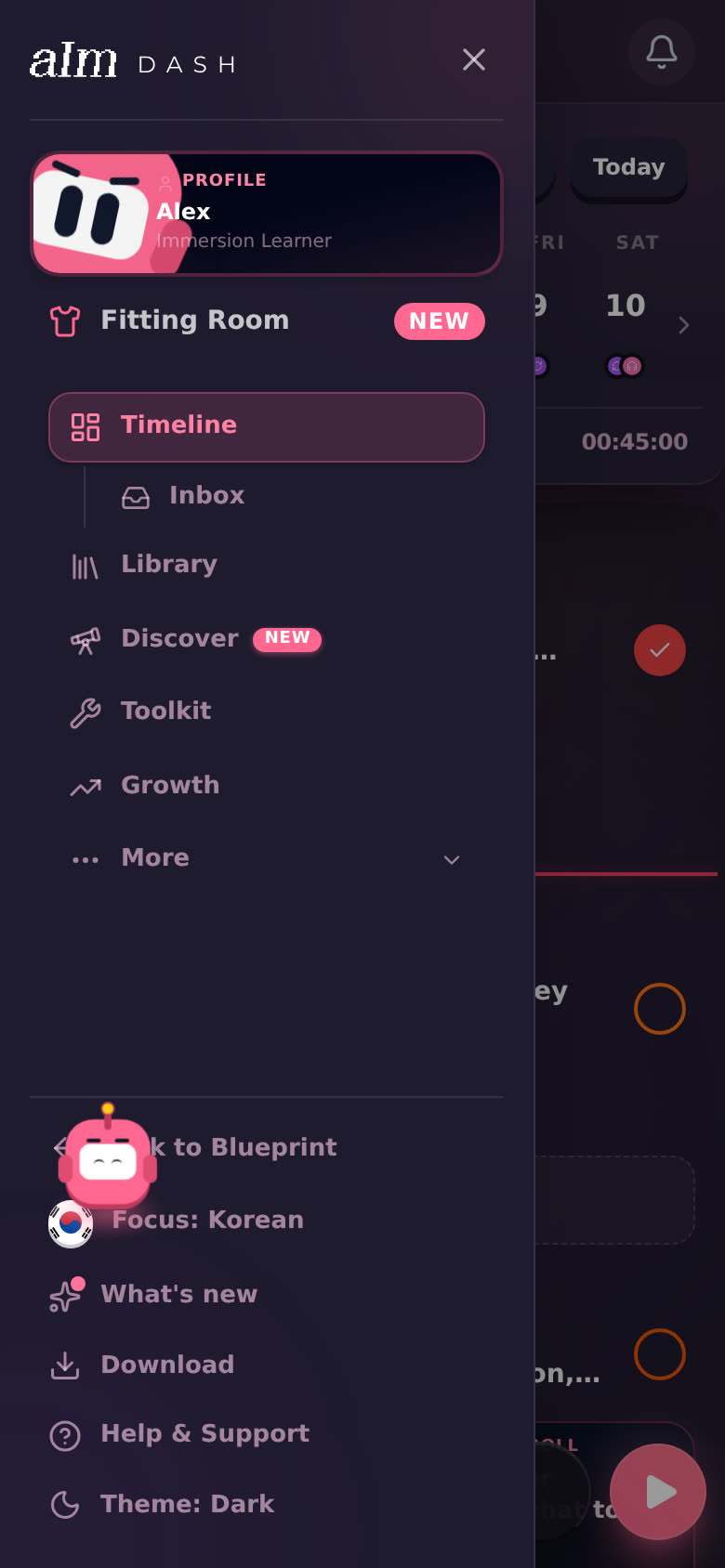
Two other ways in: Settings, then This device, then Add Immersed to your home screen. Or tap Install on the "Loving Immersed?" card you see after a session.
-
Follow the steps under On this phone (or On this computer). Aim works out which device and browser you're on, so you only see the steps you need. They're below.
-
Done. Look for the pink Aim icon on your home screen, dock or desktop.
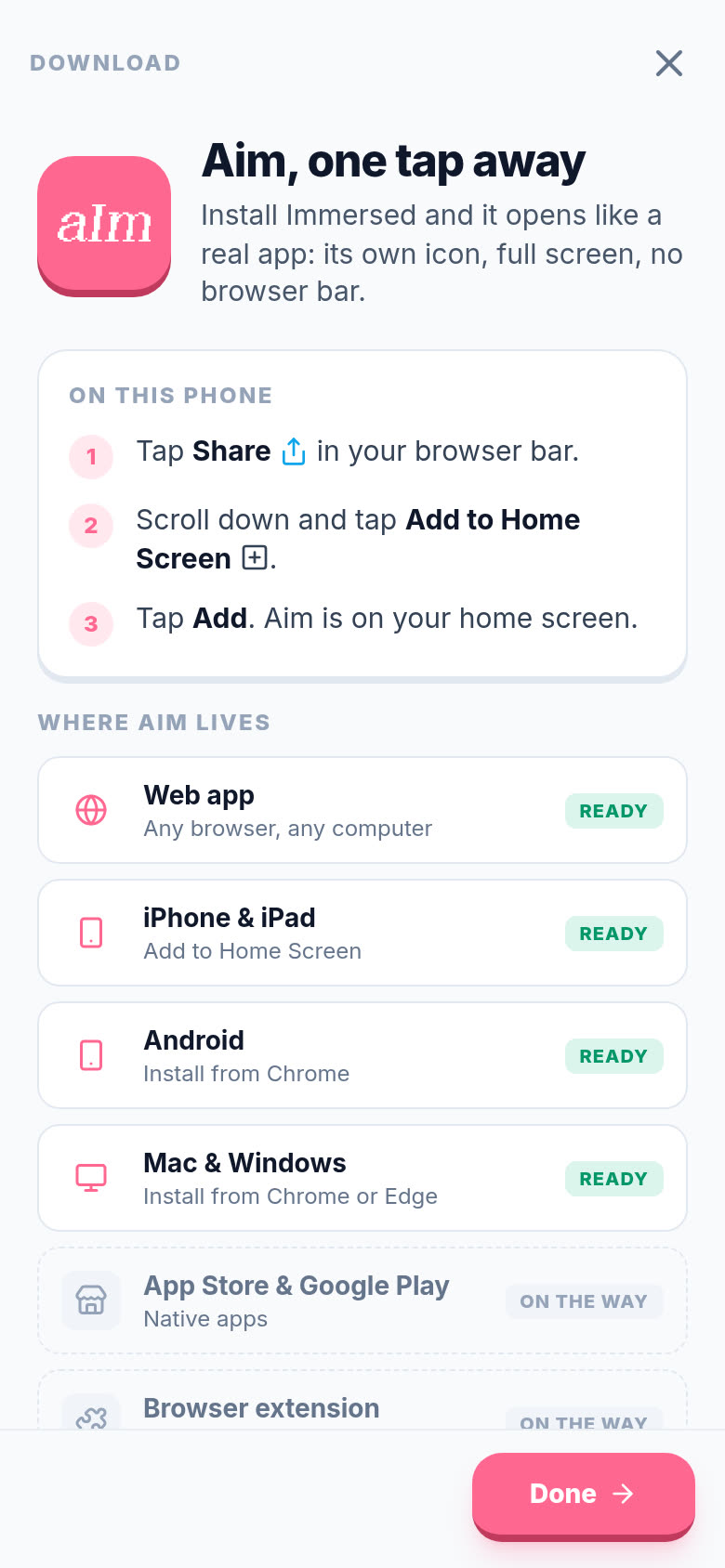
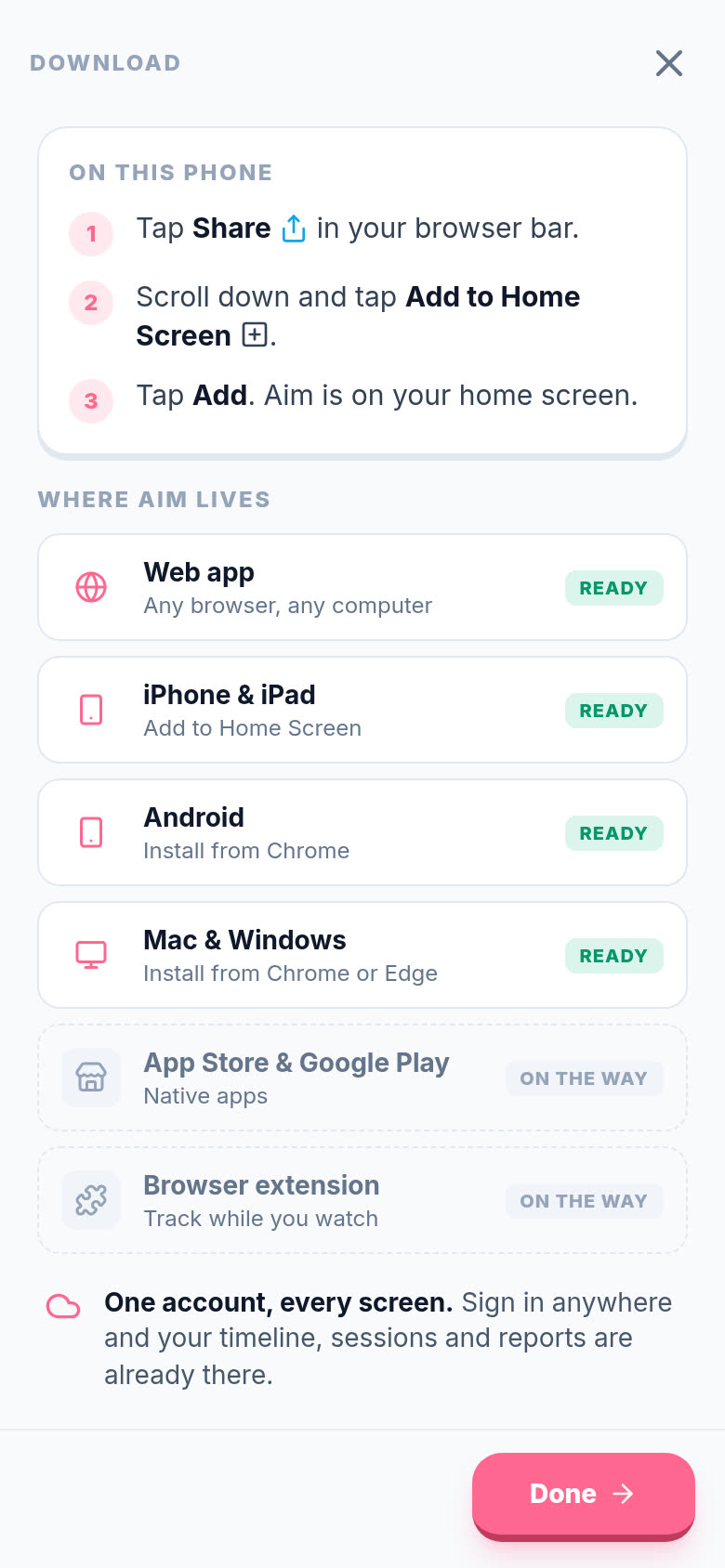
iPhone and iPad
- Tap Share in your browser bar.
- Scroll down and tap Add to Home Screen.
- Tap Add. Aim is on your home screen.
Android
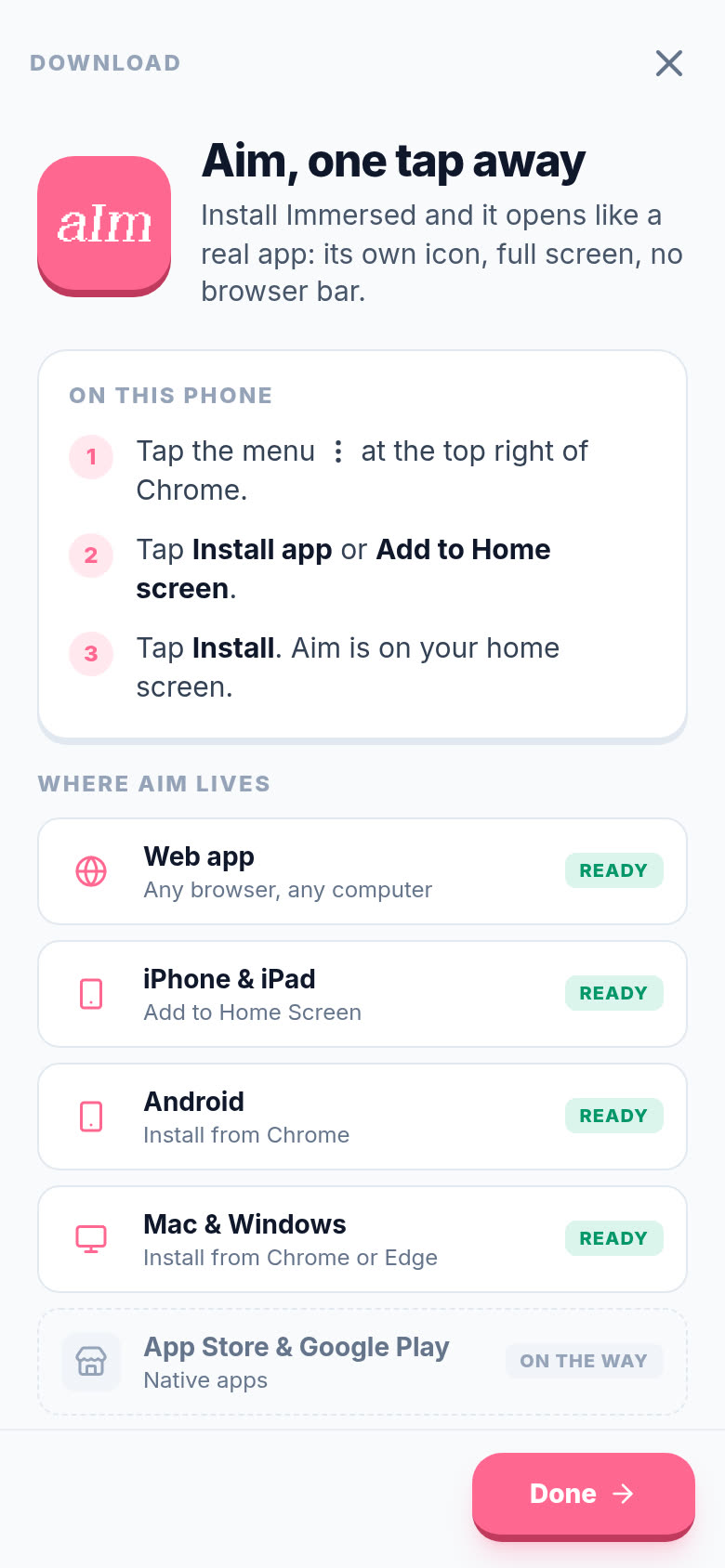
If Chrome is ready to install Aim, you get one pink Install Aim button. Tap it and you're done. If not, do it from Chrome's menu:
- Tap the menu (the three dots) at the top right of Chrome.
- Tap Install app or Add to Home screen.
- Tap Install. Aim is on your home screen.
Mac and Windows
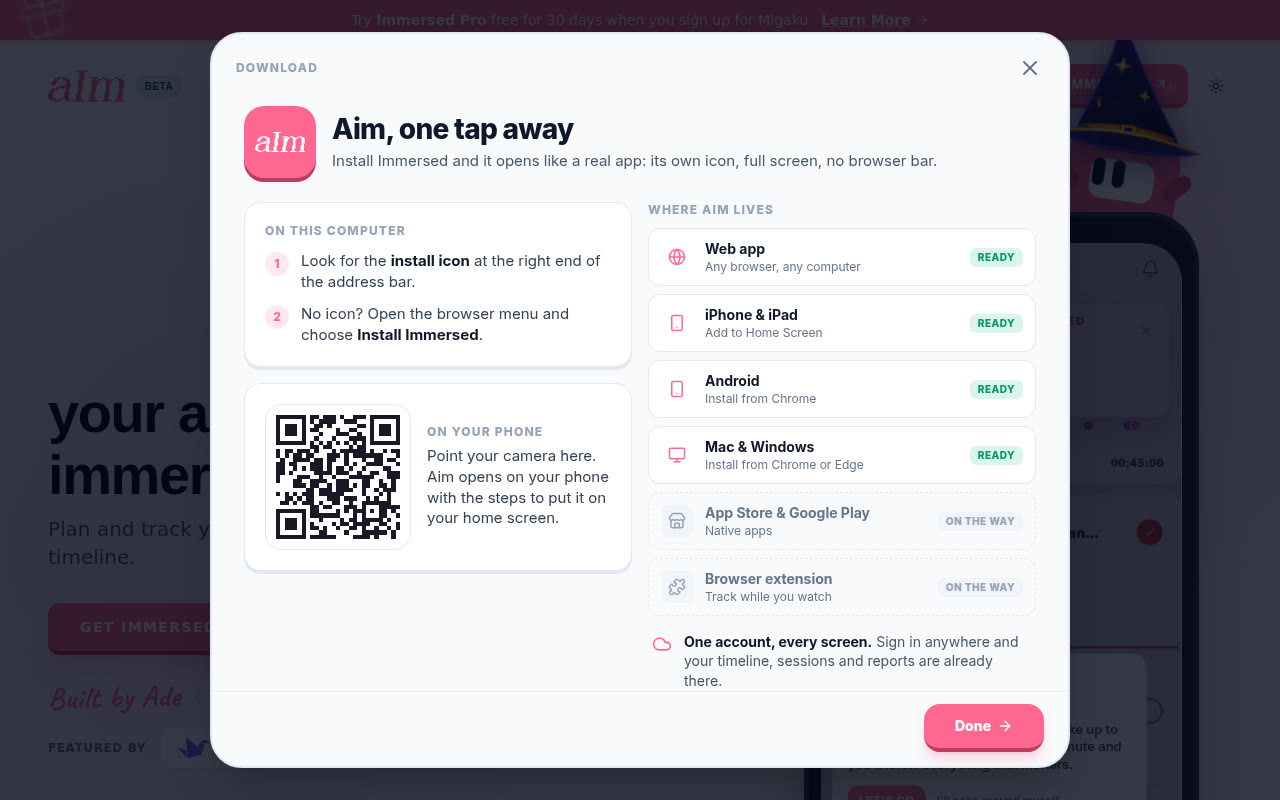
Chrome or Edge. If the browser is ready to install Aim, you get the Install Aim button, like on Android. If not:
- Look for the install icon at the right end of the address bar.
- No icon? Open the browser menu and choose Install Immersed.
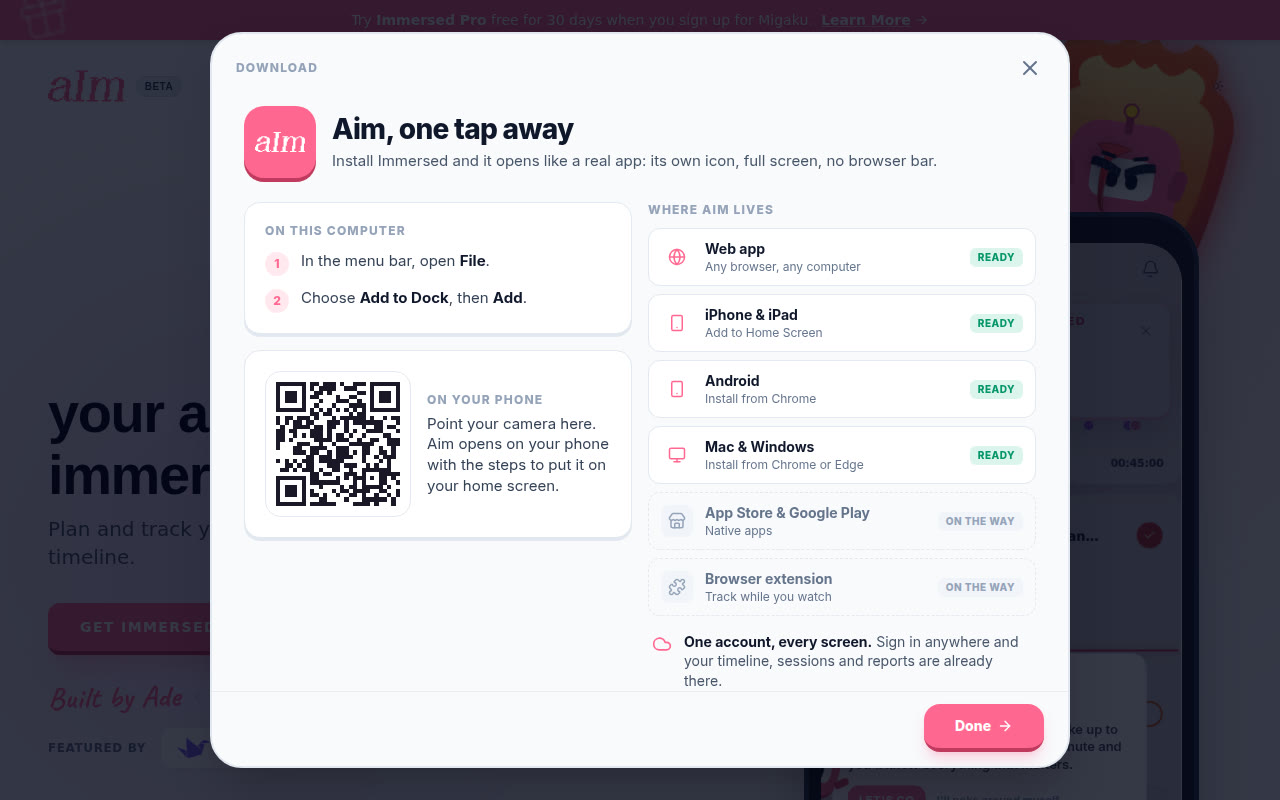
Safari on a Mac.
- In the menu bar, open File.
- Choose Add to Dock, then Add.
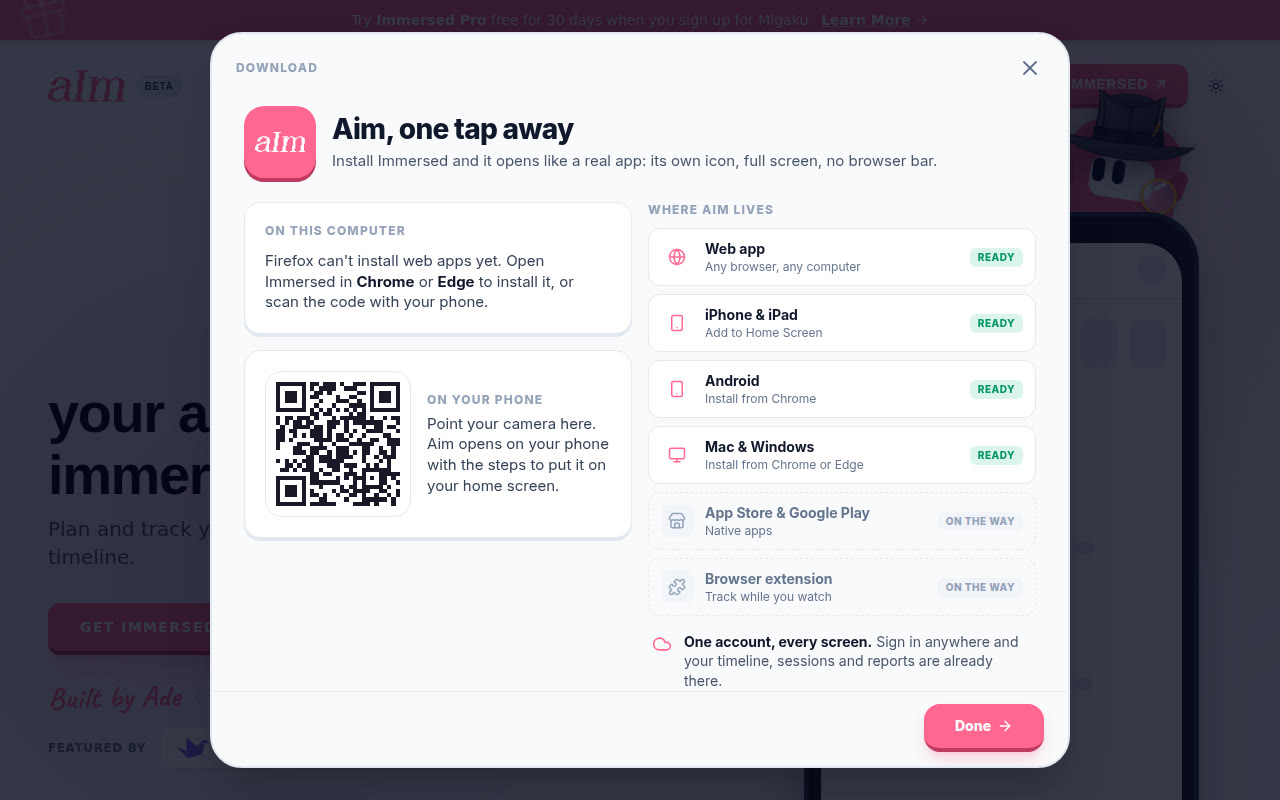
Firefox. Firefox can't install web apps yet. Open Immersed in Chrome or Edge to install it, or scan the QR code with your phone.
How do I get Aim on my phone from my computer?
On a computer, the Download screen has a QR code under On your phone.
- Point your phone's camera at the code.
- Open the link. Aim opens on your phone with the Download screen already up, showing the steps for that phone.
- Follow them, and Aim is on your home screen.
Any Aim link with ?get=aim on the end does the same thing, so you can also send one to yourself. You don't need to be signed in to see the steps.
Where does Aim run?
The Where Aim lives list on the Download screen keeps it honest:
- Ready: the web app (any browser, any computer), iPhone & iPad, Android, Mac & Windows, and the Chrome extension (Chrome, Edge, Brave and Arc). Tap Get it on the extension's row to open its Chrome Web Store page.
- On the way: App Store & Google Play apps.
When your browser can install Aim, your device's row turns pink and says "This device: tap to install". Tap it to install.
Does everything sync?
Yes. One account, every screen. Sign in anywhere and your timeline, sessions and reports are already there. Start a session on your laptop and check it on your phone later.
Good to know
- Already installed? The Download screen says "You're in the app. Aim is already installed here." Inside the installed app, the Settings row and the "Loving Immersed?" card don't show up.
- Installing is free. What you can do inside is the same as in the browser. See What can I do without Pro?.
- Close it with Done, the X, or the Esc key on a computer.
- iPhone uses Share. On an iPhone or iPad there's no install button. Add to Home Screen from the Share menu is the way.