How do I use the timeline guide (the ? button)?

Tap the ? next to Today. It opens the timeline guide: a set of topic cards with little demos, and buttons that point at the real thing on your screen.
How do I open it?
Any of these:
- Tap the ? next to Today at the top of your timeline (phone and desktop).
- On desktop, press ? on your keyboard.
- Open Help & Support and tap Timeline guide. On a phone, Help & Support is in the menu (the three lines at the top left). On desktop it's at the bottom of the sidebar.
- Go to Settings, then Help, then Tours and shortcuts, and tap Timeline guide.
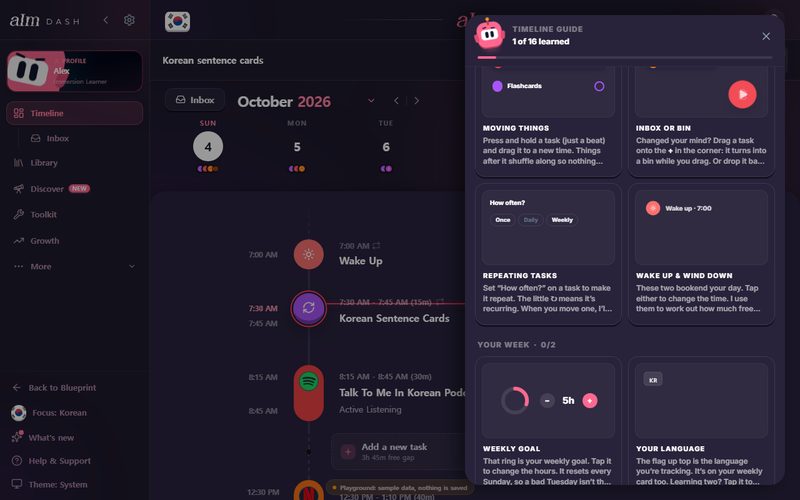
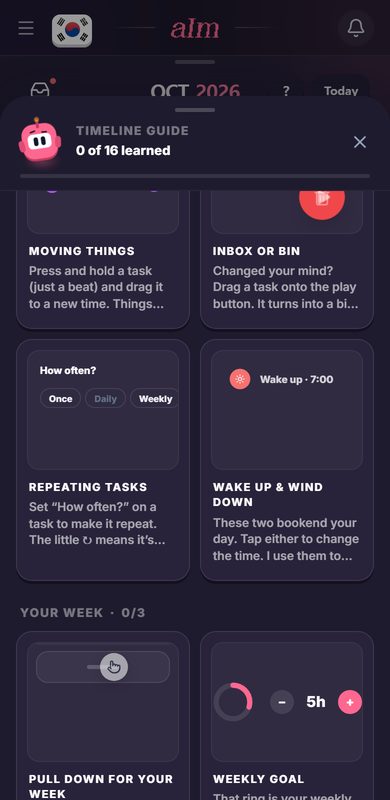
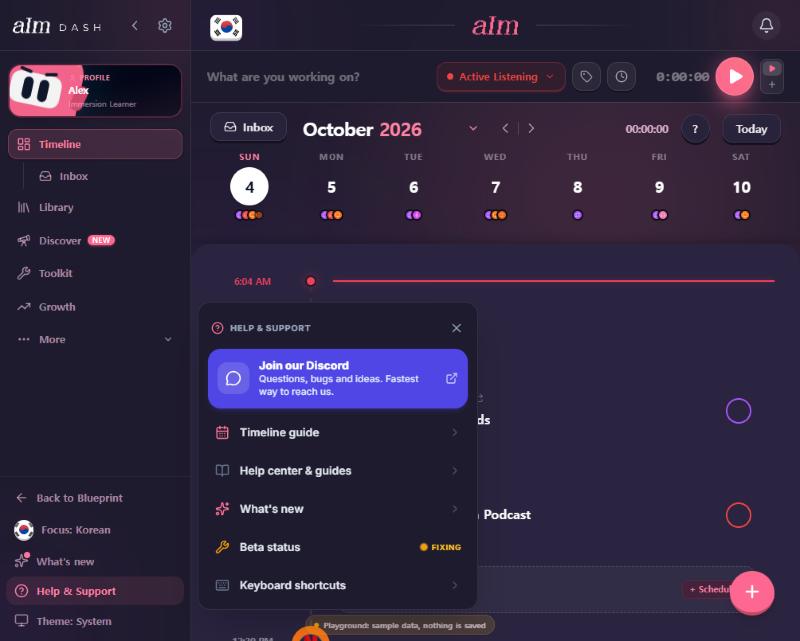
On a phone it's a sheet that slides up. Drag it down to close. On desktop it's a panel on the right.
What's in it?
There are 16 topics in five sections. Each card has a looping demo and a short explanation.
| Section | Topics |
|---|---|
| Basics | Your day, Switching days, Adding a task, Your inbox |
| Sessions | The play button, While you're immersing, Ticking things off |
| Planning | Moving things, Inbox or bin, Repeating tasks, Wake up & wind down |
| Your week | Pull down for your week (phone only), Weekly goal, Your language |
| Extras | Discover scroll, Stacked items, Shortcuts (desktop only) |
How do I use a card?
-
Tap a card to open it.
-
Read it and watch the demo. Opening a card counts it as learned.
-
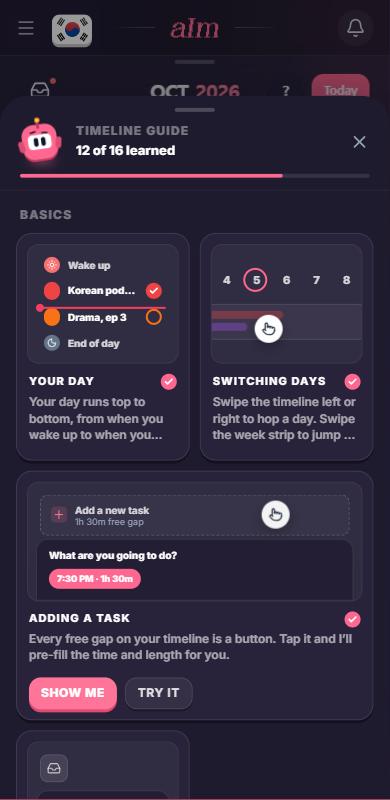
Some cards have two buttons:
-
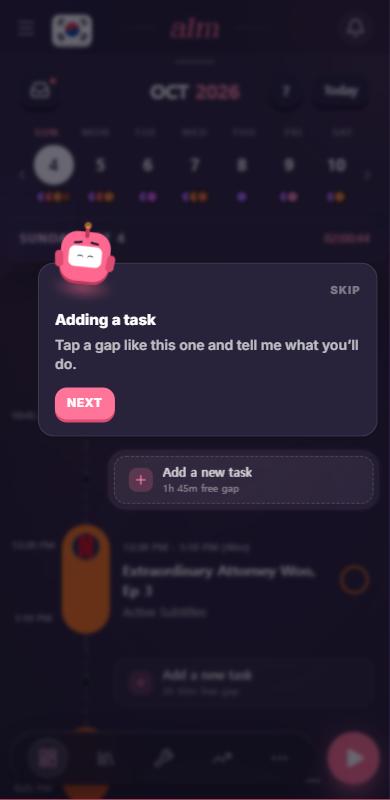
SHOW ME closes the guide and spotlights the real thing on your timeline, with a short note from Aim. Tap Next to move on.
-
TRY IT does the same, then waits until you actually do it and cheers when you have.
-
You don't have to tap Next every time. If you just do the thing the card is pointing at (tap play, add the task, change the day, type into the inbox and press Enter), SHOW ME moves on by itself. The inbox card has a TRY IT too. The guide keeps working over sheets like the inbox, so you can tap right through it.
If the thing a card is about isn't on screen today (like a repeating task), Aim says so instead of pointing at nothing. Some topics need today's timeline, so SHOW ME hops you back to today first.
How do I see how much I've learned?
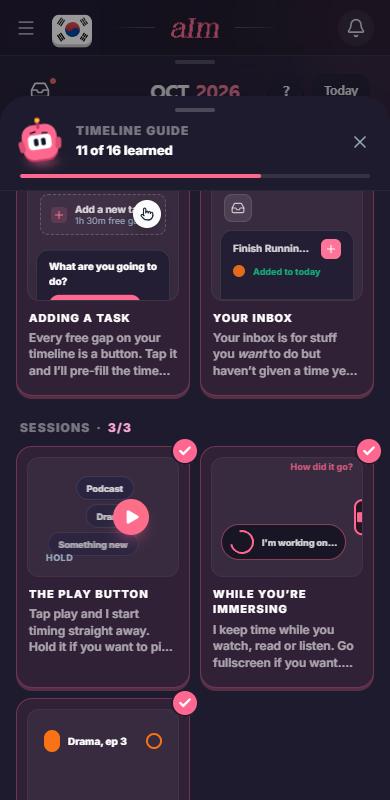
At the top of the guide it says "N of 16 learned" with a progress bar. Each section header shows its own count, like "Sessions 3/3", and learned cards get a tick.
Good to know
- Phone vs desktop. "Pull down for your week" only shows on a phone. "Shortcuts" only shows on desktop. The wording of a few cards changes too (swipe on a phone, press the arrow keys on desktop).
- Keyboard shortcuts on desktop: left and right arrow keys switch days, Esc closes things, ? opens this guide.
- At the bottom of the guide: Replay the first-day tour, and "Still stuck? Poke me on Discord".
- Try it first. The sample app has the guide too. See Can I try Aim without an account?.
- While you're immersing now tells you about pasting a link as the session's name. See How do I add a video, podcast or article to my session?.
- The old four-card slideshow that used to appear on the timeline is gone. This replaces it.