How do I start a session?

Tap the pink play button. The timer starts straight away. Hold it instead if you want to pick what you're doing first.
Steps
-
Tap the play button. On a phone it's the pink circle at the bottom right. On desktop it's the play button in the bar at the top, next to "What are you working on?".
-
The timer starts right away, with no setup screens. It uses your play settings. By default that means it repeats your last activity (with its title and link) and sets a 30-minute goal. A full-screen view opens: the clock inside a ring, your goal under the clock, the title, and a line under the title with the activity.
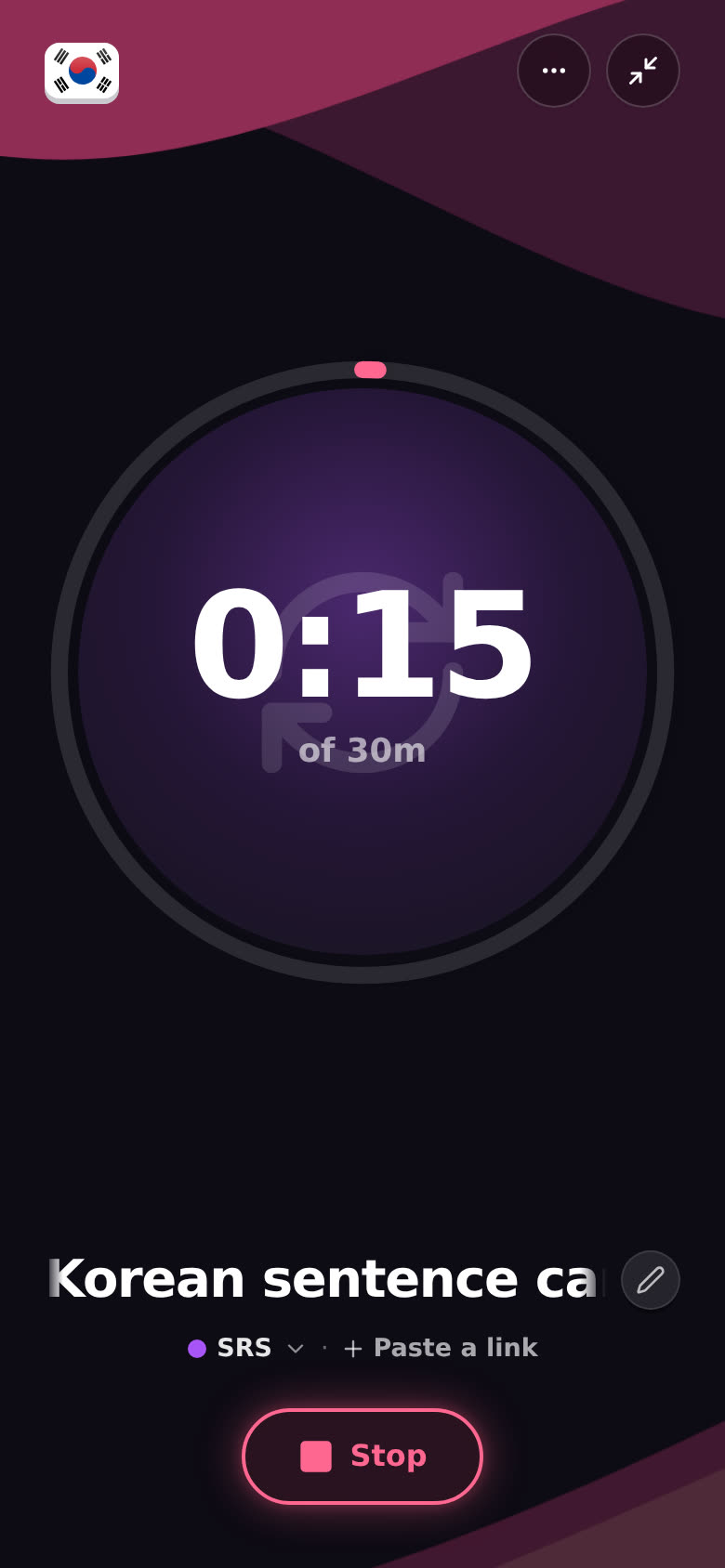
The ring fills up as you head for your goal. The flag in the top left is the language you're counting toward. The first time you land here, I'll point at the title and say "Paste a link here." (See Can I paste a link as the name?.)
-
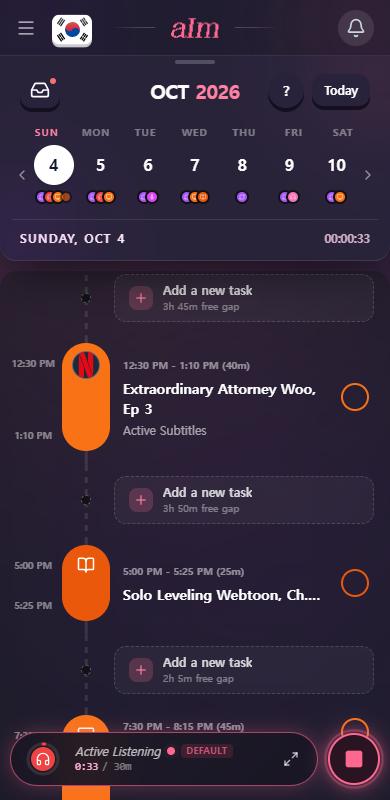
Tap the small arrows at the top right to shrink it. Your session now lives in a bar at the bottom of your timeline, with the time so far and your goal. Tap the arrows on the bar to go full screen again.
-
Go watch, read or listen.
-
When you're done, tap Stop. The time lands on your timeline.
How do I pick what I'm doing first?
-
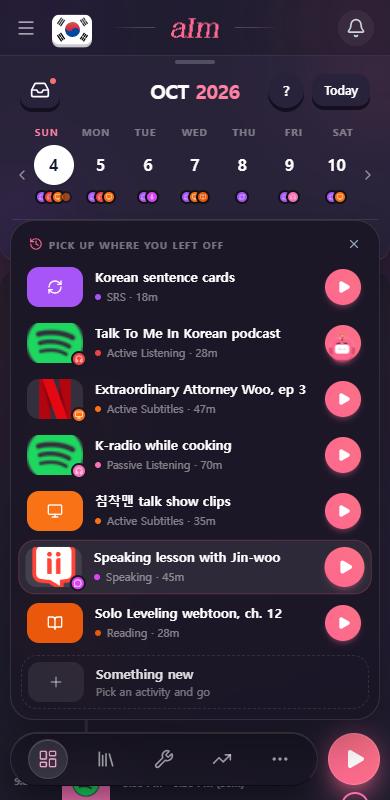
Hold the play button for about half a second. A list opens called "Pick up where you left off", with your recent things. Tap one to start it. You can also keep your finger down, slide onto a row, and let go.
-
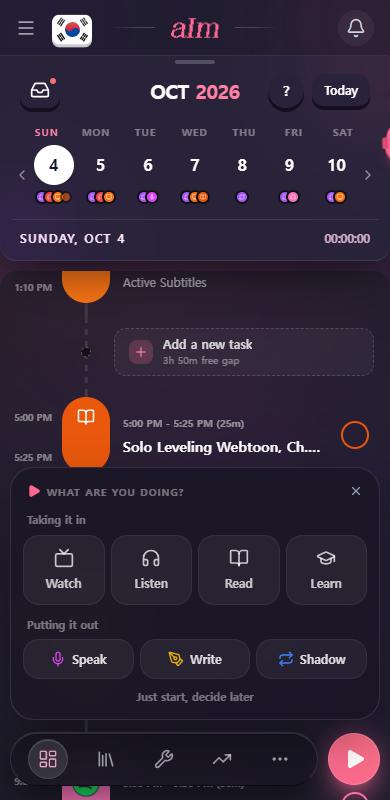
Want something new? Tap Something new. Then pick Watch, Listen, Read or Learn (taking it in), or Speak, Write or Shadow (putting it out).
-
Don't know yet? Tap Just start, decide later. The timer runs as "No activity" and you choose later. See Why did my task's name change back to the old activity?.
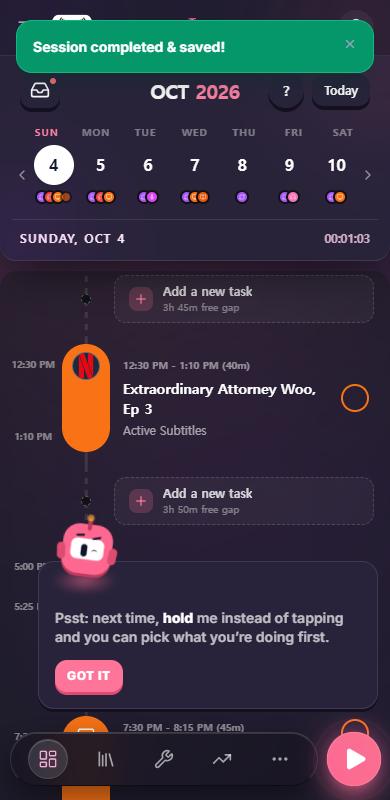
After your first session, I'll pop up once to remind you about holding play.
How do I name my session?
-
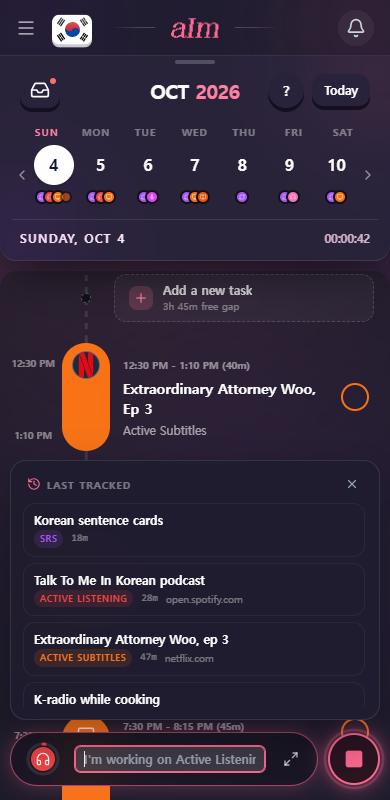
Tap the title in the session bar. It opens an empty box ("I'm working on...") with your recent things underneath.
-
Type a title, like "Talk To Me In Korean ep 12", and press Enter.
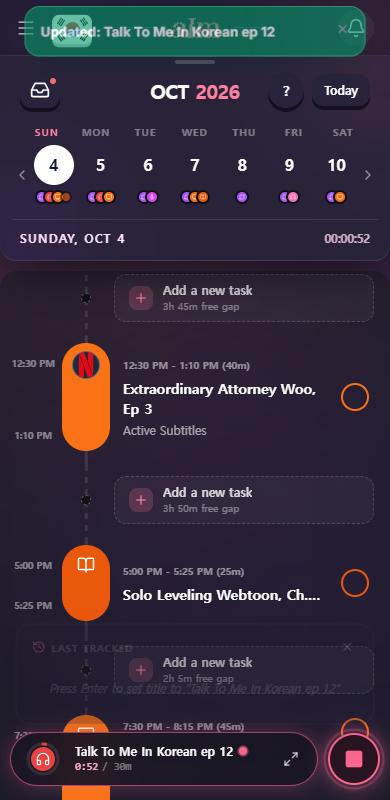
Until you add a title, the bar shows the activity in italics with a small DEFAULT tag.
In fullscreen, tap the title (or the pencil next to it). On a phone a box drops down from the top that says "Name it, or paste a link", with your recent things under it. A long title doesn't get cut off. It glides along so you can read all of it.
Can I paste a link as the name?
Yes, and it's the best trick in here. Paste a YouTube video, a podcast episode or an article, press Enter, and I fill in the title, the channel and a picture, and pick the activity for you. YouTube plays right in the session. Spotify and Apple Podcasts get their official players. The full story is in How do I add a video, podcast or article to my session?.
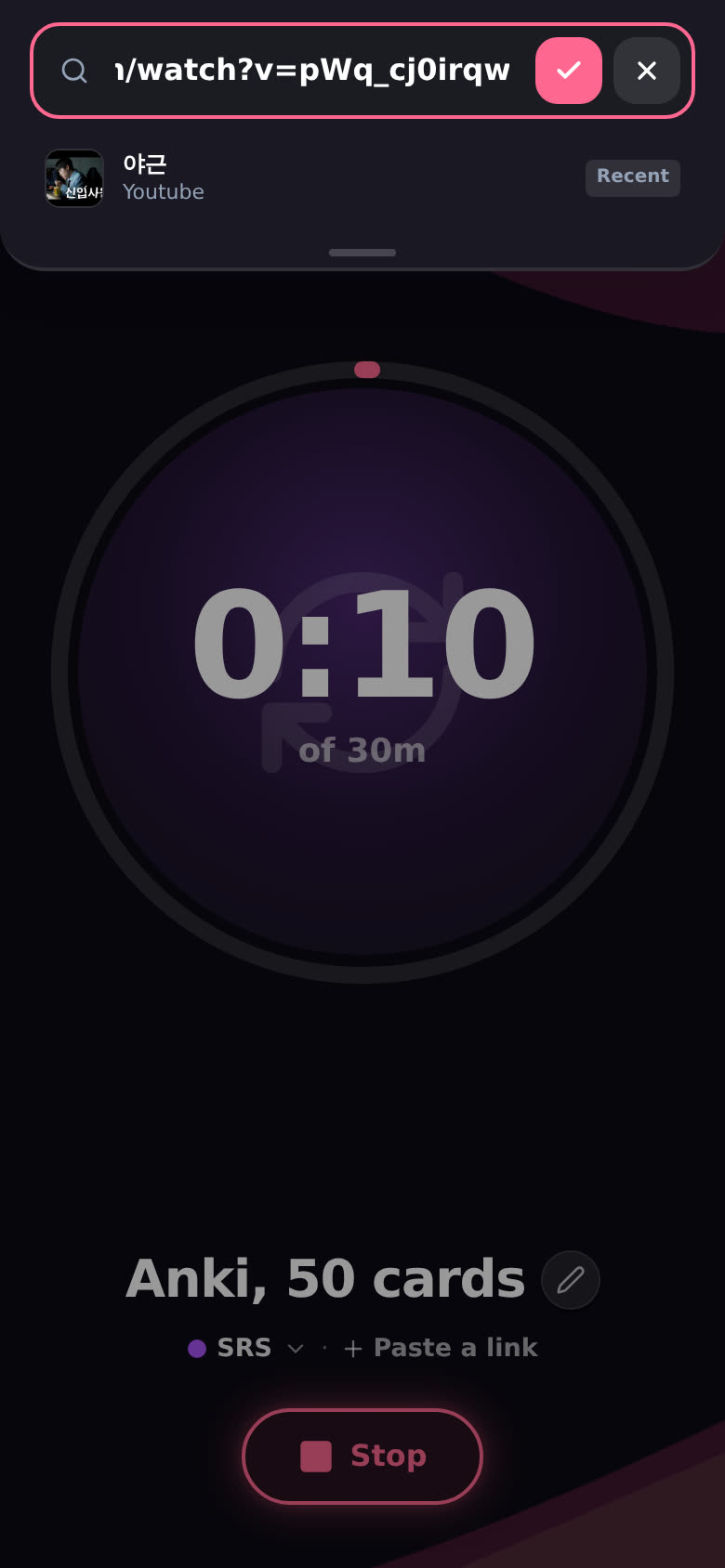
No link yet? There's a + Paste a link next to the activity in fullscreen too. Pasting works the same in fullscreen, in the phone's session bar and in the desktop session bar.
How do I change the goal?
Tap the clock. Your goal sits right under it ("of 30m"), and tapping the clock opens Goal for this one. Pick 15, 25, 30, 45, 60 or 90 minutes, or nudge it with −10m, +5m or +15m. I say "Session goal set to …" and the ring follows.
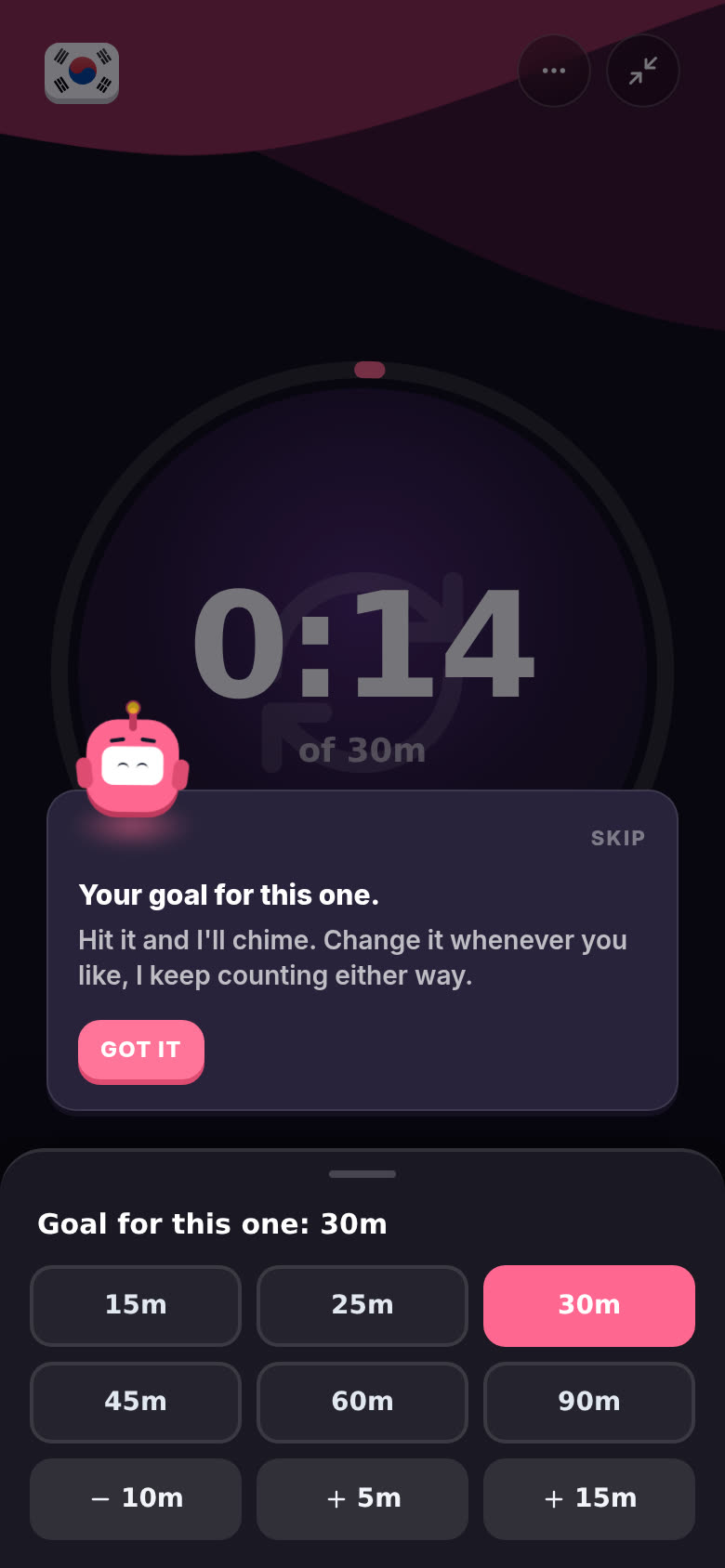
No goal yet? Under the clock it says Set a goal. Tap it.
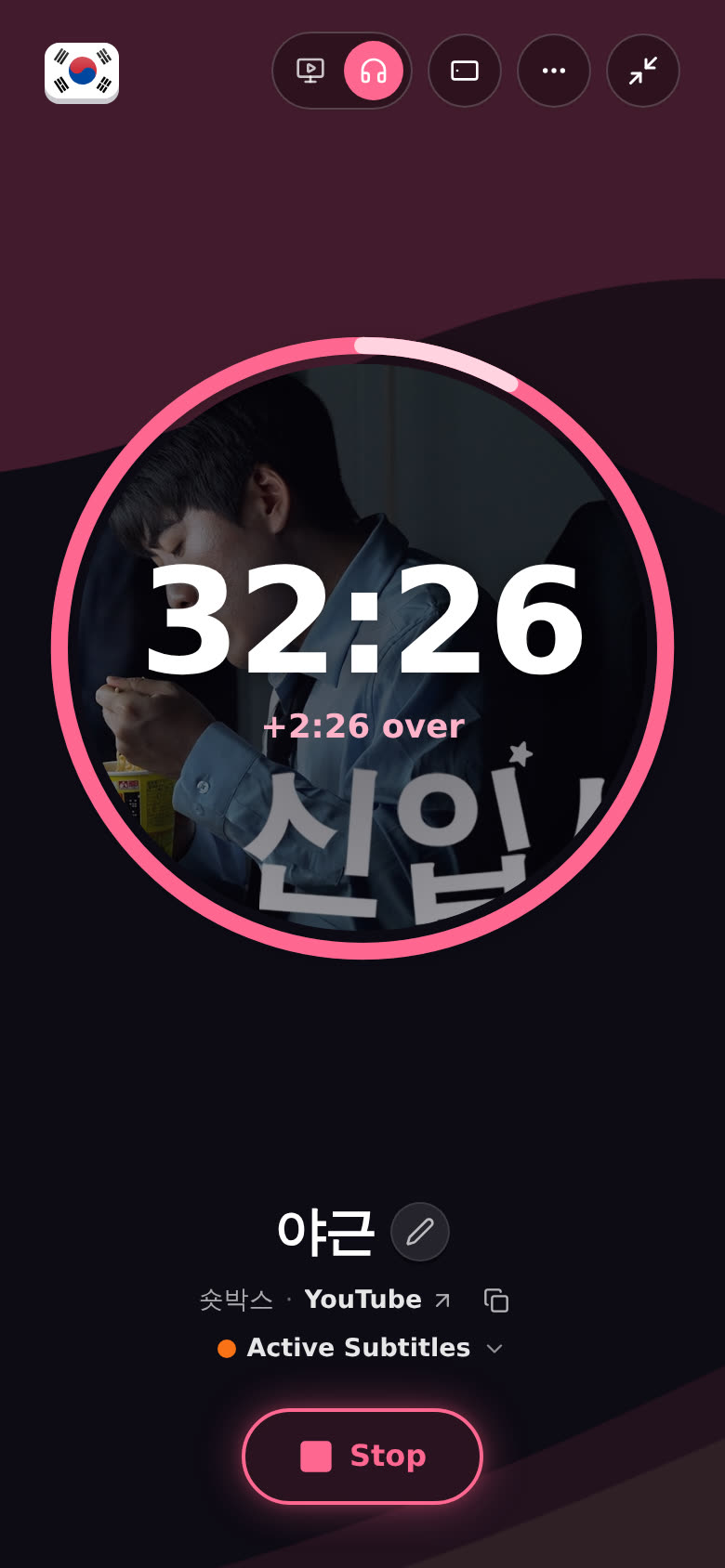
What happens when I hit it? I chime, the ring closes, and I show up to ride the wave at the bottom for a while (or peek over the ring when there's no room). The timer keeps going. Past your goal the ring stays full, and a second arc in a different pink runs around on top of it for the extra time. The line under the clock changes to "+2:26 over", and once you've done twice your goal it says "2× goal".
How do I change the activity?
In fullscreen, the activity is on the line under the title (the colored dot with a little arrow). Tap it. What are you doing? opens with your current one on top, ticked, and the rest underneath: No activity, Active Listening, Passive Listening, Active Subtitles, Reading, Shadowing, Speaking, Writing, Study and SRS.
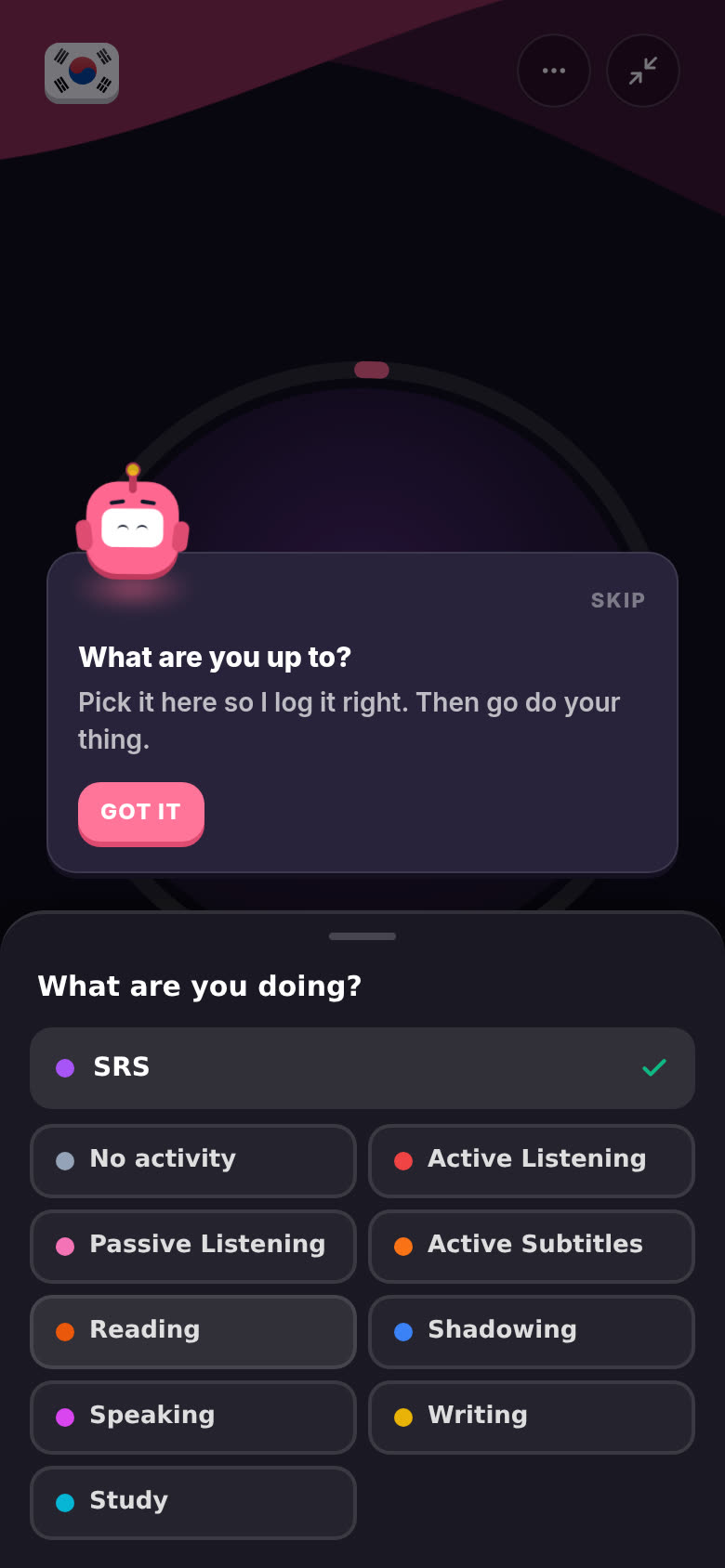
If you paste a link, I set the activity from the link (a video is Active Subtitles, a podcast is Active Listening, a page is Reading). Once you've picked one yourself, I stop changing it for that session.
How do I change the language of one session?
In fullscreen, the flag in the top left is the session's language. Tap it for a list called This session is in: your languages first, then All languages. Pick one and I say "This session is now …". You can also swipe the flag left or right to step through your languages. The flag slides over and the language's name shows for a second.
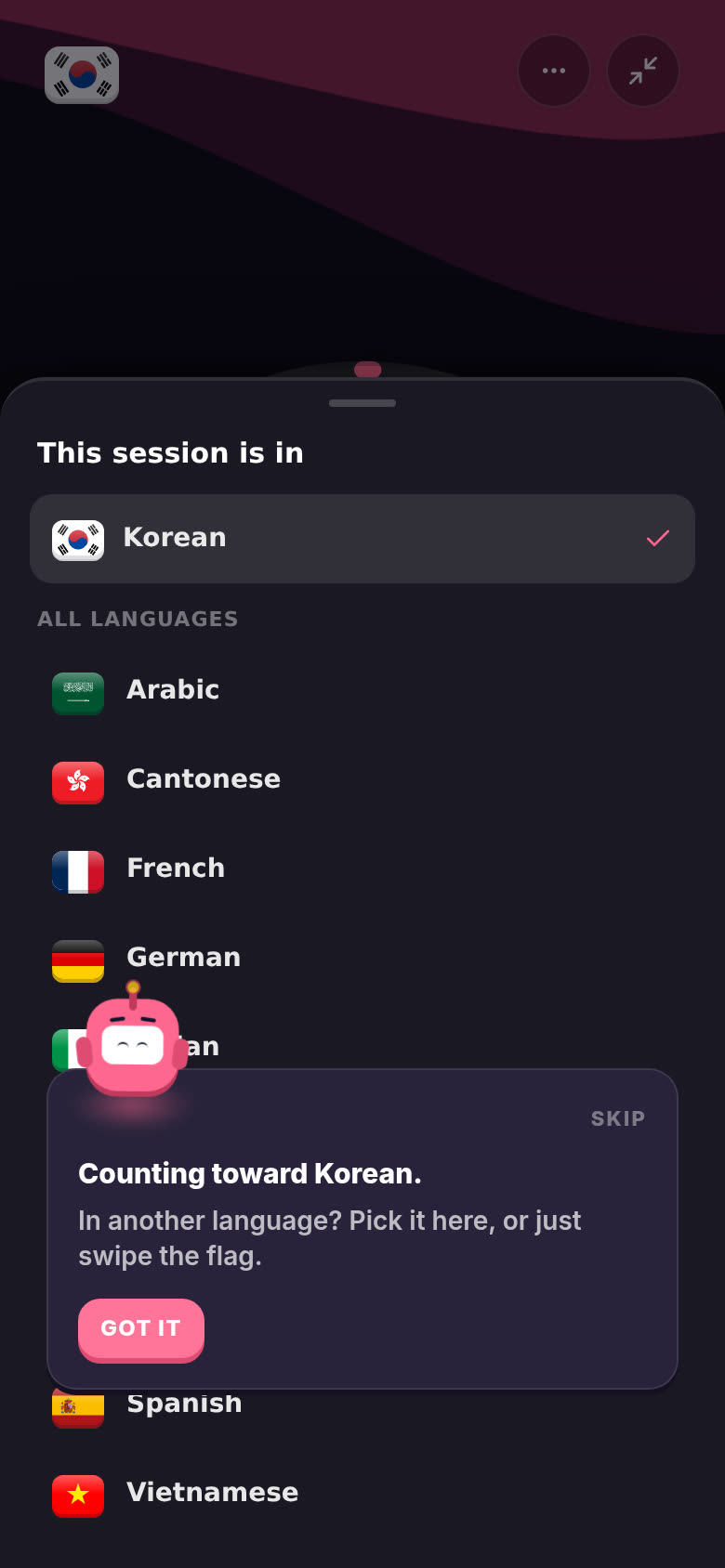
Handy when I guessed wrong, or when a link is in a different language from the one you've got equipped.
On a phone, these lists (the goal, the activity, the language, the More menu) slide up from the bottom of the screen, where your thumb is. Tap outside one to close it. On desktop they're small pop-ups next to the thing you clicked.
Can I change how fullscreen looks?
Yes, there are two layouts. Tap More (the three dots, top right). Under Display, Layout has two choices:
- Ring. The one you start with. The clock sits inside the ring. With a video or an episode, its picture fills the ring and the clock sits on top.
- Now playing. Like a music player: the picture big and square, then the title, then a smaller clock with a bar under it that fills up to your goal. Tap the clock or the bar to change the goal.
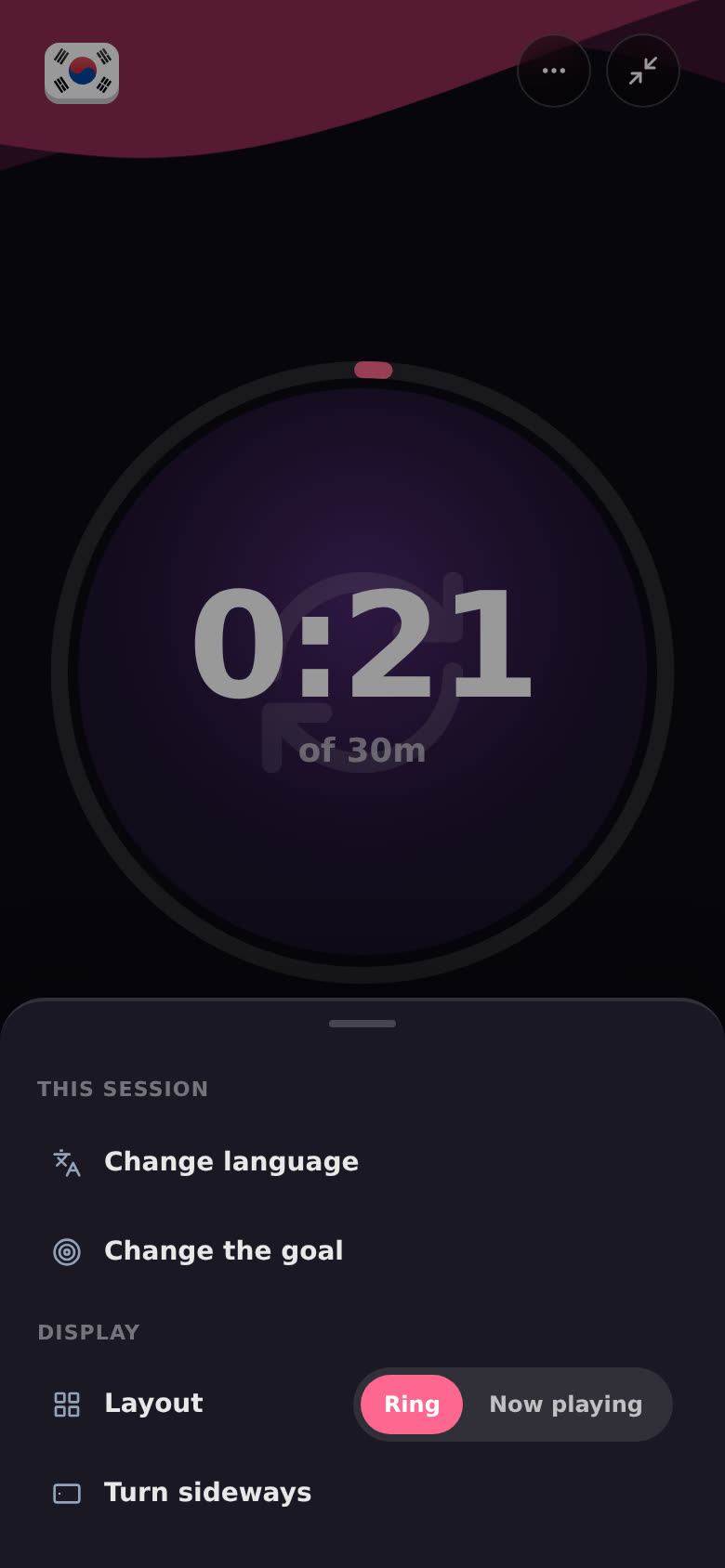
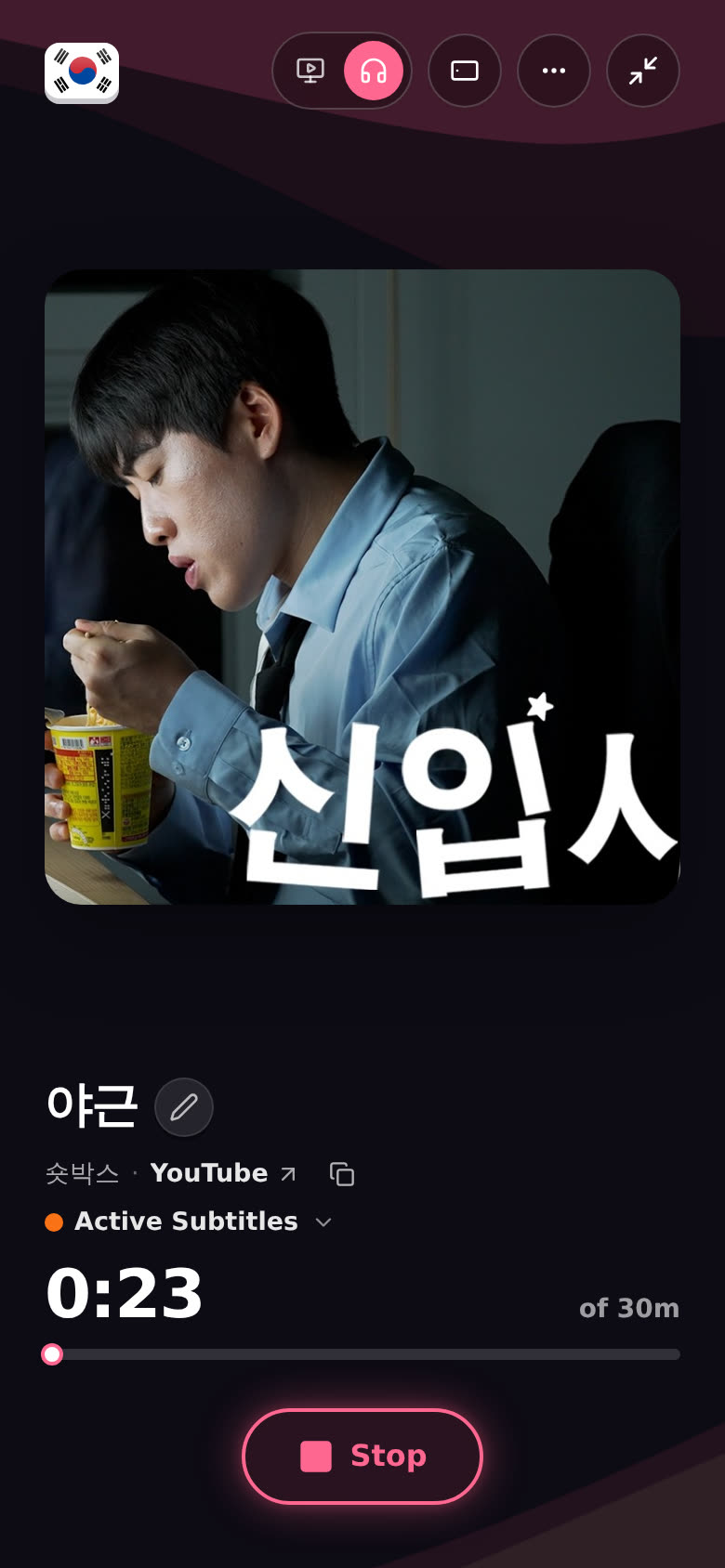
I remember your pick on this device. The More menu also has Change language and Change the goal (or Set a goal), if you'd rather find them there.
Can I turn it sideways?
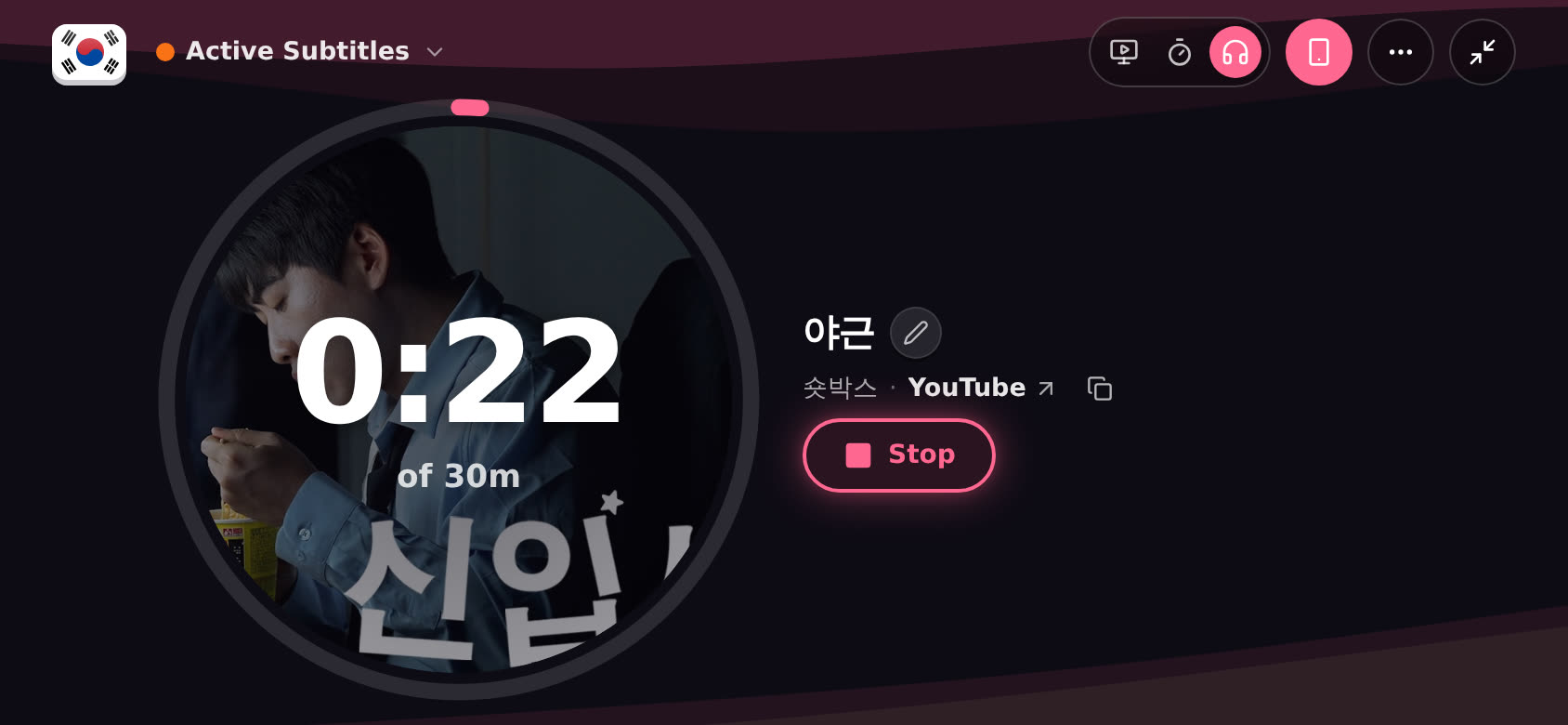
Yes. On a phone held upright, tap the little phone button at the top. With a video it sits in the row of buttons. Without one, it's Turn sideways in the More menu. The whole session turns on its side, even with your phone's rotation locked. Tap the button again (Back upright) to turn it back. If you actually turn your phone sideways, I hand things back to your phone.
What are the little tips from Aim in fullscreen?
The first time you do certain things in a fullscreen session, I pop up beside it with one short line. Each tip shows once per device. They never block the session: you can keep tapping things underneath.
- Paste a link here. The first time you open fullscreen with no link. It has a Try one button that plugs in a fun video in your language.
- Your goal for this one. The first time you open the goal.
- What are you up to? The first time you open the activity list.
- Counting toward Korean (or whatever your language is). The first time you open the flag.
- Your video's in / Your episode's in. The first time a link comes in.
- Watch, Timer view, Listen only, Video off here. The first time you pick each one.
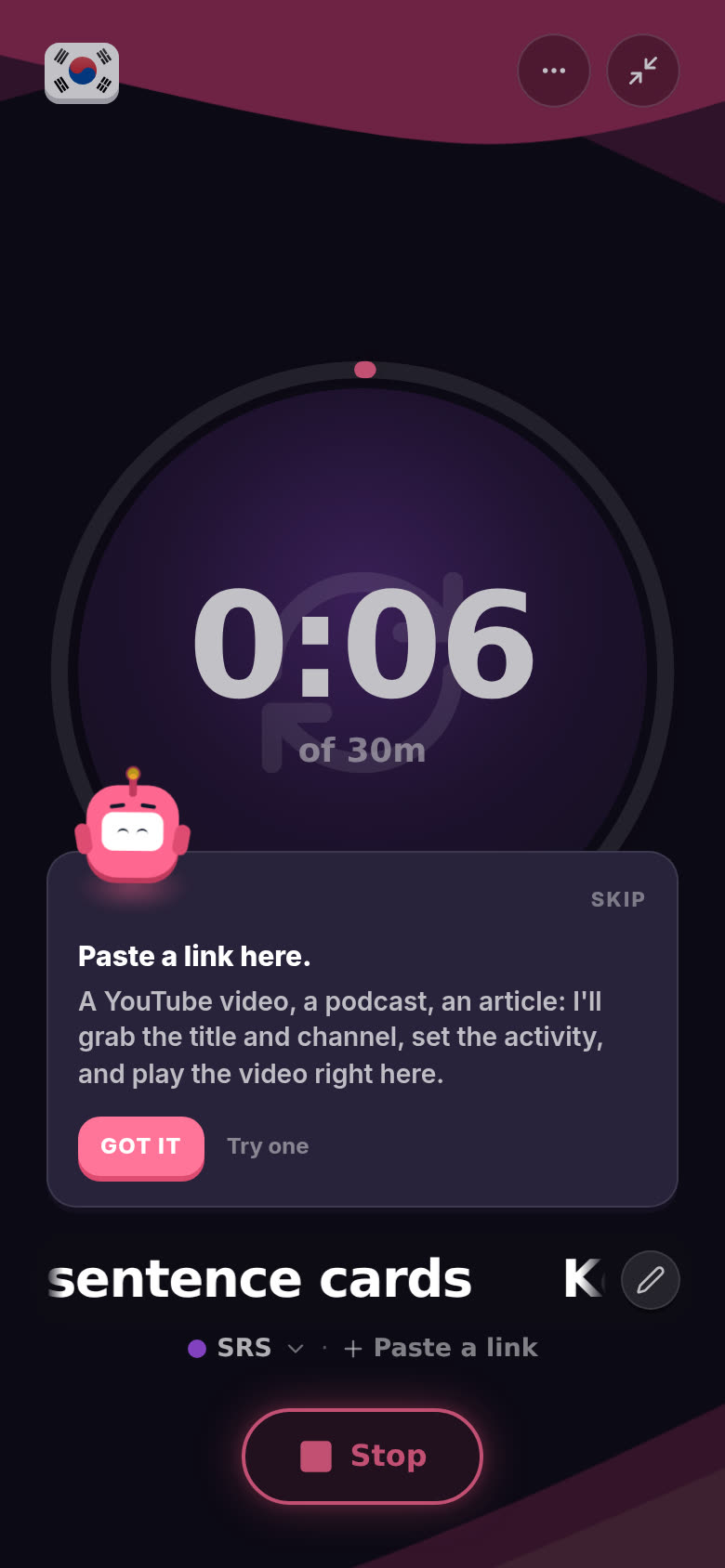
Tap Got it to close one. Tap Skip and you won't see any more fullscreen tips on that device. The tip also goes away on its own if you close the thing it's pointing at.
I only talk once at a time. If I'm busy fixing something on screen, a tip waits its turn. Tips also wait while the session is turned sideways.
How do I leave a note or throw a session away?
On a phone, slide the stop button in the session bar instead of tapping it:
- Slide up to write a note about how it went.
- Slide left to bin the session.
- Just tap to save it.
On desktop with a mouse, hold the stop button to write a note. More in What is "How did it go?" and do I have to fill it in?.
Good to know
-
One at a time. Play does nothing while a session is already running.
-
Change what play does. Settings, then Immersion. You can choose what play repeats, your default goal (5 to 360 minutes) and more. See How do I change what the play button does?.
-
Phone vs desktop. The gestures (hold, slide) are for touch screens. On desktop you click. On a wide screen, fullscreen puts the ring on the left and the title on the right.
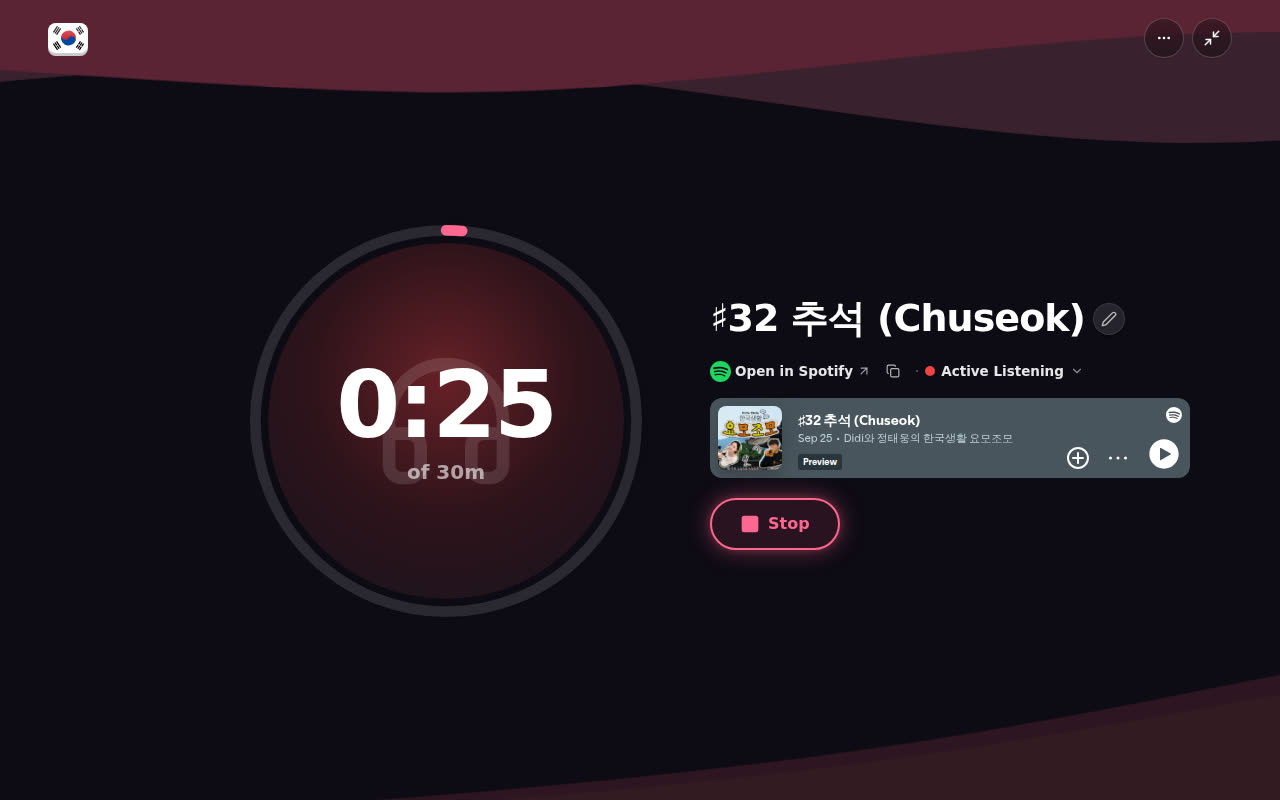
-
The goal on desktop. Right now play on desktop starts the timer without a goal. Tap Set a goal under the clock to add one.
-
Forgot to press play? You can log it afterward. See I forgot to start the timer. How do I log it afterward?.
-
Pro. Sessions run from the dashboard, which is part of Pro. The sample app lets you try one free. See Can I try Aim without an account?.
Why did my first tap on play show a couple of intro screens?
I used to show two intro screens before your first session. Now the first-day tour covers play, and a tap just starts the timer. If you'd like the play setup screen back, tap Show the Play setup again at the bottom of Settings, then Immersion. It shows up the next time you press play.
Related articles
- How do I add a video, podcast or article to my session?
- Can I listen to Spotify or Apple Podcasts inside Aim?
- What is "How did it go?" and do I have to fill it in?
- How do I change what the play button does?
- I forgot to start the timer. How do I log it afterward?
- How do I use the timeline guide (the ? button)?
- How does my timeline work?
- Why did my task's name change back to the old activity?