How do I add a video, podcast or article to my session?

Tap your session's name and paste the link. I grab the title, the channel (or show, or author) and a picture, and I set the activity for you. YouTube links play right inside the session.
Steps
-
Start a session. Tap the pink play button, or hold it to pick what you're doing. See How do I start a session?.
-
Tap the session's name:
- Fullscreen: the big title (or the pencil next to it). With no link yet, + Paste a link under the title does the same.
- Phone, shrunk down: the name in the session bar at the bottom.
- Desktop: the name in the session bar.
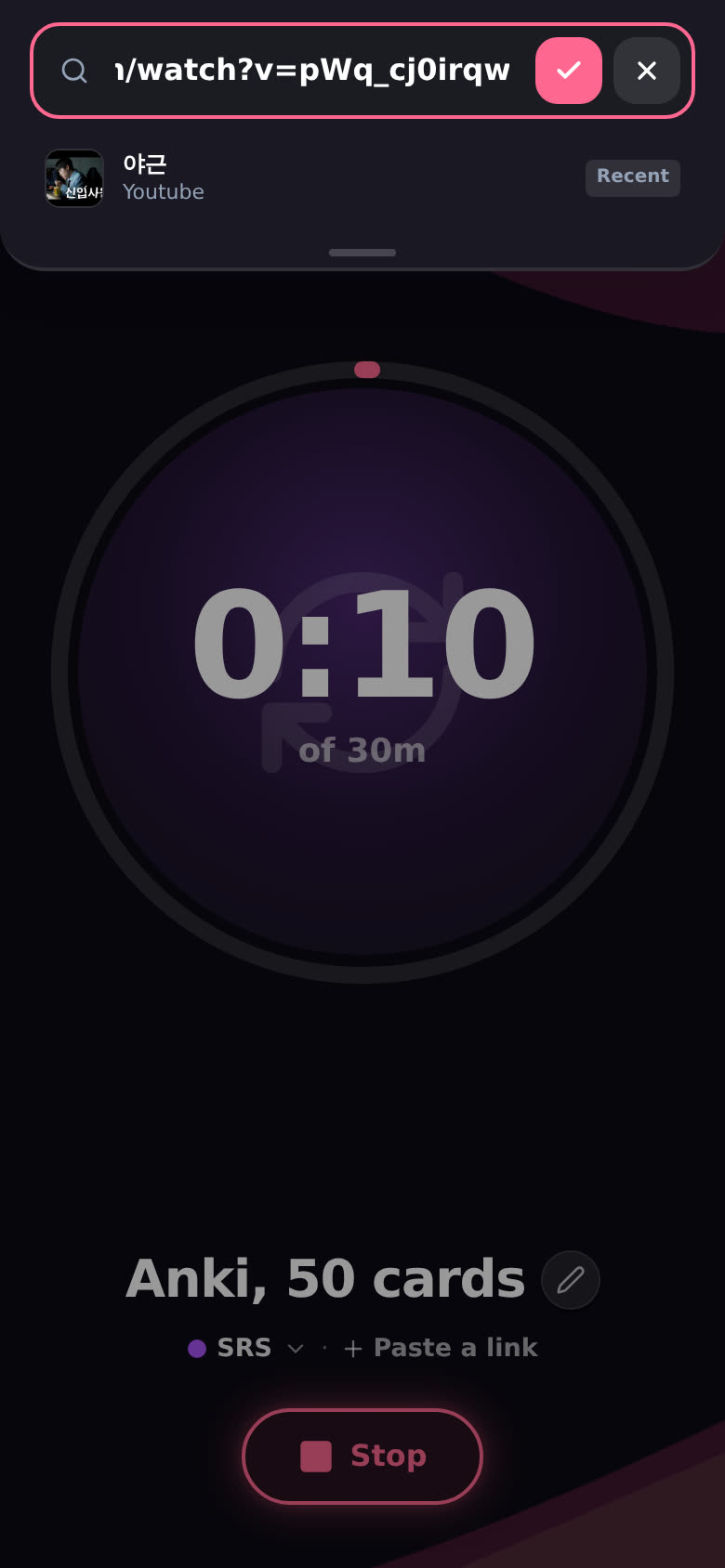
A box opens with your recent things underneath. In fullscreen it says "Name it, or paste a link", and on a phone it drops down from the top so the keyboard doesn't cover it.
-
Paste the link and press Enter (or tap the tick).
-
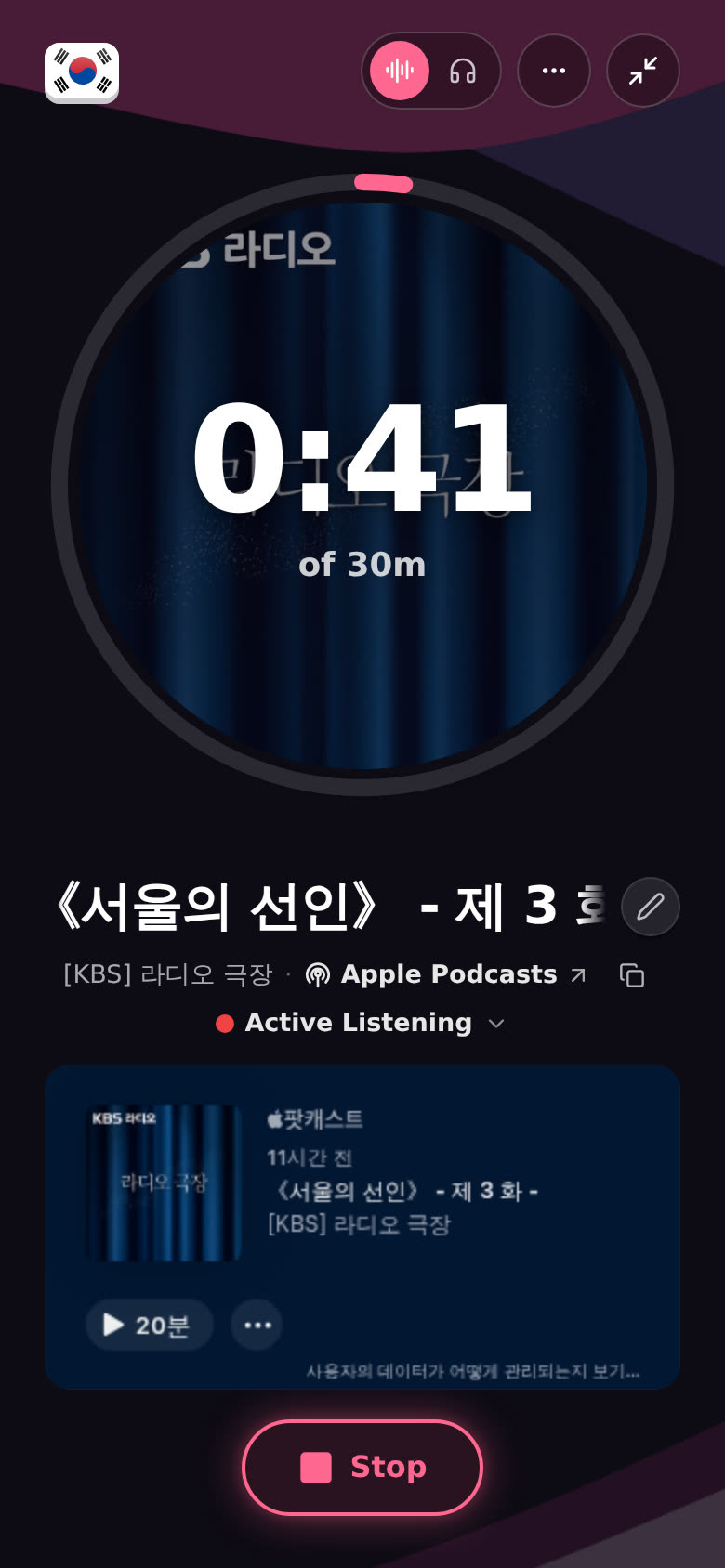
Give me a second while I look it up. Then the session has:
- The real title of the video, episode or article, instead of the link.
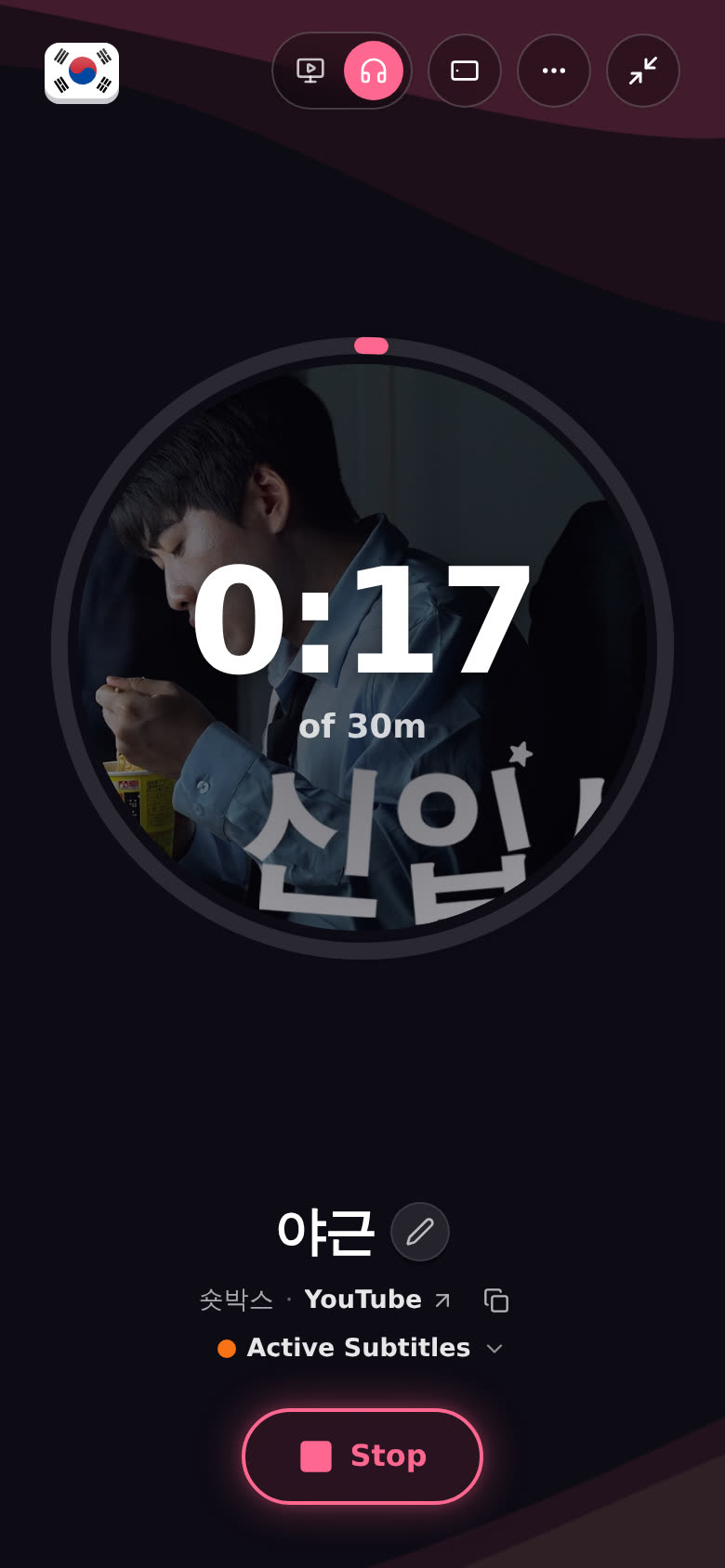
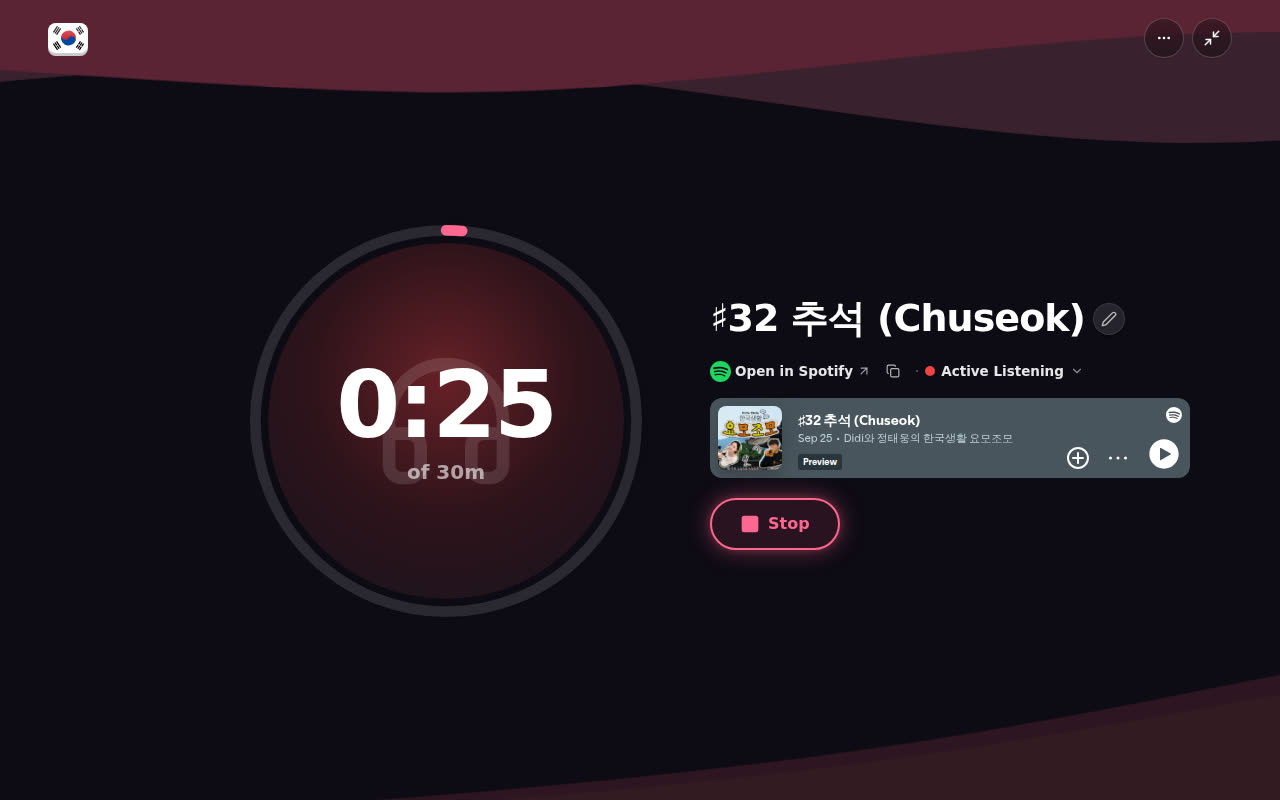
- Who made it and where it lives. The line under the title reads "channel · site", like "숏박스 · YouTube" or "[KBS] 라디오 극장 · Apple Podcasts".
- A picture. In fullscreen it fills the ring (or the big square in the Now playing layout), and later it shows on your timeline.
- The activity. More on that below.
-
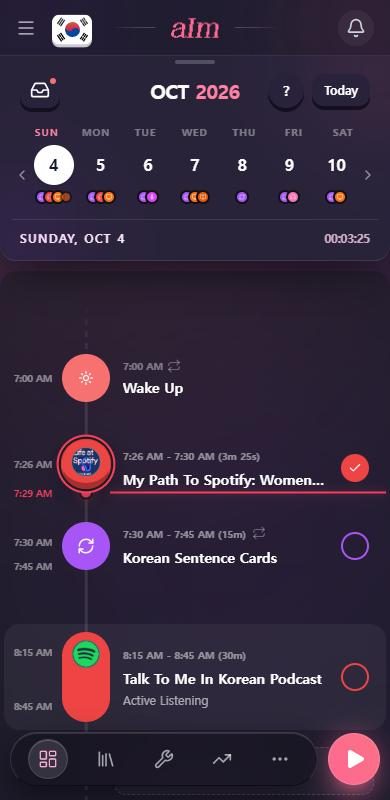
Go watch, listen or read. When you stop, the time lands on your timeline with that title and picture.
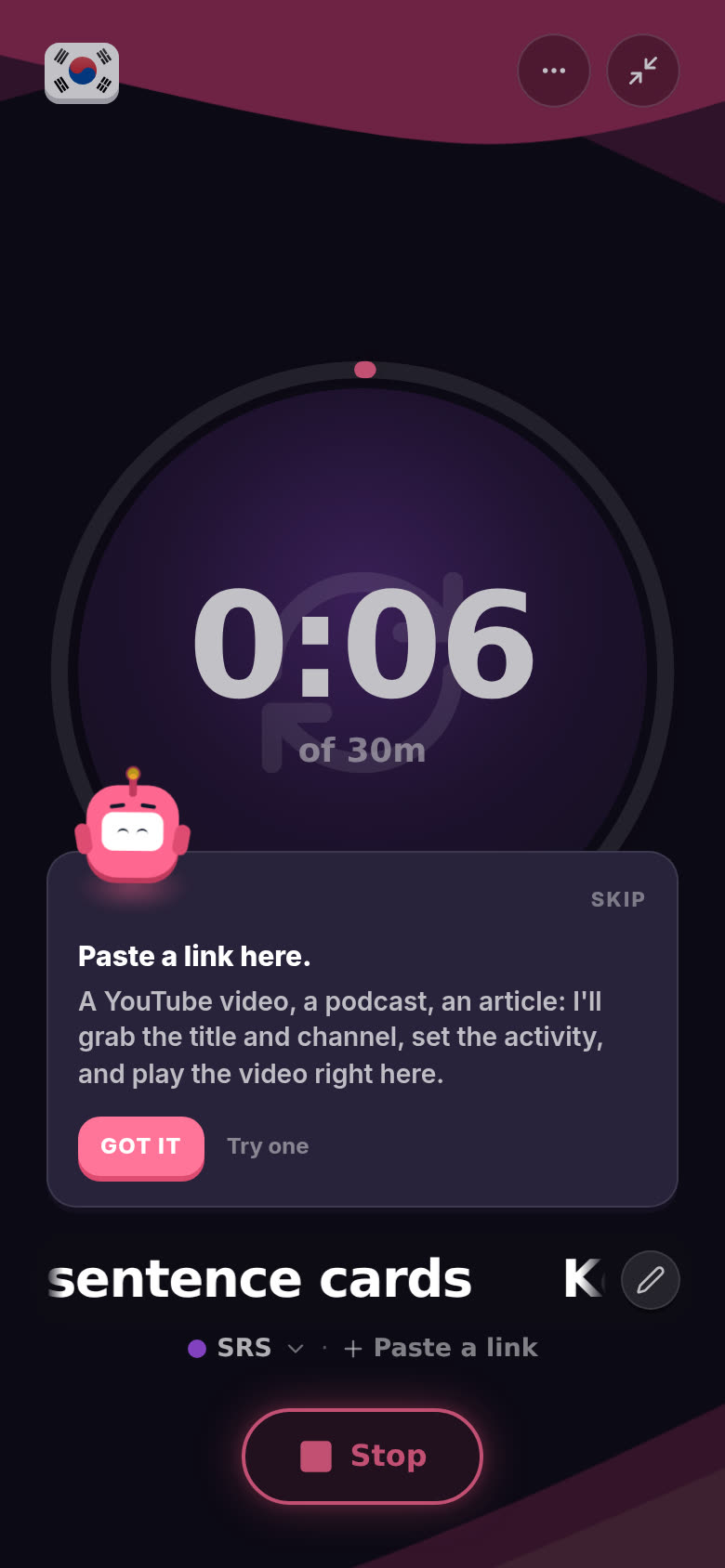
Can't be bothered to find a link? When you start your very first fullscreen session, I'll point at the name and say "Paste a link here." Tap Try one and I'll plug in a fun video in the language you're learning.
Which activity do I pick for you?
I look at what kind of link it is:
| The link is… | Activity |
|---|---|
| YouTube, Netflix, Disney+, Viki, Crunchyroll, Twitch, Vimeo, TikTok and other video sites | Active Subtitles |
| Spotify, Apple Podcasts, SoundCloud, and most podcast hosts | Active Listening |
| Anki, Migaku, Memrise and other flashcard sites | SRS |
| Zoom, Meet, italki, Preply and other call sites | Speaking |
| Any other page | Reading |
If you already picked the activity yourself during this session, I leave it alone. Your pick wins. You can change it any time by tapping the activity in fullscreen.
Which links play inside Aim?
- YouTube (a video, a playlist or a channel) plays right in the session. You choose how to see it. See below.
- Spotify and Apple Podcasts play in their own official players. See Can I listen to Spotify or Apple Podcasts inside Aim?.
- Everything else (Netflix, an article, a flashcard site) gets the title, picture and activity, and the line under the title takes you to it. I keep the time while you watch or read there.
What's on the line under the title?
Everything about the link lives on one line under the title:
- Who made it. The channel, the show or the author.
- Where it lives. The site's name with a small arrow, like YouTube ↗. Tap it to open the original in a new tab. For Spotify it's the Spotify logo and Open in Spotify. If a YouTube video or Spotify episode was playing in Aim, I pause it first so you don't hear it twice, and YouTube opens at the same moment you were at. (Apple's player can't be paused from here, so pause it yourself.)
- Copy link. The little copy button right next to it. One tap, no menu. Lots of people paste the link into Migaku or another sentence-mining tool. It turns into a tick when it's copied.
- The activity. On its own line underneath on a phone. Tap it to change it.
What are the buttons at the top of a session with a link?
Fullscreen keeps a short row of buttons at the top right.
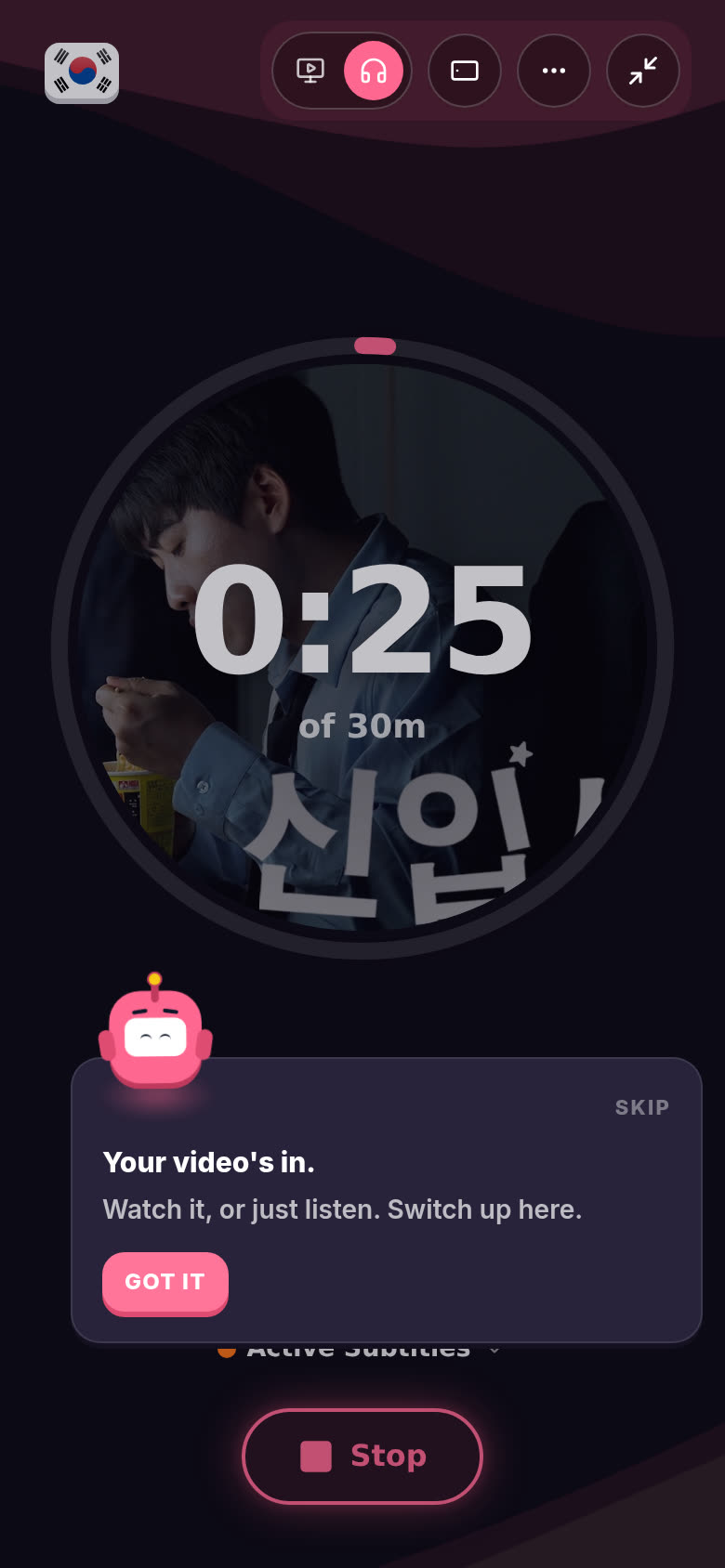
From left to right:
-
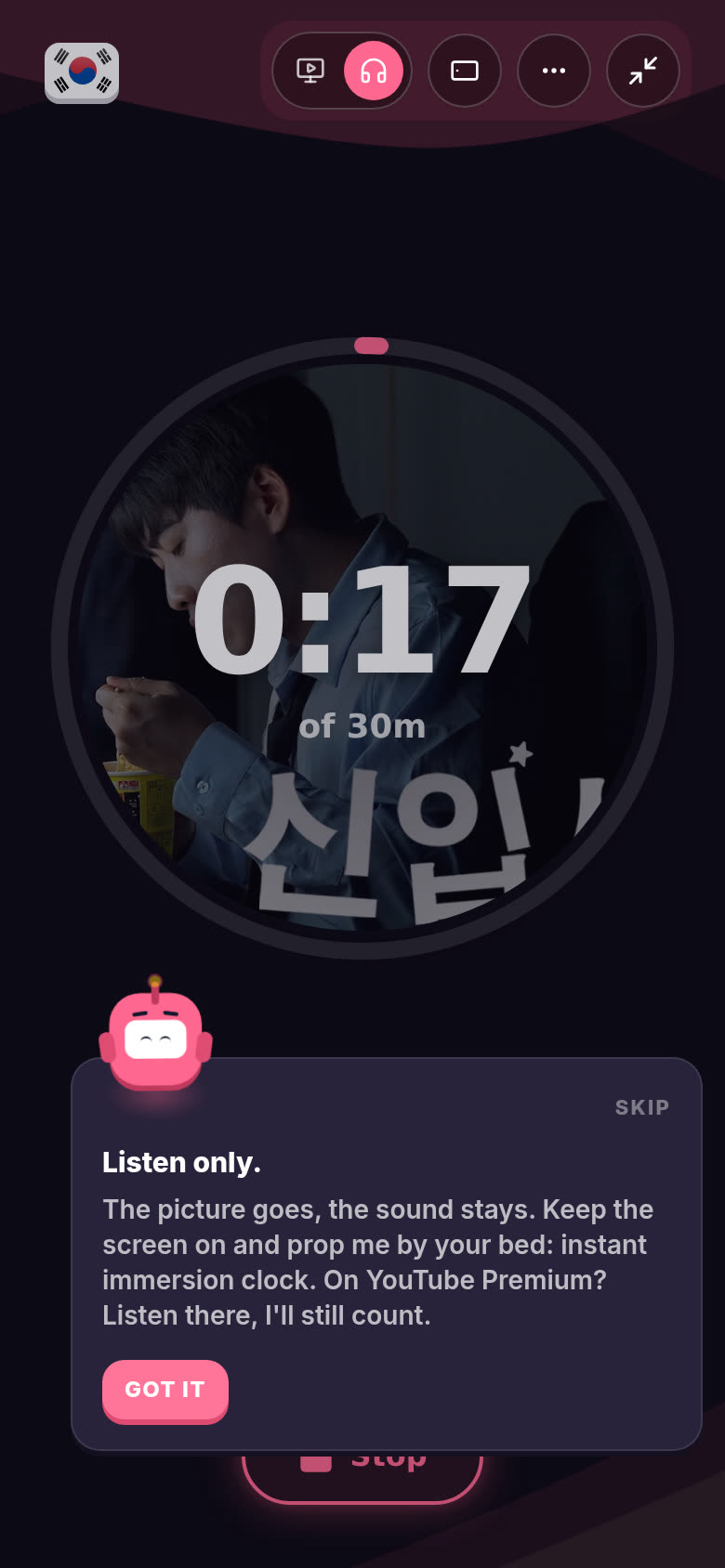
How to show it. For a YouTube video on a phone held upright, two choices:
- Watch. The video goes big, the screen goes dark and everything else gets out of the way. Under the video there's a slim bar with your time and goal, then the title and Stop. After a few quiet seconds the buttons fade back a little. Touch the screen and they're back.
- Listen only. The picture goes, the sound stays. The video's picture fills the ring with your clock on top. Handy for the bed or the bus. On YouTube Premium? You can listen over there and I'll still count.
On a phone turned sideways, or on desktop, there's a third one in the middle: Timer with video. The video sits on the left and your clock and everything else sit beside it. (There isn't room for that on an upright phone, so there you get Watch.)
For an Apple Podcasts episode, it's Show the player or Listen only. Spotify's player always shows, so a Spotify link has no choice here.
I remember your pick on this device.
-
Turn sideways. The little phone button, on a phone held upright with a video. It turns the whole session on its side so the video can be big, even with rotation locked. See Can I turn it sideways?.
-
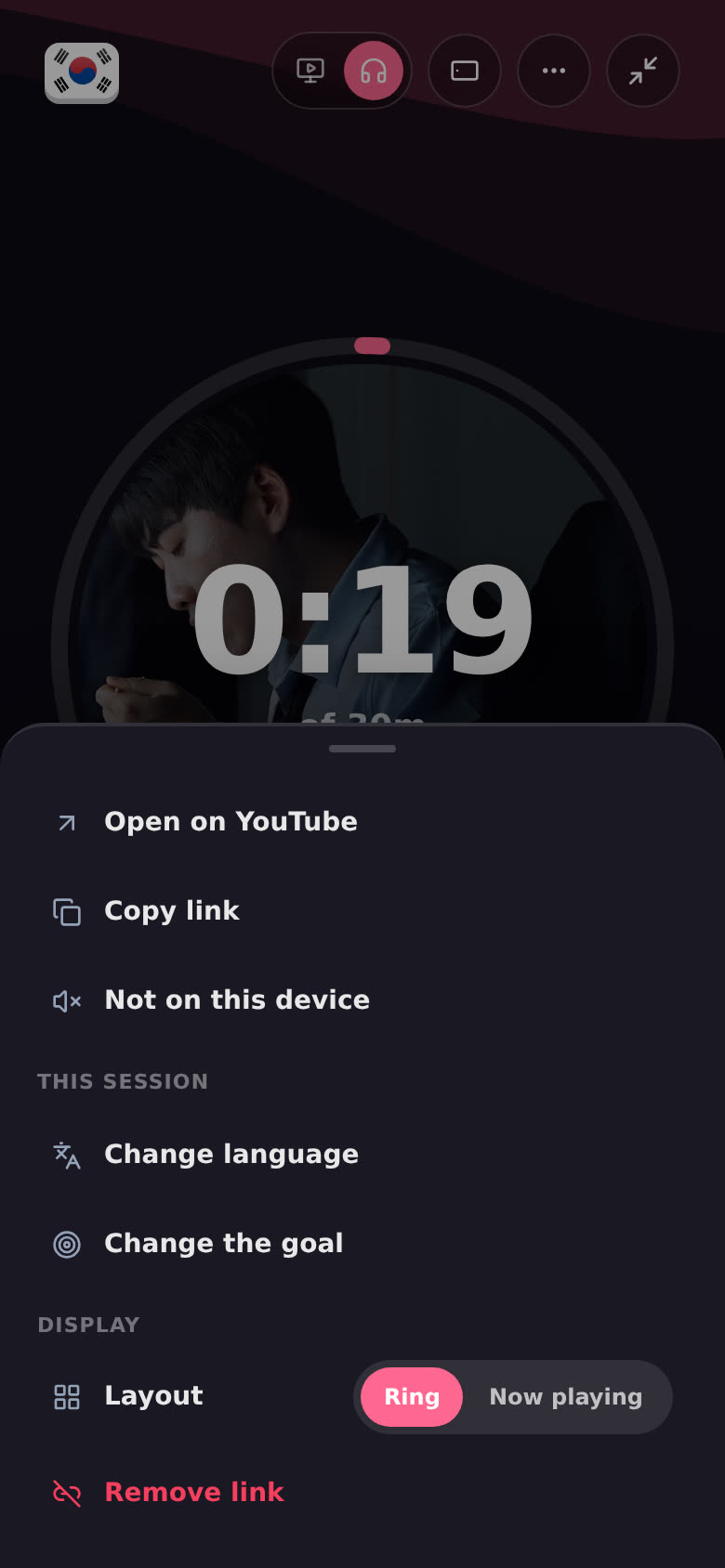
More (the three dots). It opens a list (from the bottom on a phone):
- Open on YouTube (or Open in Spotify, Open in Apple Podcasts) and Copy link, the same as the line under the title.
- Not on this device. Turns off playing here. The timer keeps running, so you can watch on your TV or another screen. A pink Play the video here button shows up at the top when you want it back. When it's playing on your other device (Immersed or the Chrome extension on your computer, or your phone), the session says "Playing on …" with a small pause button that pauses it there. The clock keeps going.
- This session: Change language and Change the goal.
- Display: Layout, Ring or Now playing. See Can I change how fullscreen looks?.
- Remove link. Takes the link off the session. The title stays.
- Discard session. Throws the session away. It asks first, right in the list: "Discard this session? It won't be logged." Tap Discard to lose that time, or Keep to go back.
-
Minimize. Shrinks the session back into its bar.
The first time you use each of these, I pop up with a one-line tip (see What are the little tips from Aim in fullscreen?).
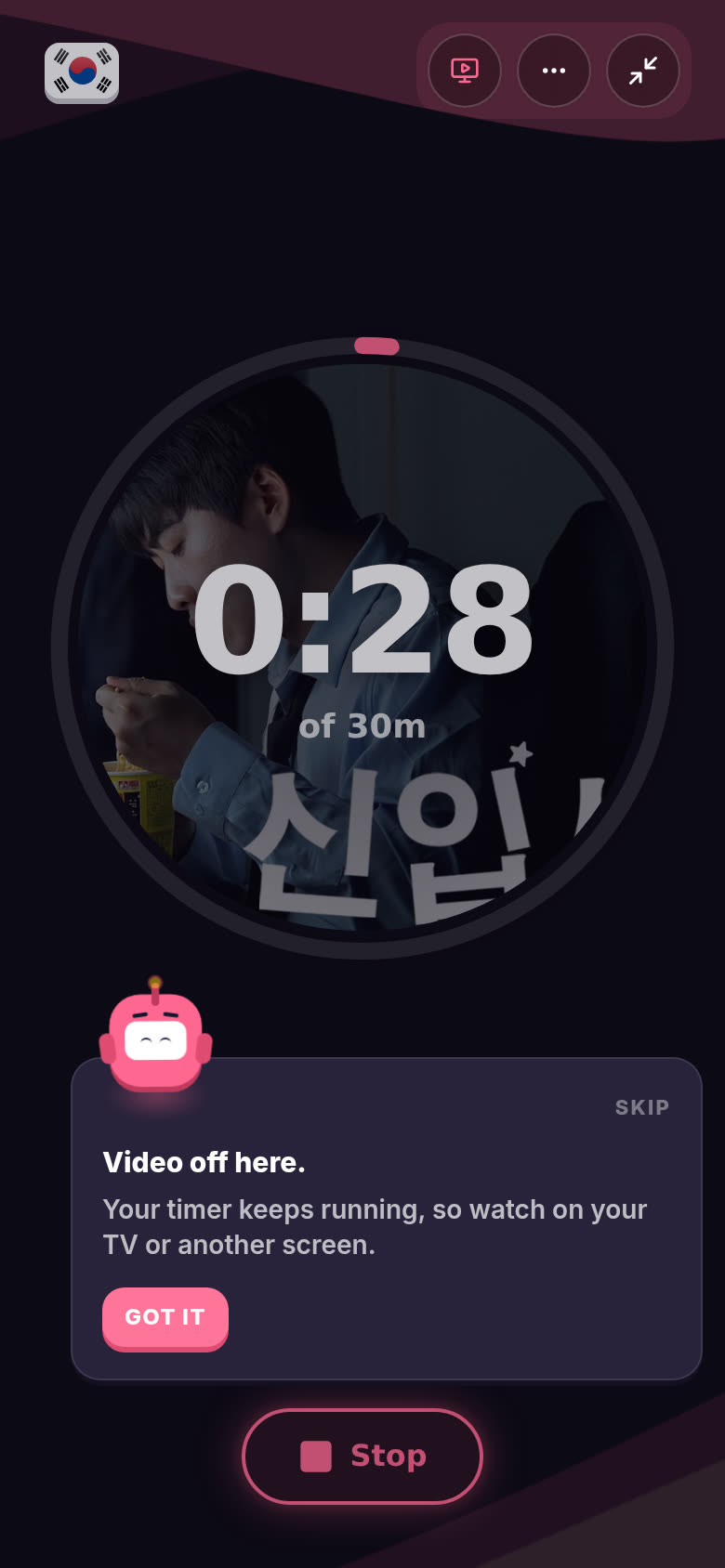
On desktop it's the same row. The picture (or the ring) sits on the left and the title on the right.
Why does my pasted link only show a short title?
If I can't reach the page (you're offline, the site blocks me, or you're in the sample app, which has no server), I can't read the real title. I make a readable one from the link itself instead of showing the whole web address. You can tap the name and type your own any time.
Why didn't the activity change when I pasted a link?
You picked the activity yourself earlier in this session. That's your call, so I leave it. Tap the activity and change it if you want me to follow the link instead.
Good to know
- Replacing a link. Paste a new link into the name and it replaces the old one: new title, picture and (unless you chose it) activity.
- Library items. Picking something from your recents or Library in the same box links it too, without looking anything up.
- The New Task panel has a Link box too. When you plan something on the timeline, "Paste a link or search your library" works the same way for tasks.
- Phone vs desktop. Same thing. The phone's session bar and the desktop bar both take a pasted link.
- Where the video plays. Settings, then This device, then When you tap Get Immersed on a video. Pick Just the timer if you usually watch somewhere else and only want the timer here, or Open it on YouTube to start the timer and open YouTube instead. See Can I watch on YouTube instead of inside Aim?.