How do I use the inbox?

Your inbox holds the things you want to do but haven't given a time yet. Drop them in now, then put them on your timeline when you know when.
The inbox lives on your timeline, so it's part of Pro (or your free week). You can try it on sample data first. See Can I try Aim without an account?.
Steps
-
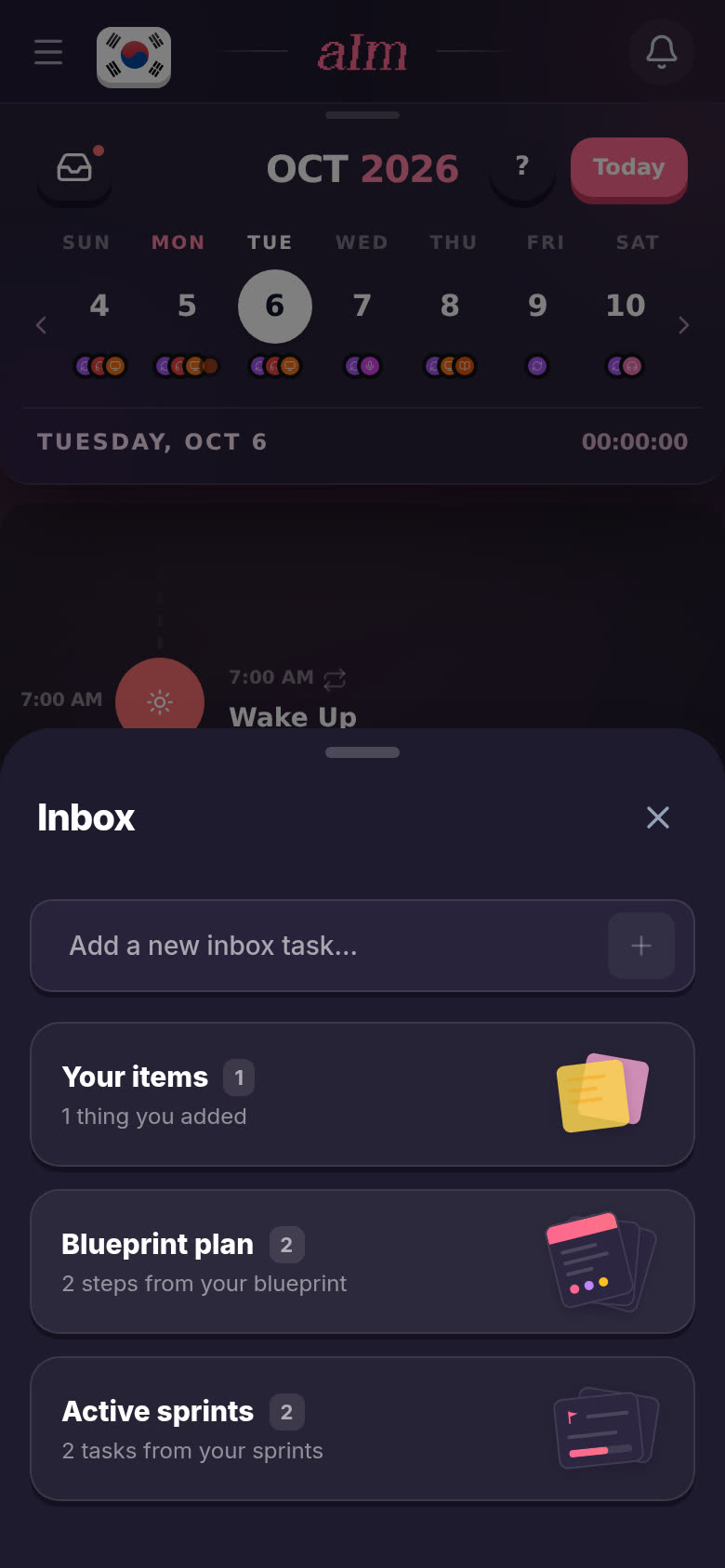
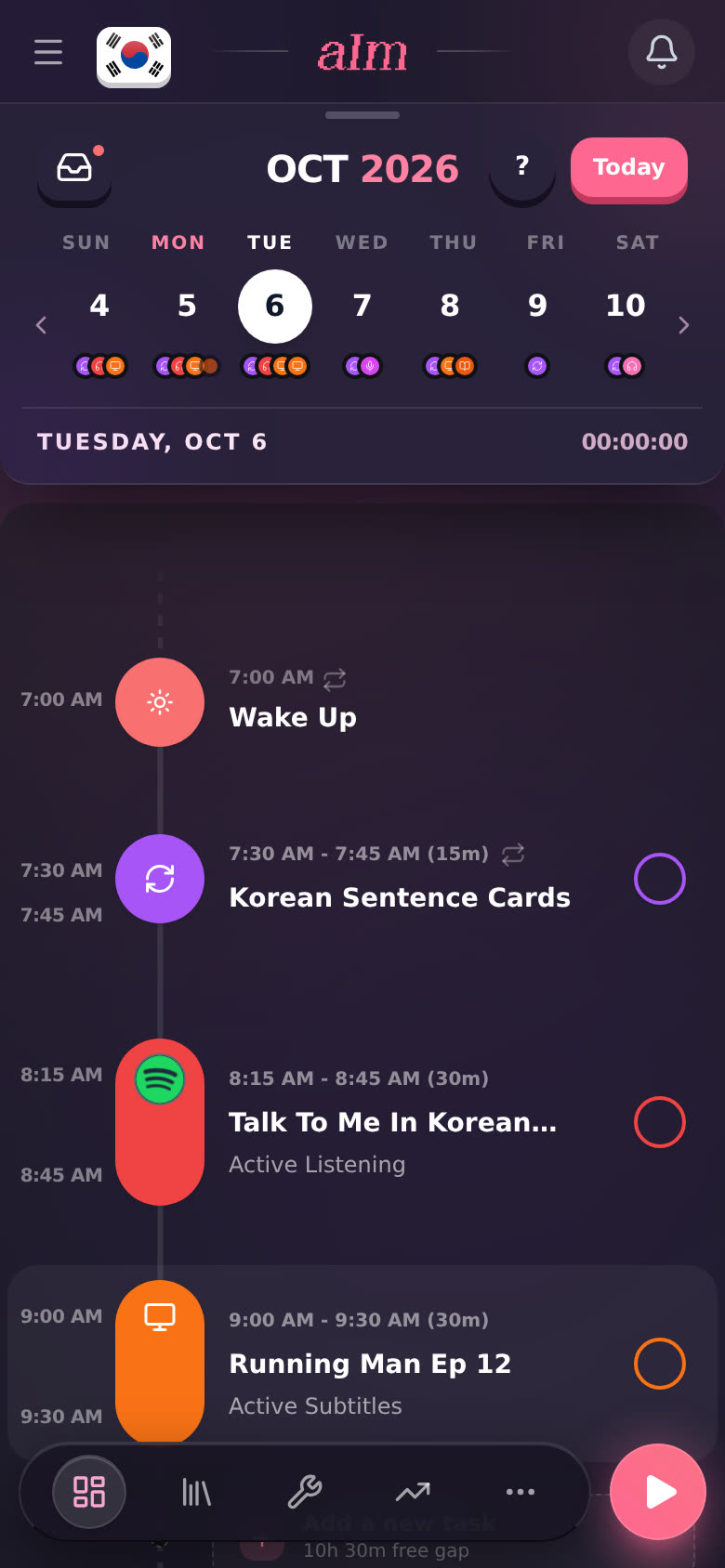
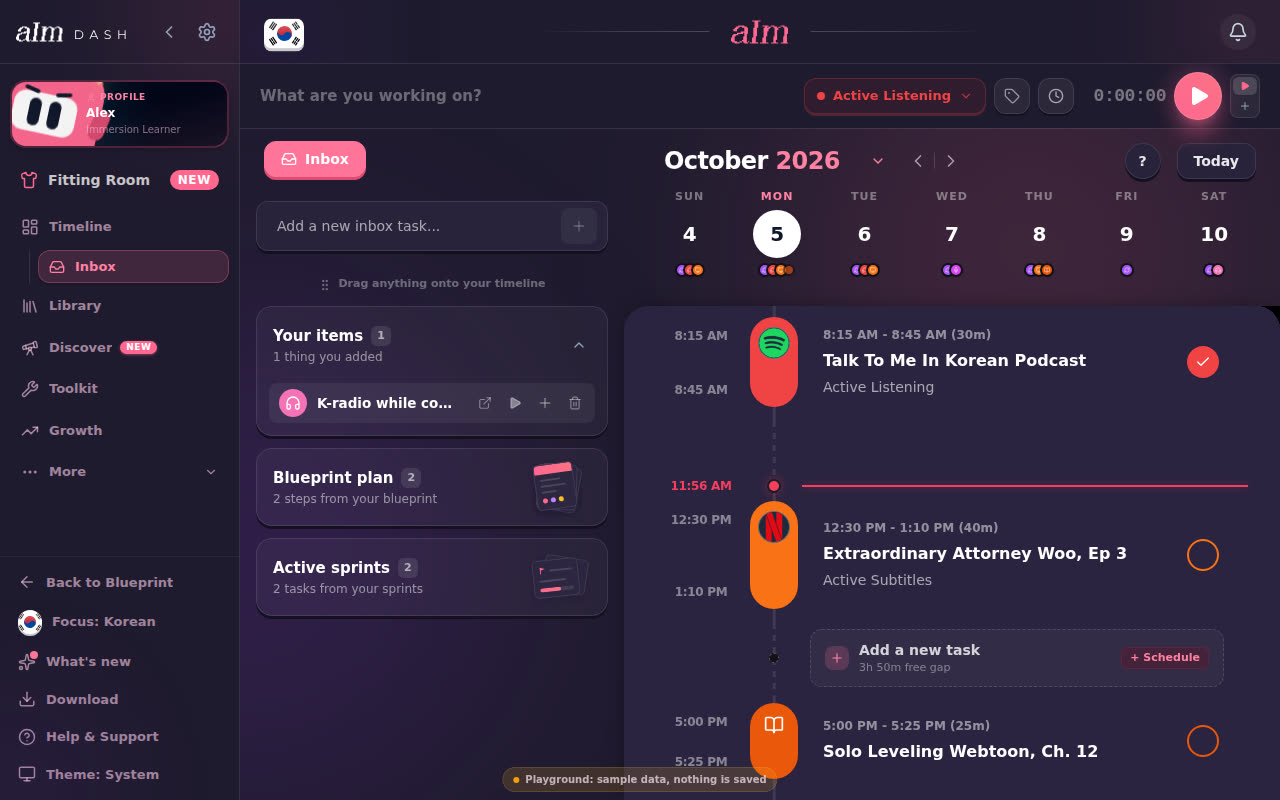
Tap the inbox button. On a phone it's the tray in the top left, above the week strip. On desktop it's the Inbox button next to the month (or Inbox in the sidebar, under Timeline). On a phone the inbox slides up as a sheet. Drag it down or tap the X to close it.
-
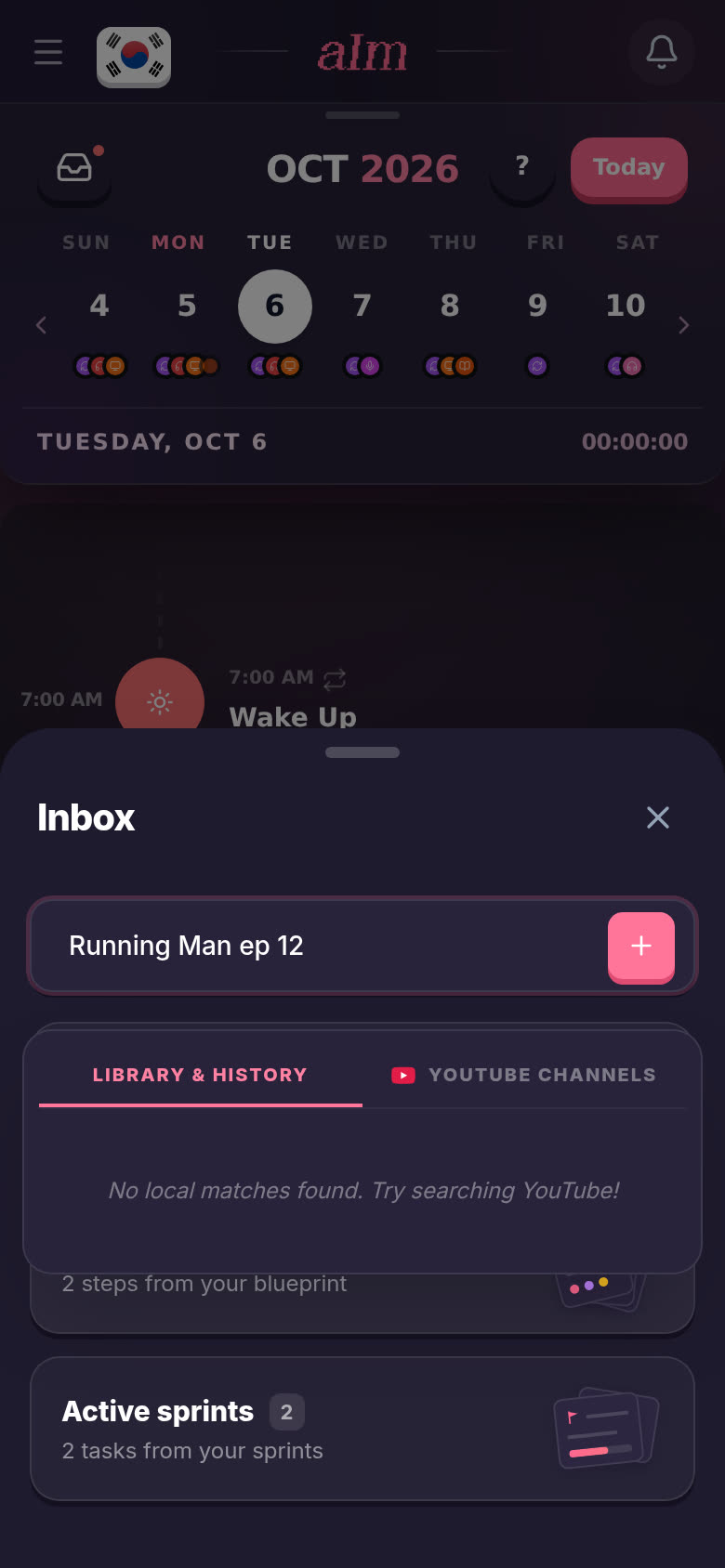
Type what you want to do in Add a new inbox task..., like "Running Man ep 12".
-
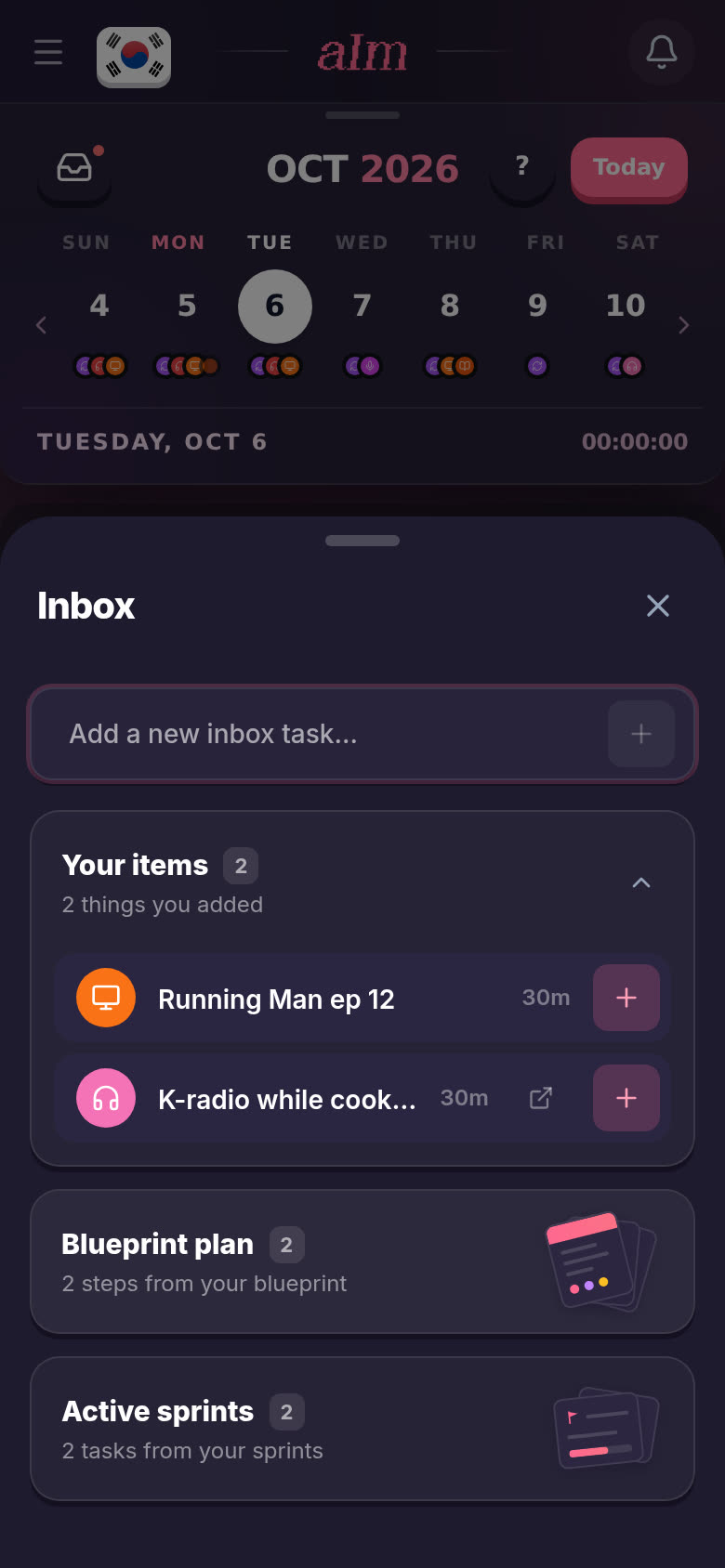
Press Enter (or the + at the end of the box). It lands under Your items, with an activity and a length. I guess the activity from the words you type. Tap the item later if I guessed wrong.
-
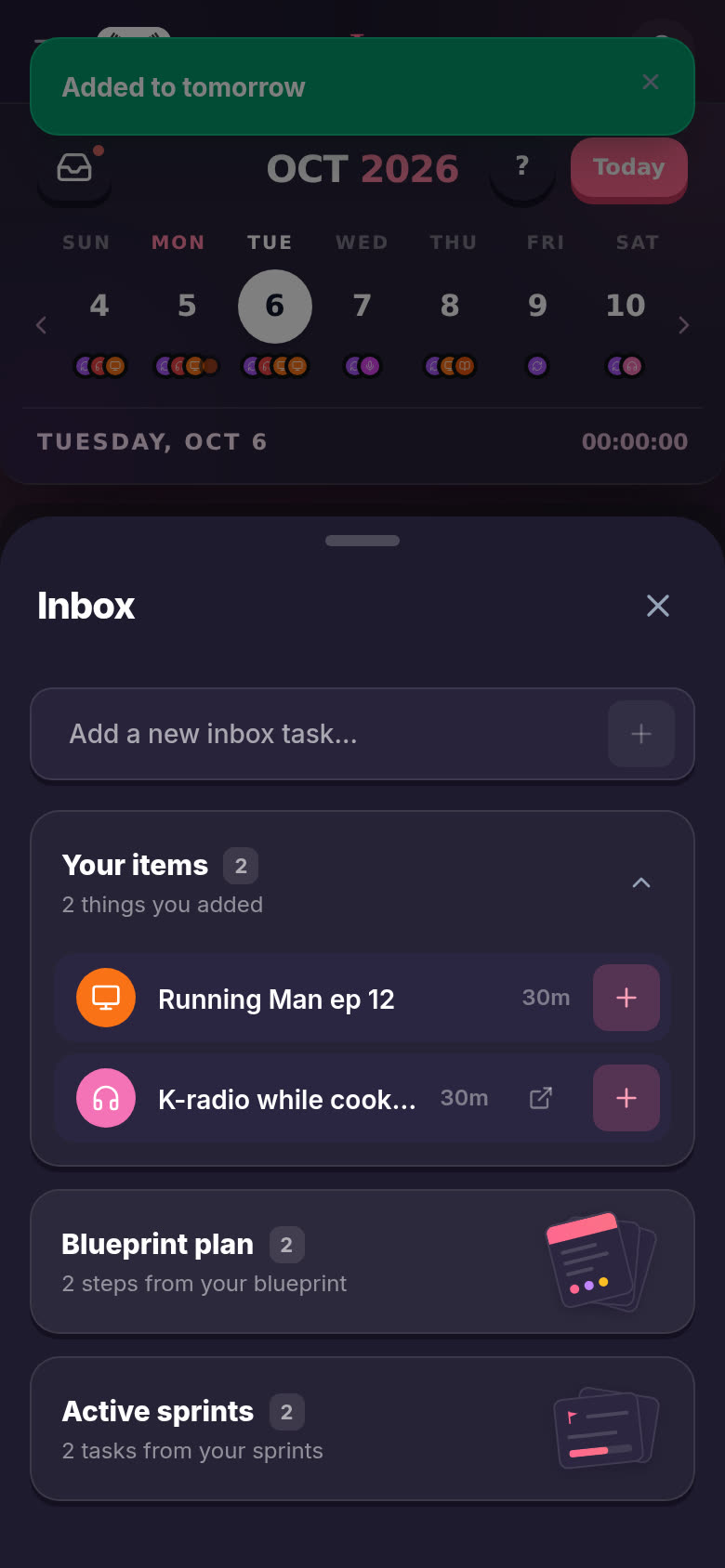
When you know when, tap the + on the item. It goes onto the day you're looking at, and you'll see "Added to today's timeline" (or "Added to tomorrow", or the date).
-
Close the inbox. Your item is on your timeline now. Drag it to a better time if you like. See How do I move, reorder or delete a task?.
How do I change an item?
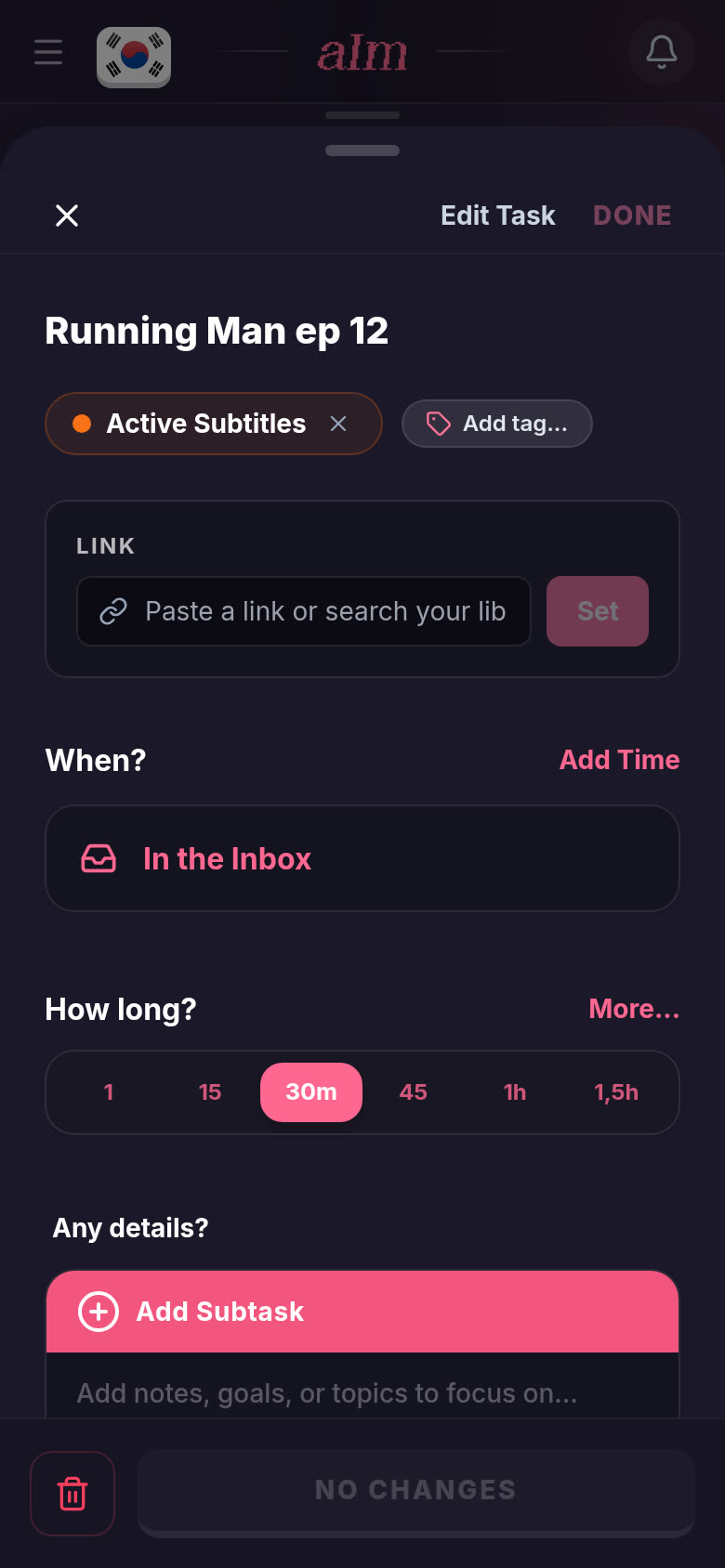
Tap it. The Edit Task panel opens with the title, the activity, a Link box, When? and How long?. When? says In the Inbox. Tap Add Time if you'd rather give it a time right there. Tap DONE to save.
What are Blueprint plan and Active sprints?
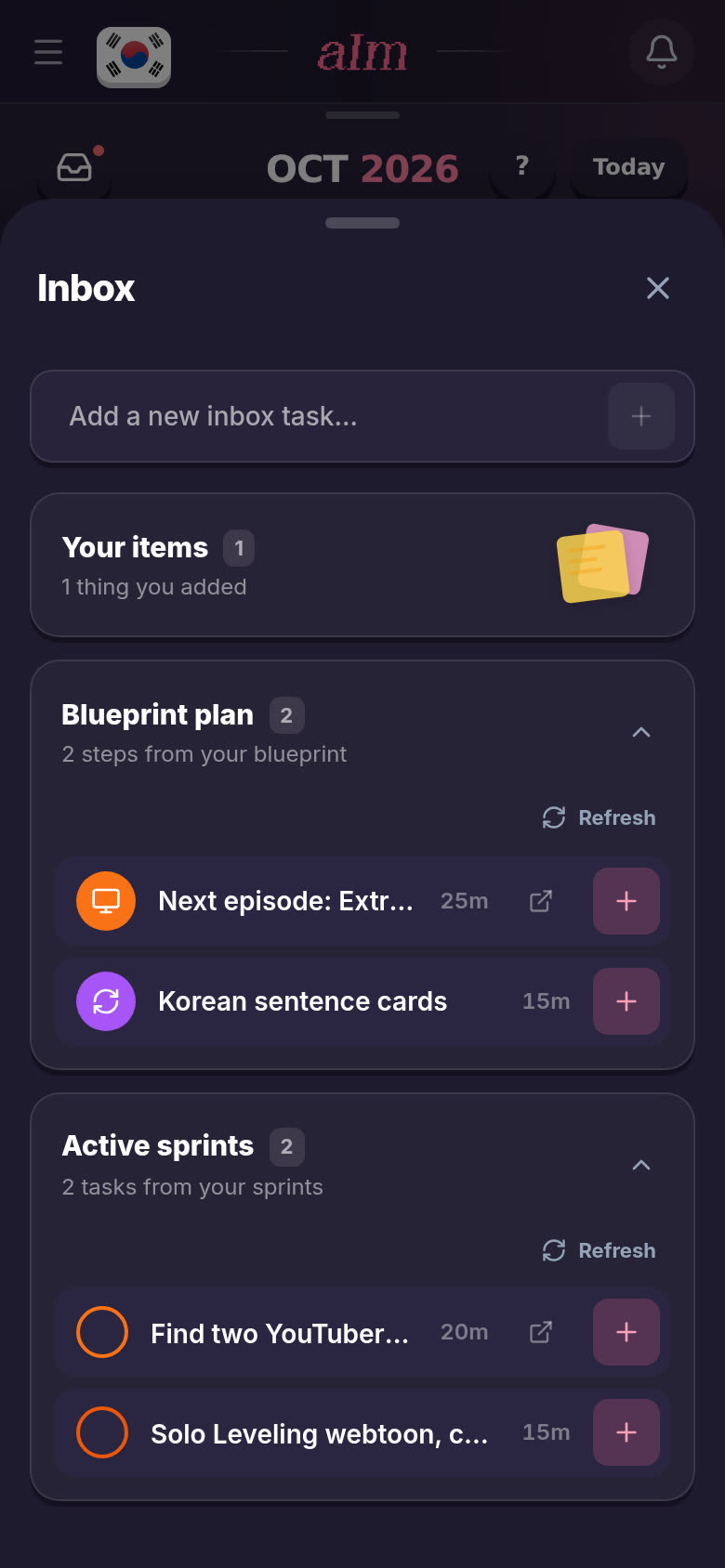
Your inbox has three groups. Tap a group to open or close it.
- Your items. Everything you typed in yourself.
- Blueprint plan. Steps from your blueprint. Tap Load from my blueprint the first time, or Refresh to pull in the latest.
- Active sprints. Tasks from your action sprints. Tap the circle on the left to tick one off.
Each one has the same + to put it on your timeline.
How do I delete an item or start it right away?
- On a phone: swipe an item left for Delete, or right for Play.
- On desktop: hover over an item. You get Start now (the play button), Add to timeline (+) and Delete (the bin). If the item has a link, there's an arrow to open it too.
After you delete one, "Deleted" and Undo show at the top of the inbox for a few seconds.
Can I drag things in and out on desktop?
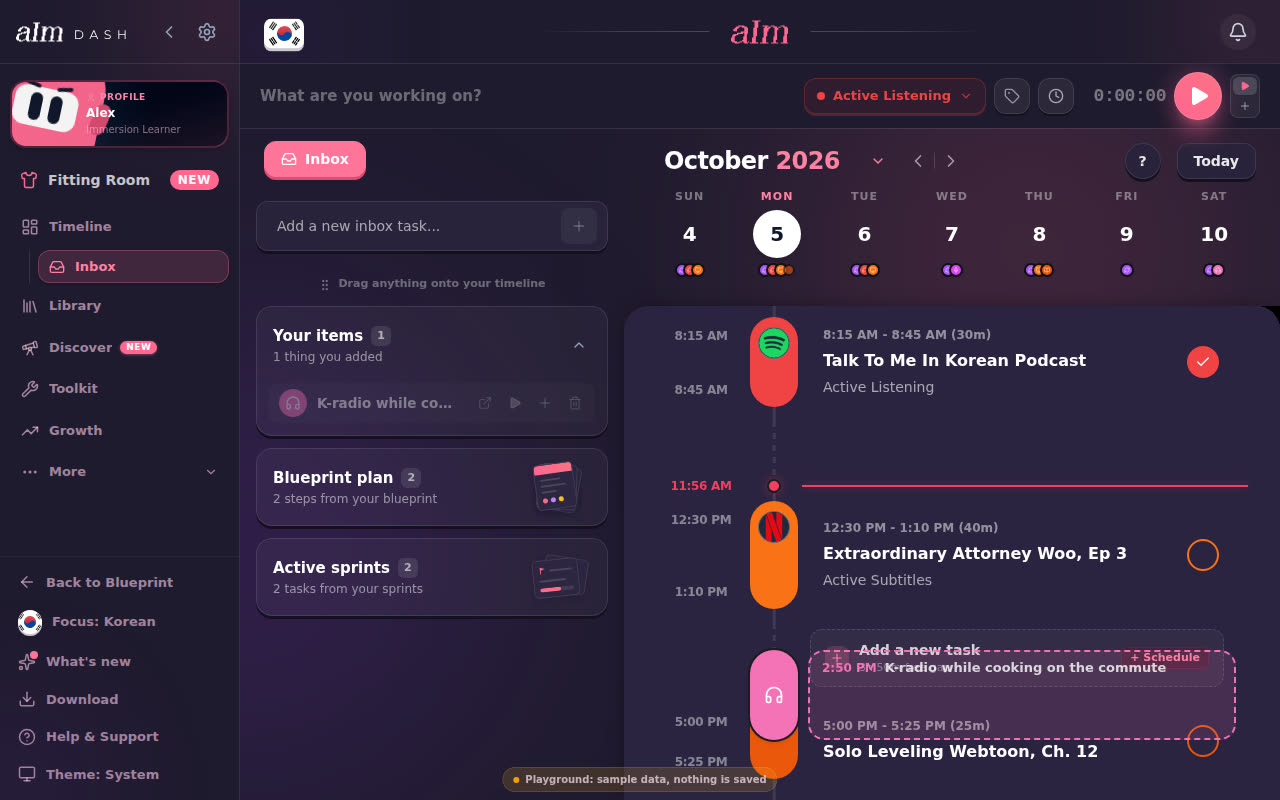
Yes. On desktop the inbox is a column next to your timeline.
-
Grab an item and drag it onto your timeline. A dashed outline shows where it would land and at what time. Let go and it's planned for that time.
-
Changed your mind about a task? Drag it from the timeline back onto the inbox column. It says "Drop to move back to your inbox". You'll see "Moved back to your inbox".
On a phone, open the task and use When?, then More..., then Add to Inbox. The button at the bottom turns into MOVE TO INBOX.
Good to know
- Your items stay put. Adding one of your own items to the timeline doesn't remove it from the inbox, so you can reuse it. Delete it when you're done with it.
- One inbox per language. You see the inbox for the language you're tracking. Switch languages and you get that language's inbox. See How do I switch between languages?.
- An item needs an activity. If it has none, + says "Please select an activity first!". Tap the item and pick one.
- Not everything goes back to the inbox. Repeating tasks and things you've already done can't be dragged back. Delete them instead.
- Empty inbox? It says "Anything worth immersing in" with a few ideas. A show a friend mentioned. A book. A tutor session.
- Playing an item starts a session, which is part of Pro.