How do the week strip and weekly goal work?

The week strip at the top of your timeline is your week, one circle per day. Tap a day to go there. Pull it down on a phone and your whole week drops in, with the ring that tracks your weekly goal.
The timeline is part of Pro (or your free week). The sample app has a full week to play with. See Can I try Aim without an account?.
The week strip
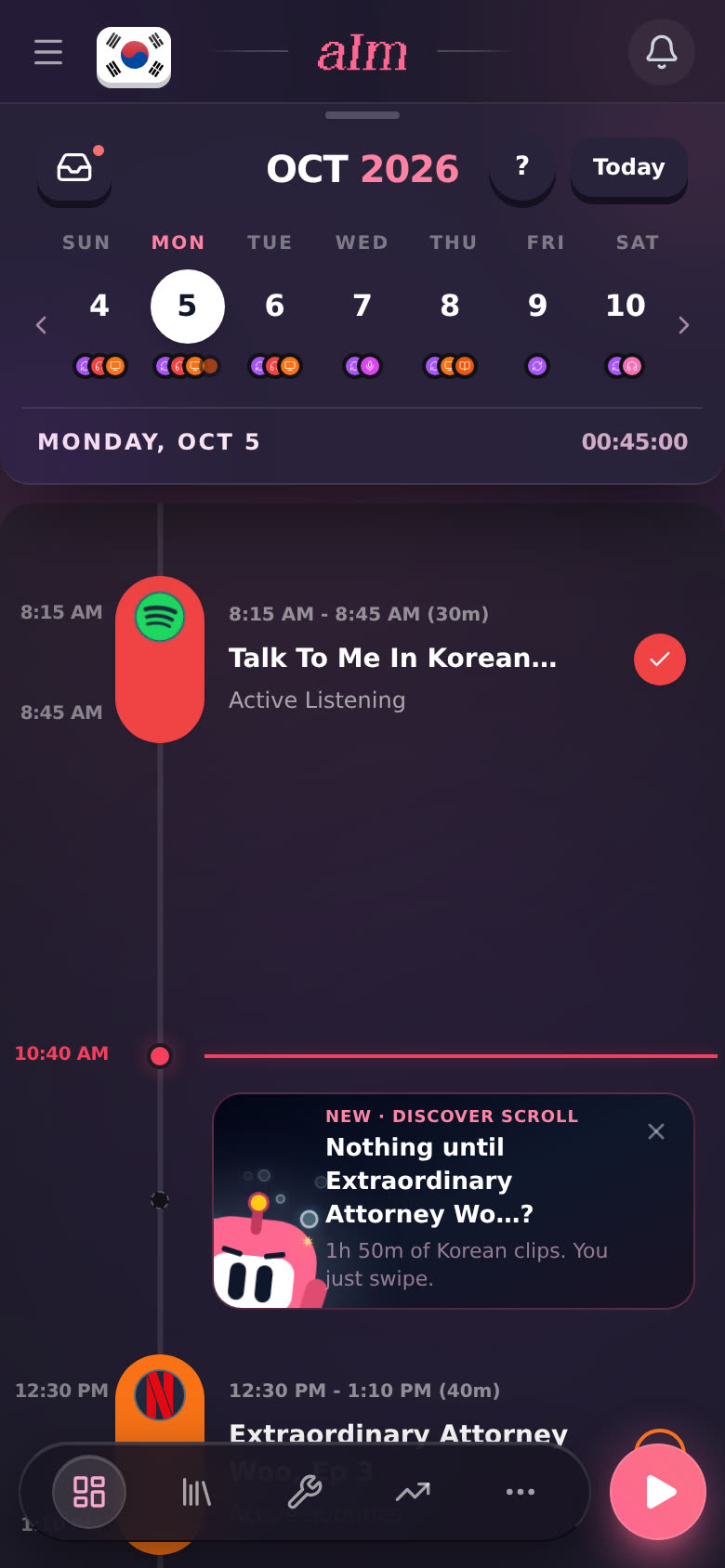
- The circles are the days. The white one is the day you're looking at. Today's day name is pink.
- The little dots under a day are what's on it, one per task or session, in the activity's color (red for Active Listening, orange for Active Subtitles, purple for SRS, and so on). Up to four show. A faded fourth means there's more.
- The arrows on each side jump a whole week.
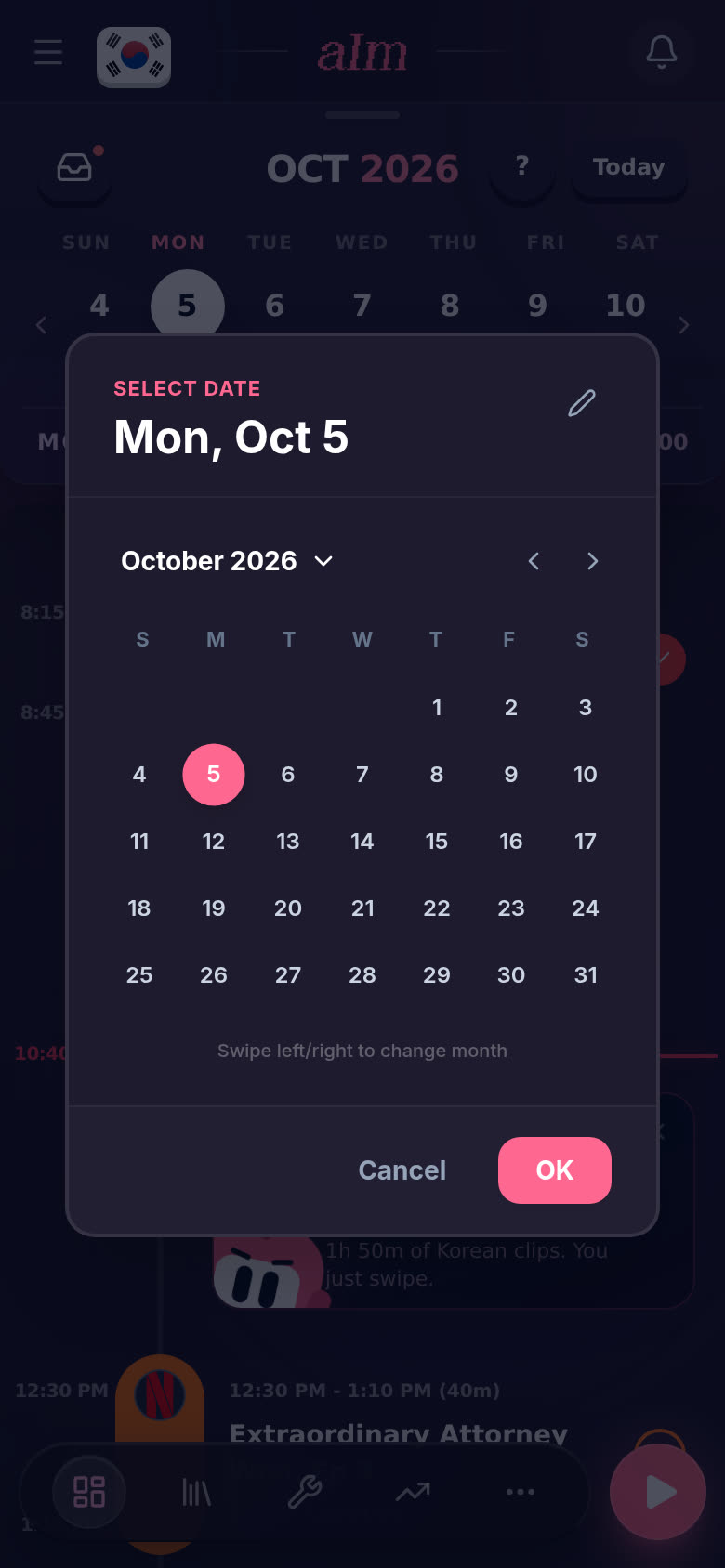
- The month (OCT 2026) opens a calendar so you can jump to any date.
- Today takes you back to today. It turns pink when you're on another day, so you always know you've wandered.
- The line underneath shows the date and the time you've logged that day. It turns pink once you hit your daily goal.
How do I get around?
-
Tap a day to open it.
-
Swipe the timeline left or right to go a day at a time. Swipe the week strip itself to jump a week.
-
Tap the month to pick any date, then tap OK.
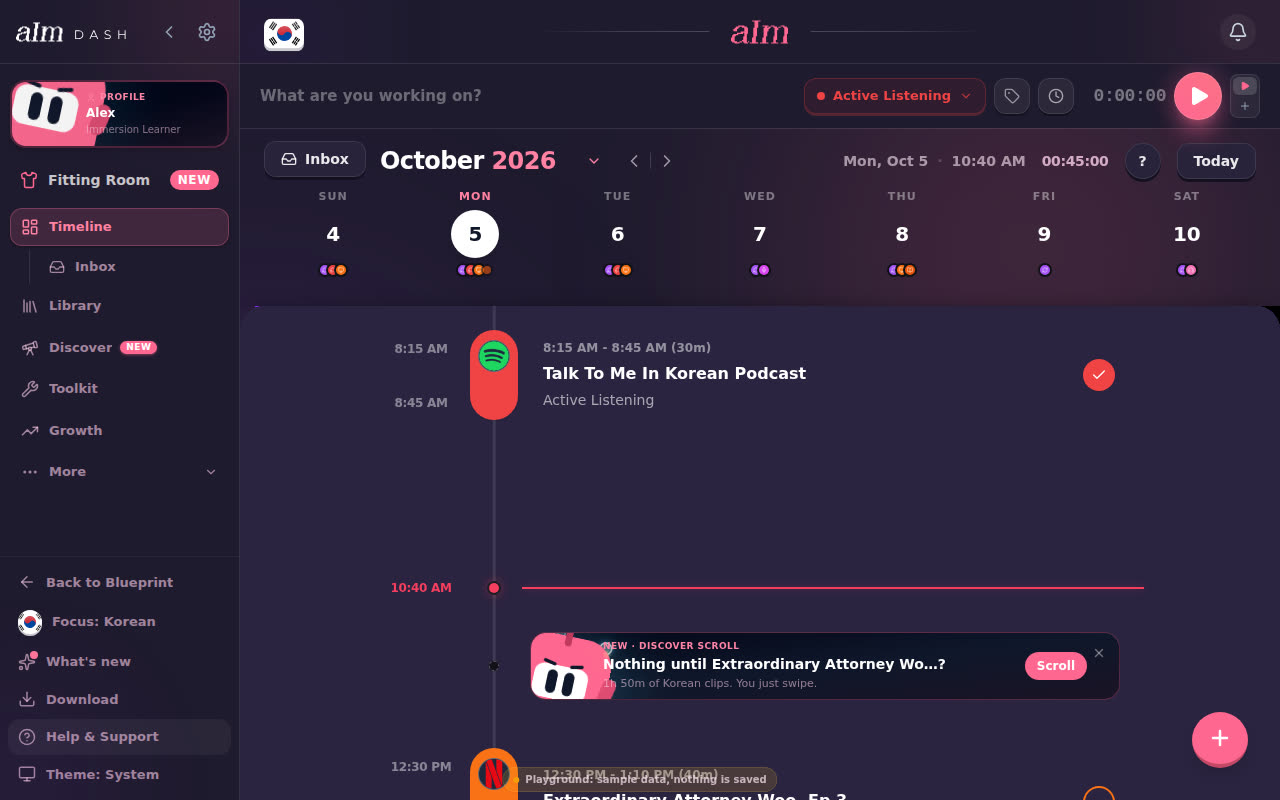
On desktop, click a day, use the arrows next to the month to change week, or press the ← and → keys to go a day at a time. See What keyboard shortcuts can I use on desktop?.
How do I see my whole week?
-
On a phone, pull down the little handle above the week strip (or just tap it). This week immersed drops down.
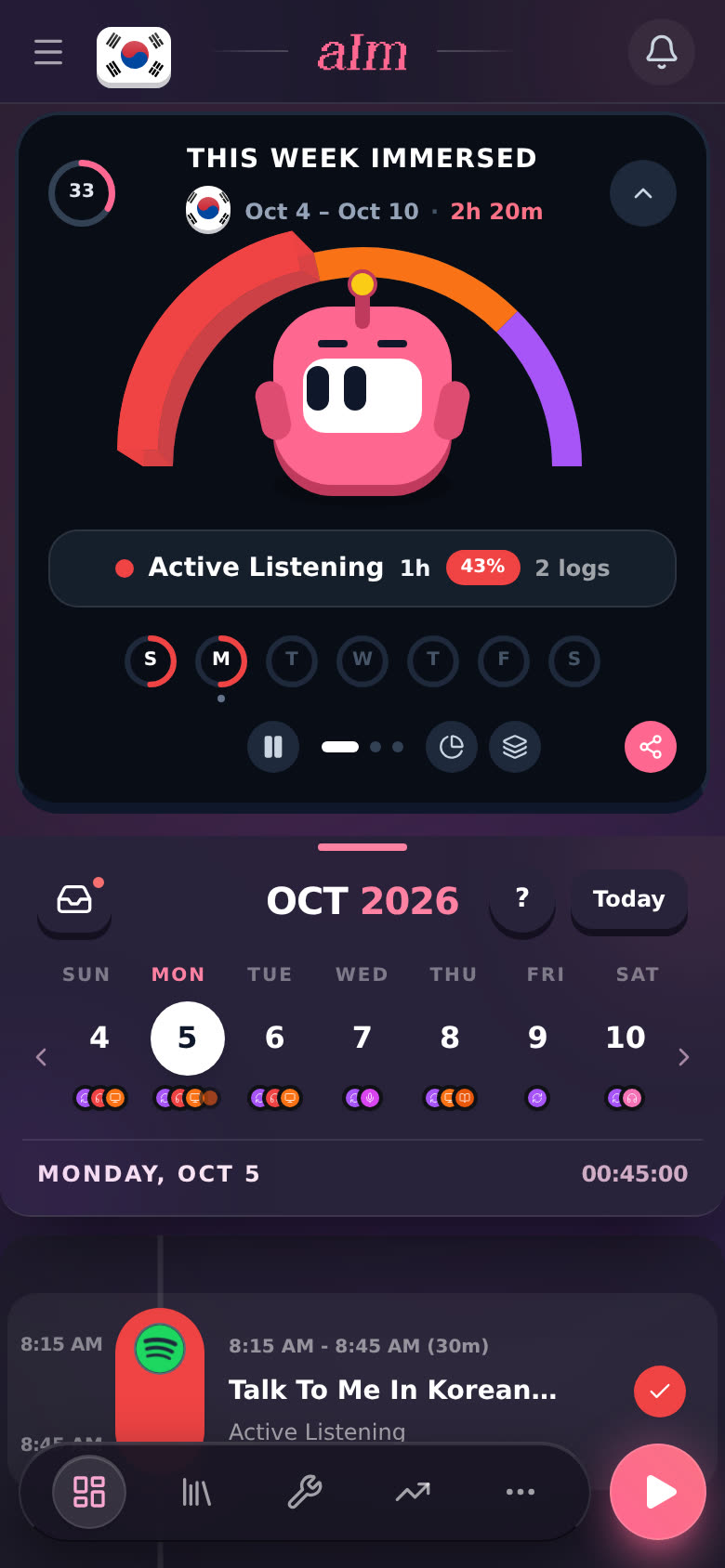
It shows:
- the dates and your total for the week ("Oct 4 – Oct 10 · 2h 20m")
- an arch split by activity, with each one's time and share
- a ring for every day of the week
- buttons to pause the slideshow, show every activity at once, see it by skill (listening, reading, learning, output), and share your week as a picture
-
Pull it back up (or tap the arrow in its corner) to close it.
How does the weekly goal work?
The ring in the top left corner of This week immersed is your weekly goal. The number in it is how far you are, in percent. It turns into a green tick when you hit it.
-
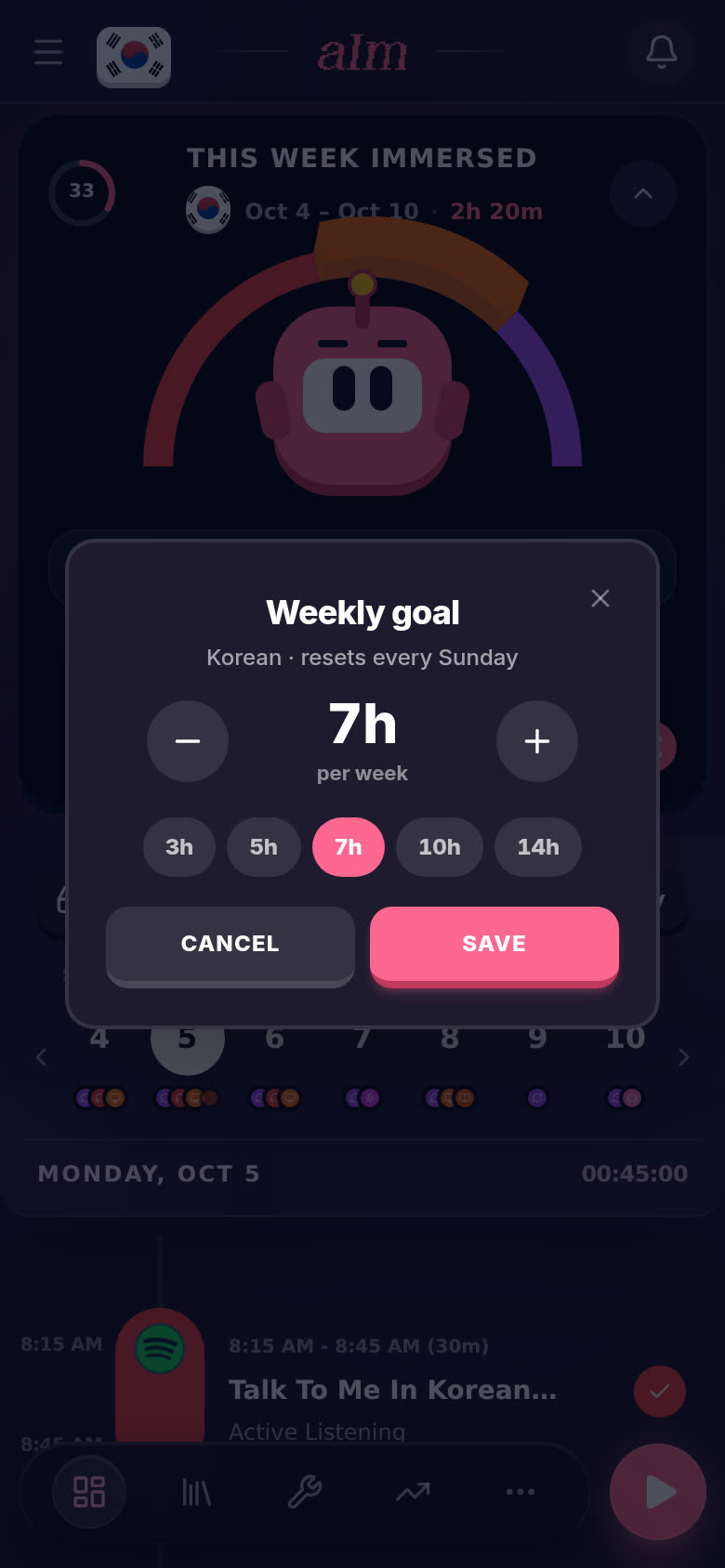
Tap the ring. The Weekly goal box opens.
-
Use − and + to change it by 30 minutes, or tap a preset: 3h, 5h, 7h, 10h or 14h.
-
Tap Save.
If you haven't set one, your weekly goal is seven times your daily goal. Changed it and want that back? Tap Match my daily goal ×7.
Good to know
- It resets at the start of your week. The week card starts on the day you picked in Week starts on in Settings (Sunday or Monday), so a bad Tuesday isn't the end of the world.
- One goal per language. Learning two? Each language has its own week and its own goal.
- Your goal is saved on this device. Set it on your phone and your computer keeps its own until you set it there too.
- The pull-down week is phone-only. On desktop the timeline has no pull-down card. Growth's Weekly summary uses the same goal. See How do I see my progress?.
- The week strip and the week card both follow Week starts on in Settings.