How do I change how Aim looks and works on this device?

Ademola Adeyemi
Founder • October 2026
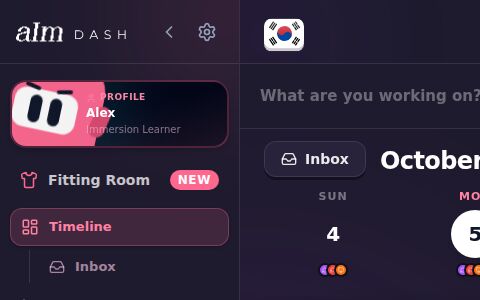
Open Settings, stay on the Account tab, and scroll down. Appearance, Date and time and This device only change the phone or computer you're on. Your other devices keep their own.
New to Settings? See How do I open Settings?.
Appearance
- Light, Dark or Auto. Auto follows your phone or computer. It's the same switch as Theme in the menu, where Auto is called System.
- Reduce motion. "Fewer animations. Helps on older phones." Turn it on if Aim feels slow or the movement bugs you.
Date and time
Until you pick, these follow your phone or computer.
- 24-hour clock. On: times show as 16:30. Off: 4:30 PM.
- Week starts on. Sunday or Monday. Your week strip and the calendars follow it. See How do the week strip and weekly goal work?.
This device
- Add Immersed to your home screen. Opens the Download screen with the install steps for this device. It disappears once you're using the installed app. See How do I install Aim on my phone or computer?.
- When you tap Get Immersed on a video. Pick what happens on this device. Your timer starts every time.
- Play it in Immersed (the default): the video plays right in the session, and I remember where you stopped.
- Open it on YouTube: the video opens on YouTube (or Spotify, Apple Podcasts), where Migaku and your other tools work. See Can I watch on YouTube instead of inside Aim?.
- Just the timer: nothing plays here. Handy if you watch on your TV or another device and use your phone as the clock. Play here brings the video in any time.
- Sync. Sends changes waiting on this device, then refreshes your logged sessions and Immersion List. See below.
How do I check that everything is synced?
- Tap Sync under This device.
- The top says where things stand: Everything is saved, Syncing…, Waiting to sync, Some changes didn't sync or Offline, with Last synced under it.
- Tap Sync now to send anything waiting on this device and pull your logged sessions and Immersion List again.
- By language lists each language with its own Sync now. If one failed, it shows why and a Try again button.
Offline? It says "You're offline". Your changes are saved on this device and sync when you're back online.
Good to know
- Per device on purpose. Your phone can be dark and your laptop light. Your account stuff (name, goal, sessions) is the same everywhere.
- Clearing your browser data resets these to the defaults on that browser.
- The bottom of the Account tab has Log out and Delete account. See How do I change my name, email or password?.