How does the Library page work?

Tap Library in the menu. At the top is For You, a row of picks lined up for you. Under it you can search and filter, pick Watch, Listen or Read and a platform, and scroll through every pick for your language. Tap + on anything to save it to your Immersion List.
The Library page is part of Pro. On the free plan you still get the Immersion Library on your blueprint. See How do I find things to watch, listen to and read?.
How do I open it?
On a phone, tap Library in the bottom bar (it's the second one). On desktop, it's Library in the menu on the side.
Everything on the page is for the language you're on. Switch languages and the whole page follows.
What's on the page?
From top to bottom:
- For You. Big cards you swipe through.
- The search bar and filters. They stick to the top when you scroll.
- Two big cards side by side. The red Immersion Library card (Watch, Listen, Read and the platforms) and the green Immersion List card (your saved stuff). Swipe between them or tap the two dots under them.
- All the picks, in a grid.
For You
-
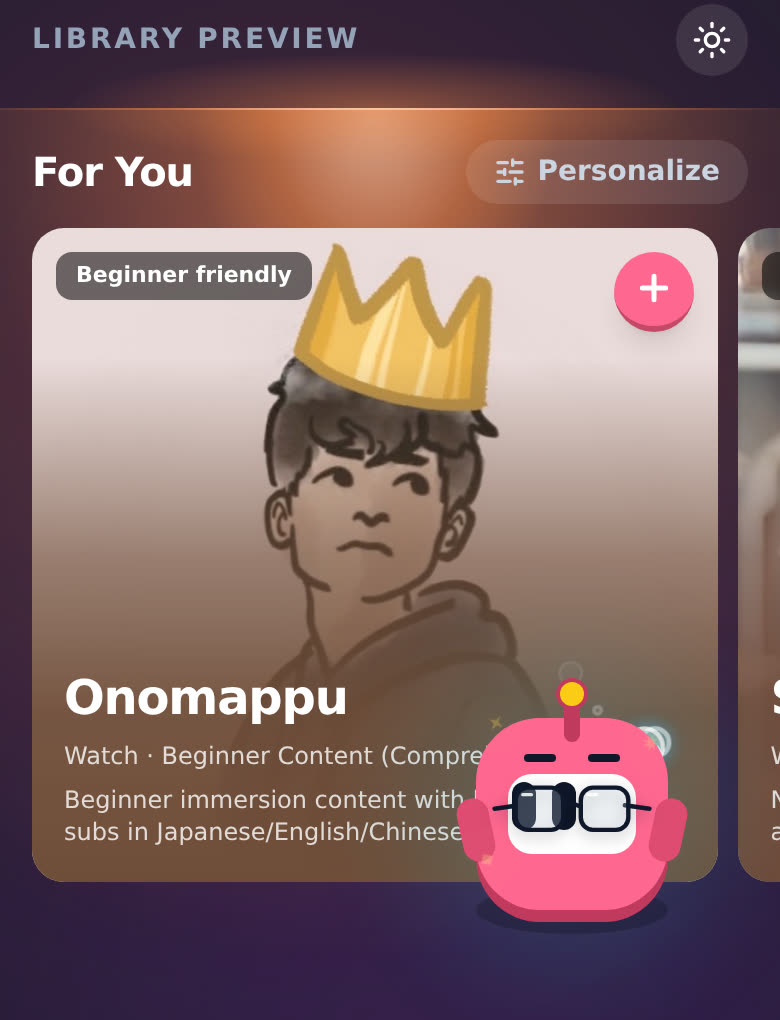
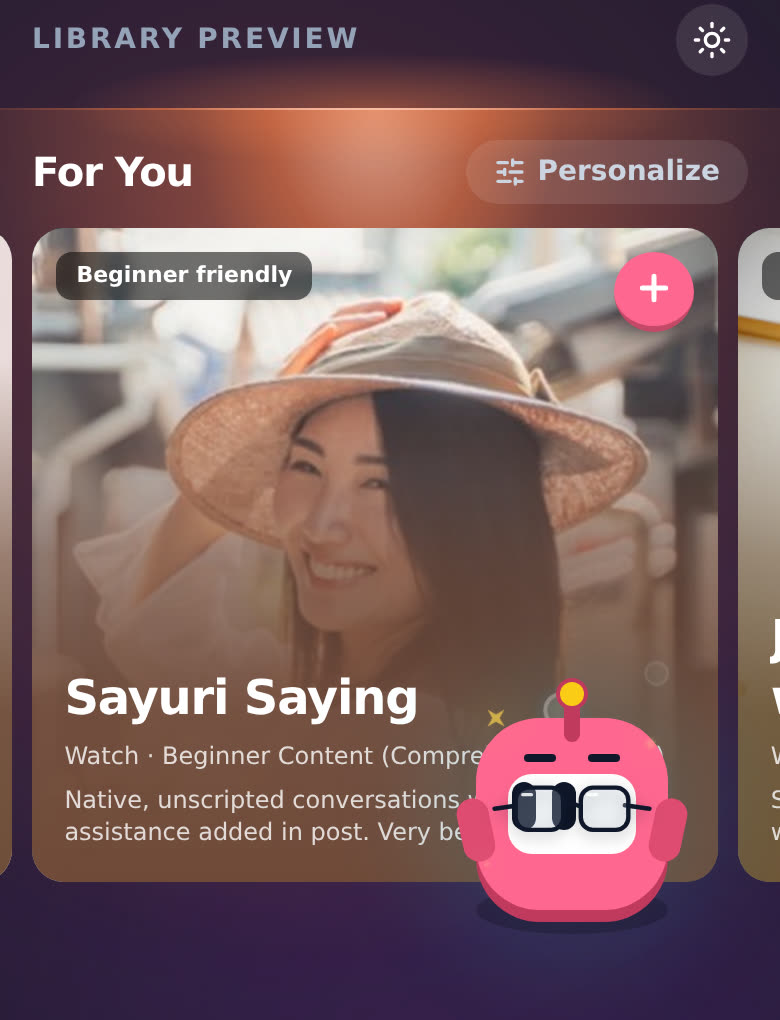
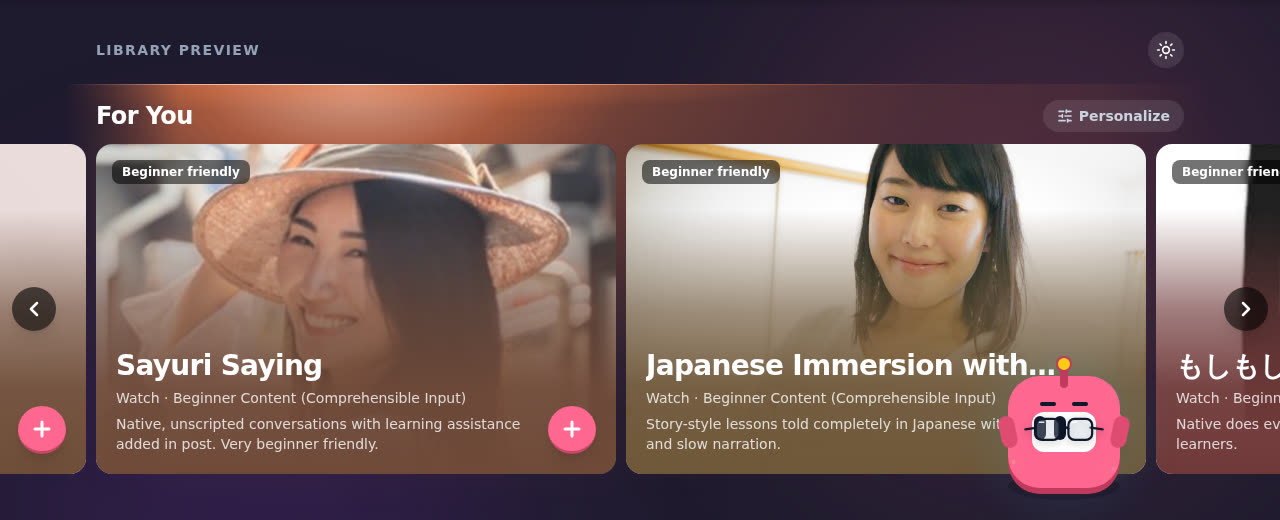
Swipe the row left and right. On desktop, hover over it and use the arrows on the sides.
-
The tag in the corner tells you why a card is there: Because you like Comedy, Ade's Pick, Starter Pick, Trending, Beginner friendly or Recommended.
-
Leave a YouTube creator's card on screen for a second and a short preview starts playing on it, muted. Tap the speaker to hear it.
-
Tap the pink + to save it to your Immersion List. You'll see "Added … to your immersion list!" and it turns into a green check. Tap the check to take it back out.
-
Tap anywhere else on the card to see its details (more on that below).
Want different picks? Tap Personalize next to the title. See How do I personalize my For You row?.
Things already on your Immersion List don't show up in For You. No point showing you what you've already saved.
How do I search?
- Tap the search bar. The grey words in it keep changing ("Search Comprehensible input", "Search Beginner content" and so on). They're ideas.
- Type what you're into. The count on the right turns into 12 RESULTS and the picks below change as you type. Tap a suggestion to search for just that one.
- Press Enter and I keep your search under Recent: in the filter row (your last four). Tap the small x on one to drop it.
- Typed three letters or more? I also look on YouTube for creators in your language. They show up under the picks, in Explore Creators matching your interests (with a Live Match tag).
How do I filter?
The row under the search bar filters the picks. On a phone, swipe the row to see it all. Filters open as a sheet from the bottom on a phone and as a small menu on desktop.
- The pink dice on the left opens a random pick. Can't decide? Roll it.
- Sort: Default Recommended, Recently Added Catalog, Most Popular First, Difficulty: Easy → Hard, Difficulty: Hard → Easy, Alphabetical: A → Z or Z → A. There's a Surprise Me! 🎲 button in there too.
- Difficulty: beginner, intermediate, advanced. Pick more than one if you like. Picks I haven't given a level yet only show when no difficulty is picked.
- Format, Theme and Platform: each has a little search box at the top. Format only lists the formats the picks in front of you actually have, like Drama & Series, Movie, YouTube Channel, Podcast or Webtoon, and it's the same word you see on each card, so picking one shows exactly those cards. Theme looks at each pick's title, description, category and tags.
- Reading type (only on Read): fiction or nonfiction.
- Categories: All Categories, the first few, and +3 MORE for the rest.
Tap the small x on a pill to clear it, or Reset All to clear everything.
How do I pick Watch, Listen or Read and a platform?
-
Find the red IMMERSION LIBRARY card. It says "Select a platform you have access to."
-
Tap Watch, Listen or Read. The platforms for your language show up as a deck of tiles.
-
Swipe the deck, or tap the arrows on the sides. The dots and the count under it ("3 / 8") tell you where you are. Want only one kind of platform? Tap FILTERS and pick a type, or All Types.
-
Tap the platform in the middle to pick it. Its strip opens: the name, a platform you probably know that it's like (it shows as "— Netflix"), its type and cost, and three buttons:
- Watch Now (or Listen Now, Read Now) opens the platform.
- + saves the platform itself to your Immersion List. It shows up under Your Curated Platforms there.
- X clears the pick.
Tap the little i next to the name to read what the platform is.
-
The picks below now only show that platform. Some platforms also get a row of my picks right under the strip.
Tap the same tab again (Watch, Listen or Read) to close it and go back to everything.
The picks
Each card shows the picture, the title, the category, where it's from ("From Netflix"), a short description and little tags: the level, Free or Paid, Dubbed or Translated when it isn't native, and Fiction or Nonfiction for reading.
- GET IMMERSED opens it. A YouTube video, playlist or channel plays right inside Aim, and your session starts. Anything else opens in a new tab. When you come back, I ask "Welcome back! Did you immerse in …?" Tap Yes, I did! to log it, or Not yet.
- YouTube channels get Browse Videos instead, which lists the channel's videos with Watch & Log and a + on each. The small square button next to it opens the channel on YouTube.
- + saves it to your Immersion List. It turns into a green check. Tap the check to take it back out.
Scroll down and more picks load as you go.
What do I see when I tap a pick?
The details open over the page:
- The picture, its tags, and From the platform.
- Description, and a line like "This is a YouTube video."
- Immersion Strategy ("How to use this"), when I wrote one. Tap it to open it.
- If you saved it: Activity Stats and Recent History. See What's in an item's detail view?.
- Some picks live on more than one platform. Tap a logo at the top to choose where it opens.
- GET IMMERSED and the +. YouTube channels also get Explore Channel Videos.
Move to the next pick with the arrows next to the title ("2 / 40"), or swipe on a phone.
Something wrong with it? Tap the flag at the top. I hide it from your library and flag it for review ("Thanks. We've hidden this from your library and flagged it for review."). Tap Add details to tell me what's wrong, or Undo.
Good to know
- It's Pro. The Library page and the Immersion List are part of Pro. Your blueprint's Immersion Library stays free.
- The two big cards swap by themselves every few seconds when you first open the page, so you see both. Touch them and they stop.
- "Curated picks coming soon." Some platforms don't have picks for your language yet. You still get the platform and its button. If your language has no picks at all yet, it says "Curated library coming soon". Try the search bar: it still finds YouTube creators.
- Phone vs desktop. Same page. On a phone you swipe; on desktop you get arrows, and filters open as menus instead of sheets.