What is the first-day tour, and how do I replay it?

The first-day tour is Aim showing you the whole loop on your own real day: plan something, play, tick it off, switch days, find the help. It takes about a minute. You can replay it any time from Settings.
What happens in the tour
You do everything for real. The task you make is on your actual timeline, and the session you run is logged.
-
Hello. Aim says hi. Tap Let's go. If you were already using the timeline before the tour existed, the button says "Show me around" instead.
-
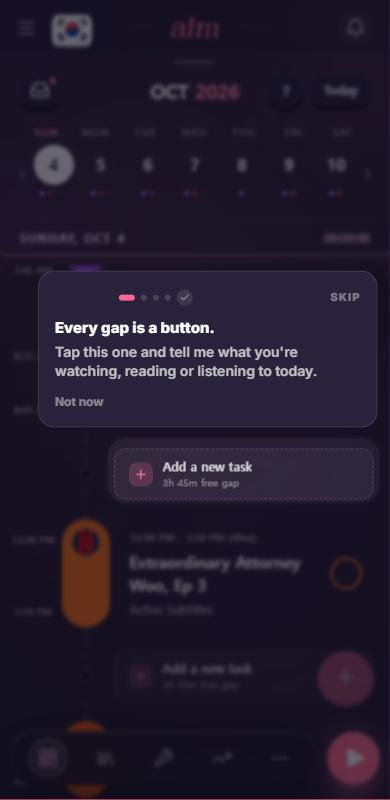
Every gap is a button. Tap the highlighted gap and tell Aim what you're watching, reading or listening to today.
-
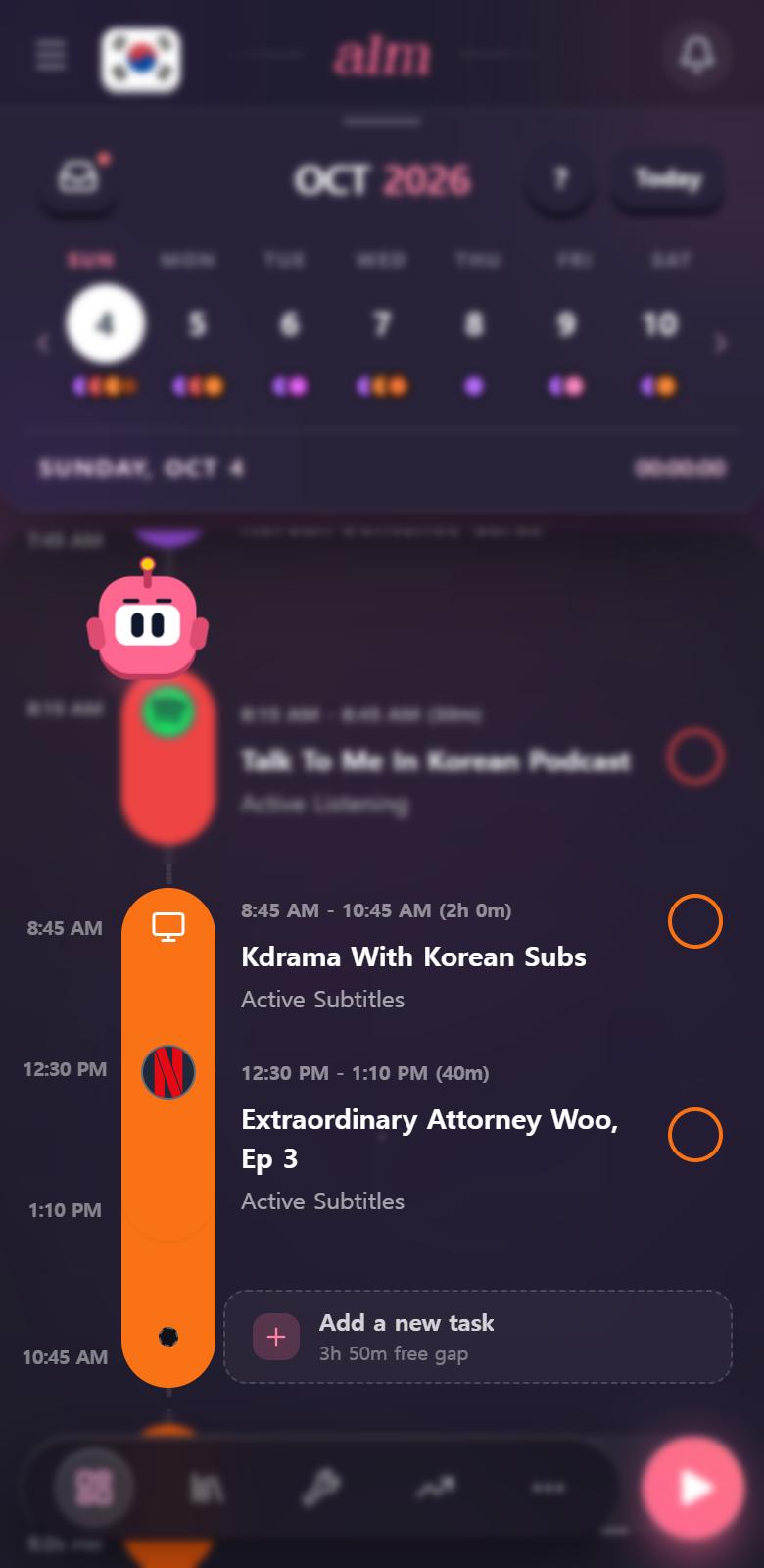
Boom, it's on your day. Your task appears on the timeline and Aim celebrates.
-
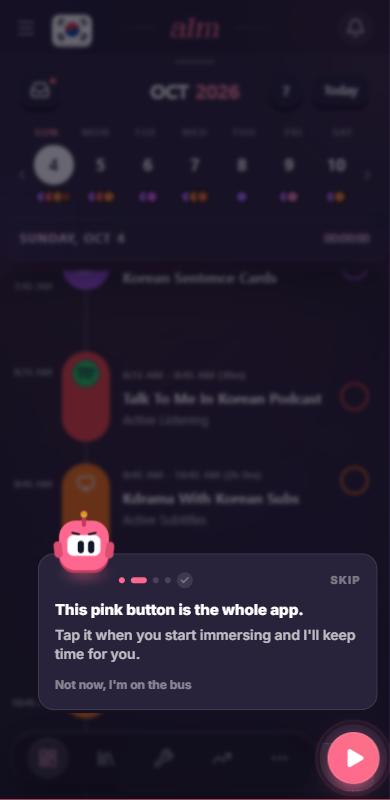
The pink button. Tap play to start the timer. Not now? Tap Not now, I'm on the bus and the tour skips the session part.
-
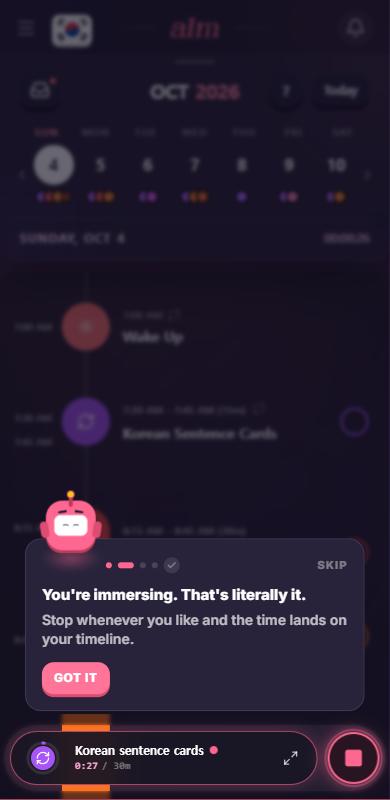
You're immersing. Your session shows in the bar at the bottom. Stop it whenever you like and the time lands on your timeline.
-
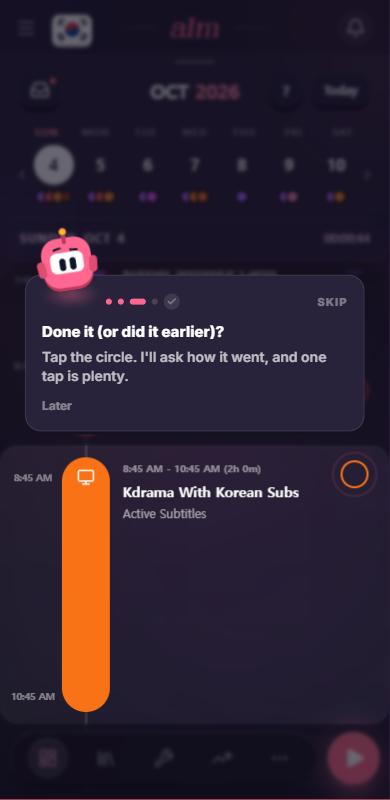
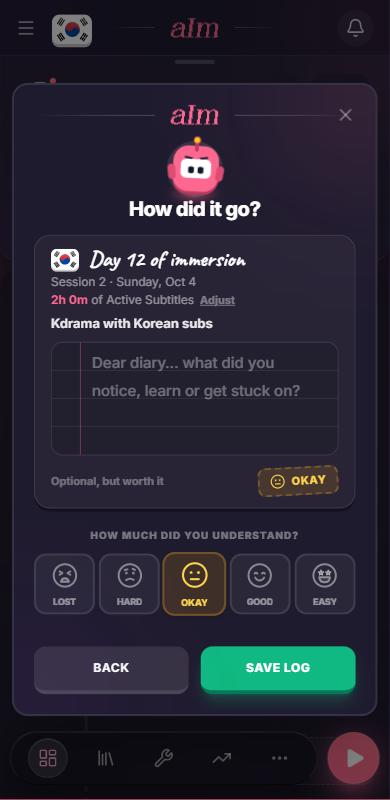
Done it? Tap the circle on a task. Aim asks how it went. One tap is plenty.
-
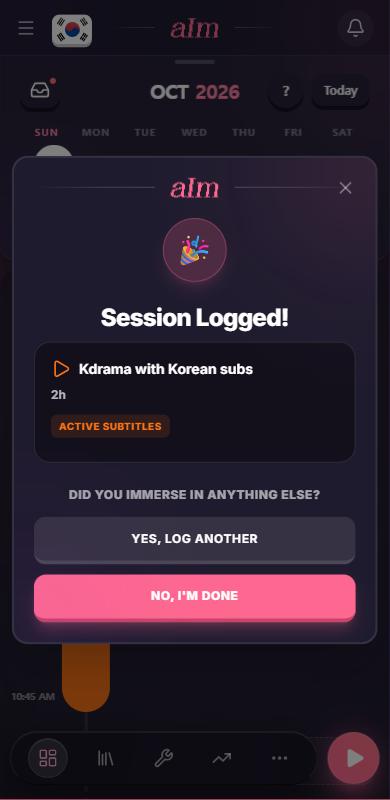
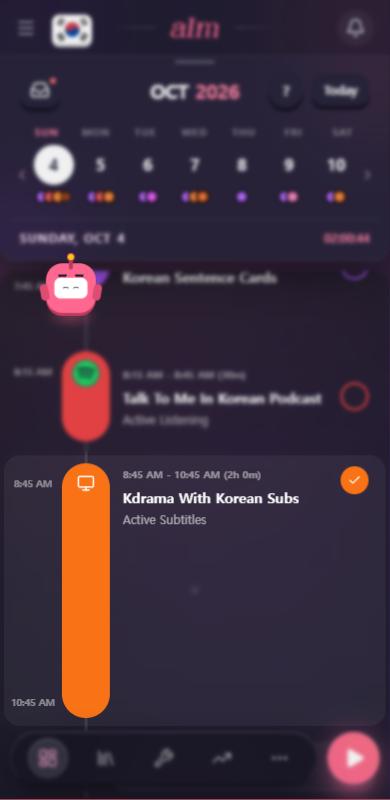
Logged. Aim cheers. Plan it, immerse, tick it. That's the whole loop.
-
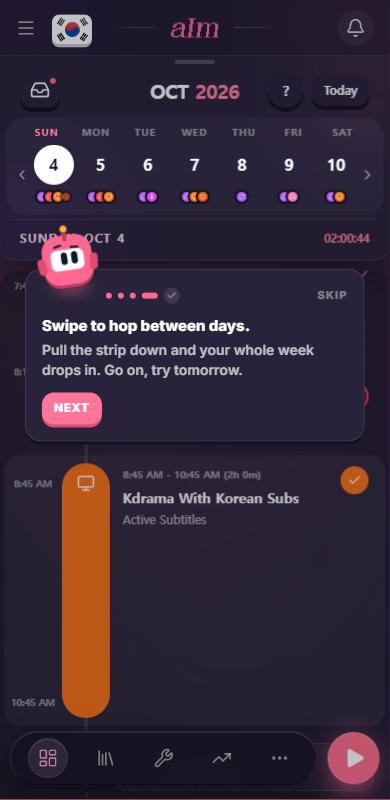
Hop between days. Try tomorrow. On a phone, pull the week strip down and your whole week drops in. On desktop, tap a day or press the left and right arrow keys.
-
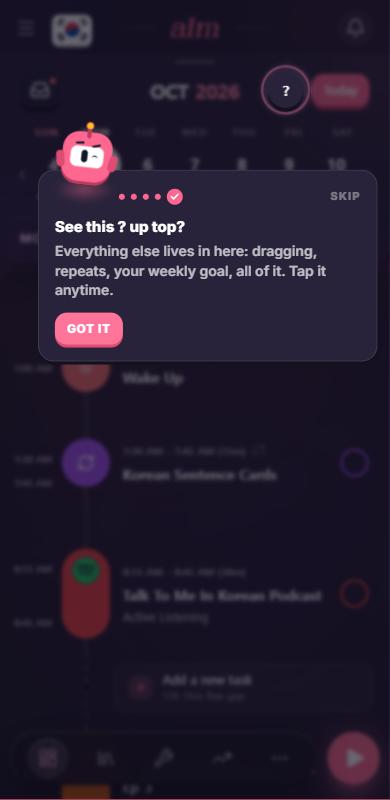
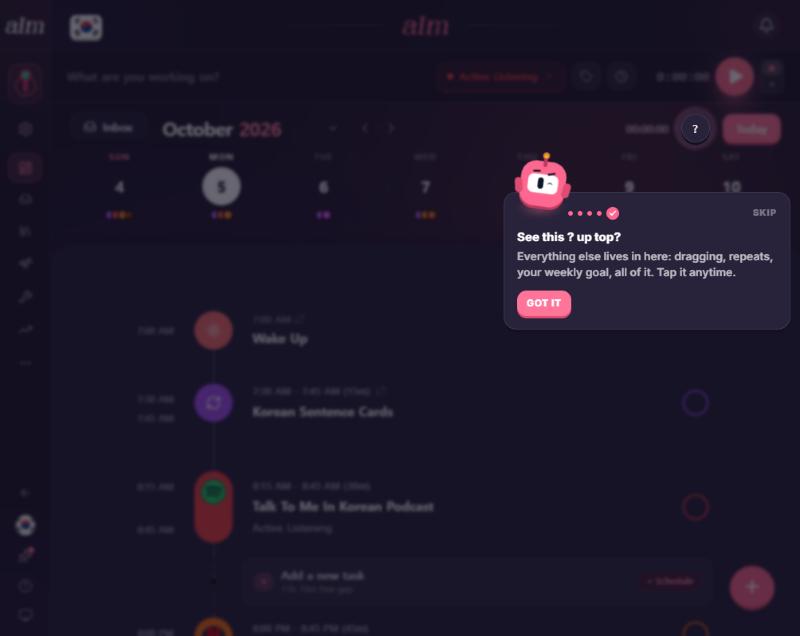
See the ? up top. Everything else lives in the ? next to Today. That's the timeline guide.
How do I skip it?
Tap Skip in the corner of the step, or Not now when a step has one. Esc works on desktop. If you skip, the tour ends on the ? so you know where help lives.
How do I replay it?
- Open Settings and go to the Help tab.
- Under Learn the app, tap Tours and shortcuts.
- Tap Replay the first-day tour.
Aim takes you to today's timeline and starts the tour straight away.
You can also replay it from the bottom of the timeline guide (Replay the first-day tour).
The same screen has Show the page guides again (every other page offers its first visit again) and a row for each page's guide. See How does the ? work on every page?.
Good to know
- Who sees it. New accounts get it on their first timeline. If you were already logging before the tour existed, you're treated as done, and you can still replay it.
- When it runs. Only on today's timeline, and only after the welcome pop-up and the dashboard tour are out of the way.
- If you reload mid-way, it picks up where you were.
- It steps aside while a full-screen session, task details or another pop-up covers the screen. It comes back when the thing it's pointing at is on top again.
- Phone vs desktop. Same steps. Only the wording and what it points at differ.
- Hold-to-choose isn't in the tour. After your first session ends, Aim pops up once to tell you that holding play lets you pick what you're doing. See How do I start a session?.
- Other nudges wait. The Discover scroll card and the weekly pull-down nudge hold back until the tour is done.
- Sample app. The sample timeline on the landing page runs the same tour. Nothing is saved.
Why does "Show the timeline guide again" do nothing?
That was a bug and it's fixed. The old button reset a key the new guide didn't read, so nothing happened. The row is now called Replay the first-day tour, and it starts the tour right away. There's also a separate Timeline guide row if you just want the topic cards.
Why did the tour disappear when I started a session?
It hides while a full-screen view is open so it doesn't float over the timer. Minimize the session and the next step shows up.