One project per activity, the show as the description. That is the whole system.
On January 5, 2022, someone in the Refold Korean Discord asked me how I set up Toggl Track. At 2 AM I wrote the whole thing out, and a lot of learners set up their tracking from that thread. This guide is that method, written out properly, so it works for you even if you never use anything but Toggl. At the end: why Immersed is built on exactly this system, and how to bring your Toggl history into it.
The answer
To track immersion with Toggl Track, install it on every device you use, then create one project per activity: Active Listening, Active Subtitles, Passive Listening, Reading, Study and SRS to start, plus Writing, Speaking and Shadowing once you start output.
Press start when you start immersing and stop when you stop. Type the show, book or YouTube channel as the description, so Toggl suggests it next time. Once a week, open the Summary report for the week and look at the days you showed up and the split by project, not only the total.
Where this method comes from
I started tracking my Korean in Toggl on February 7, 2021, after a Korean YouTuber asked me how many hours I had done and I had to guess. My first categories were rough: passive listening, sleep listening, active streaming. They became a project per activity, and every entry got the exact show or channel.
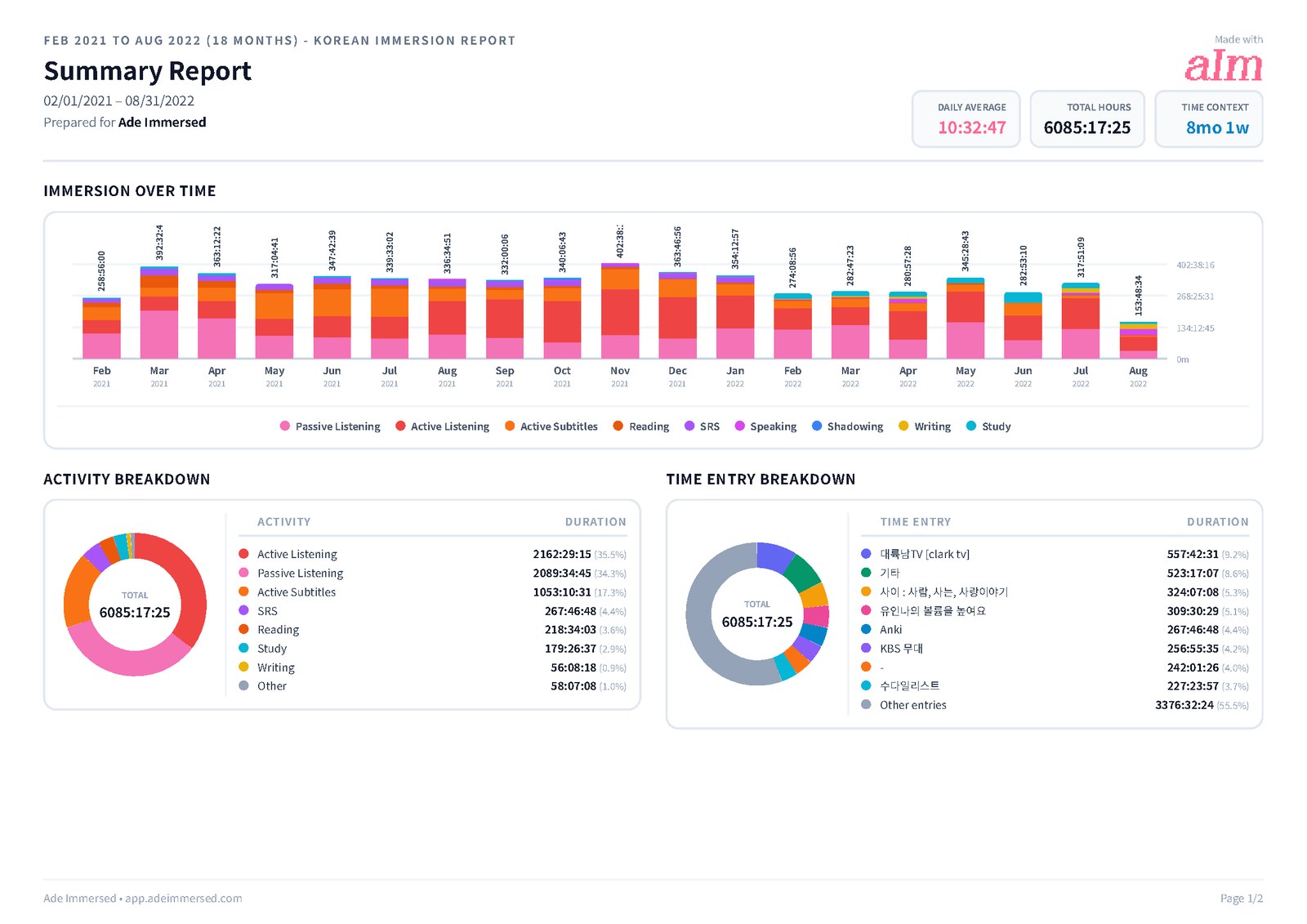
On January 1, 2022, I posted my 2021 numbers in the Refold Korean server: 3,790 hours, with about 1,300 of Active Listening, 1,212 of Passive Listening, 804 of Active Subtitles, 246 of SRS and 194 of Reading. Someone in the thread said they had registered for Toggl but were confused, and asked how to set it up. My answer is below.
A few days later another learner replied that they had been tracking everything under one project and adding up each activity by hand. One project per activity, they wrote, made so much more sense. That is the core of the method.
Step 1: install Toggl everywhere
My first instruction: "I recommend getting all three platforms of Toogl Track installed to your devices." That means the website, the browser extension, the desktop app for Windows or Mac, and the phone app. Toggl's free plan syncs all of them, so a timer you start on your phone shows up on your laptop.
This matters more than it sounds. Immersion happens everywhere: a podcast on the bus, a drama on the TV, Anki in bed. The fewer steps between "I'm starting" and a running timer, the more of your real time ends up in the record. As I wrote in that thread: "no matter what device you started your timer on you can stop it from anywhere you are logged in."
- Web: track.toggl.com, for setup and reports
- Browser extension: a start button in your toolbar while you watch
- Desktop app: Windows and macOS
- Phone app: iOS and Android, for everything away from the computer
Step 2: one project per activity
This is the step most people get wrong. Don't make a project called "Korean" and put everything in it. Make one project per kind of immersion. As I put it then: "I recommend using projects as the overlaying activities you do/want to track in your immersion."
Start with the six you do every day. Add the three output projects when you start speaking and writing, not before. You can create a project any time, including from the project drop-down while you start a new entry. Give each one its own colour so the report reads at a glance.
- Active Listening: podcasts, video and audio you follow closely with your ears
- Active Subtitles: watching with subtitles in your target language
- Passive Listening: your language in the background while you do something else
- Reading: books, manga, webtoons, articles, posts
- Study: grammar, textbooks, lessons
- SRS: Anki or other flashcard reviews
- Later, for output: Writing, Speaking and Shadowing
Step 3: start, stop, and the description is the show
When you start immersing, press start. When you finish, press stop. That is the daily habit, and it takes two seconds. If you forget, add the entry afterward with the real start and stop time, the same day.
The description is where the method gets good. My rule: "if its a show, book, or movie, I use the name (ex. 이태원 클래쓰, 인간수업...) for the activity description. As for YouTube/Twitch I do it by Youtube channel." So the entry is "Itaewon Class" in Active Subtitles, or "Clark TV" in Active Listening, never just "Netflix" or "YouTube".
Once a show is in Toggl, you rarely type it in full again. From the same answer: "Toggl remembers your previous activities, which popup if you type a single character of the activity, making it easy to get it started plus cleaner on tracking in the Toggl report feature." Pick the suggestion and it comes with its project. The second half of that sentence is why spelling matters: one show spelled three ways is three rows in your report.
- A show, a book or a film: its name
- YouTube or Twitch: the channel, not the video title
- Forgot what it was: one catch-all description. I used 기타 (Korean for "other")
- The same show can sit in different projects: a podcast you followed closely is Active Listening, the same podcast on the commute is Passive Listening
- For a show you watch every evening, continue a past entry: the play icon next to it in your list starts it again with the same description and project
Step 4: read the weekly report
Once a week, open Reports in Toggl, go to the Summary tab and set the date range to this week. Three parts of the page do the work: the bar chart by day, the breakdown by project, and the total.
- The bars by day: how many days you showed up. Five days of 40 minutes beats one Saturday of four hours
- The split by project: this is your activity mix. If it was all Passive Listening and SRS, plan one show you follow closely next week
- Then the total: compare it with your own last week, not with someone else
- The Detailed tab: every entry in order with its description. See which shows and channels you actually stuck with, and fix a timer you left running
What Toggl makes you build yourself
Toggl is a time tracker for freelancers and teams. It is very good at that, it is free for one person, and the method above works. But it doesn't know what language learning is, so a few things are yours to build and keep up.
- The activities. Nine projects, their colours and their names, set up by hand. Every learner who copies a Refold setup rebuilds the same list
- More than one language. Projects are already your activities, so a second language needs its own workspace, tags or a naming scheme
- Comprehension. Toggl has no way to say how much you understood. Some learners invent tags for it, which then have to be applied every time
- Consistency. The report shows hours per day, not streaks or a grid of the days you showed up
- The links. A description is text. Toggl doesn't keep the link to the video or episode you watched
- Some report features are paid. Toggl's help center says stacking the bar chart by project is a Premium feature, and CSV and Excel exports need a paid plan; the free plan exports PDF
Why Immersed is built on this system
I built Immersed after years of tracking in Toggl, and it shows. The nine activities in Immersed (Active Listening, Passive Listening, Active Subtitles, Reading, Study, SRS, Speaking, Writing and Shadowing) are the nine Toggl projects from my 2022 guide, standardized so nobody has to build them. On a computer, the session bar even works like Toggl: start, stop, or switch to manual mode.
The difference is what each entry carries. A session in Immersed is one of the nine activities, the actual show, channel or book, the minutes, and a rating of how much you understood. That is the point of the whole method: hours are one-dimensional, and what you did in those hours is the thing. Two learners with 1,000 hours can be in very different places, depending on the mix of activities and how much of it they could follow.
Reports follow from that. Growth in Immersed stacks each day by activity, lays your comprehension over time, shows a consistency grid with your streak, and lists your top shows and channels with links back to them. Toggl reports vs Immersed reports compares them in detail.
Stop typing the title
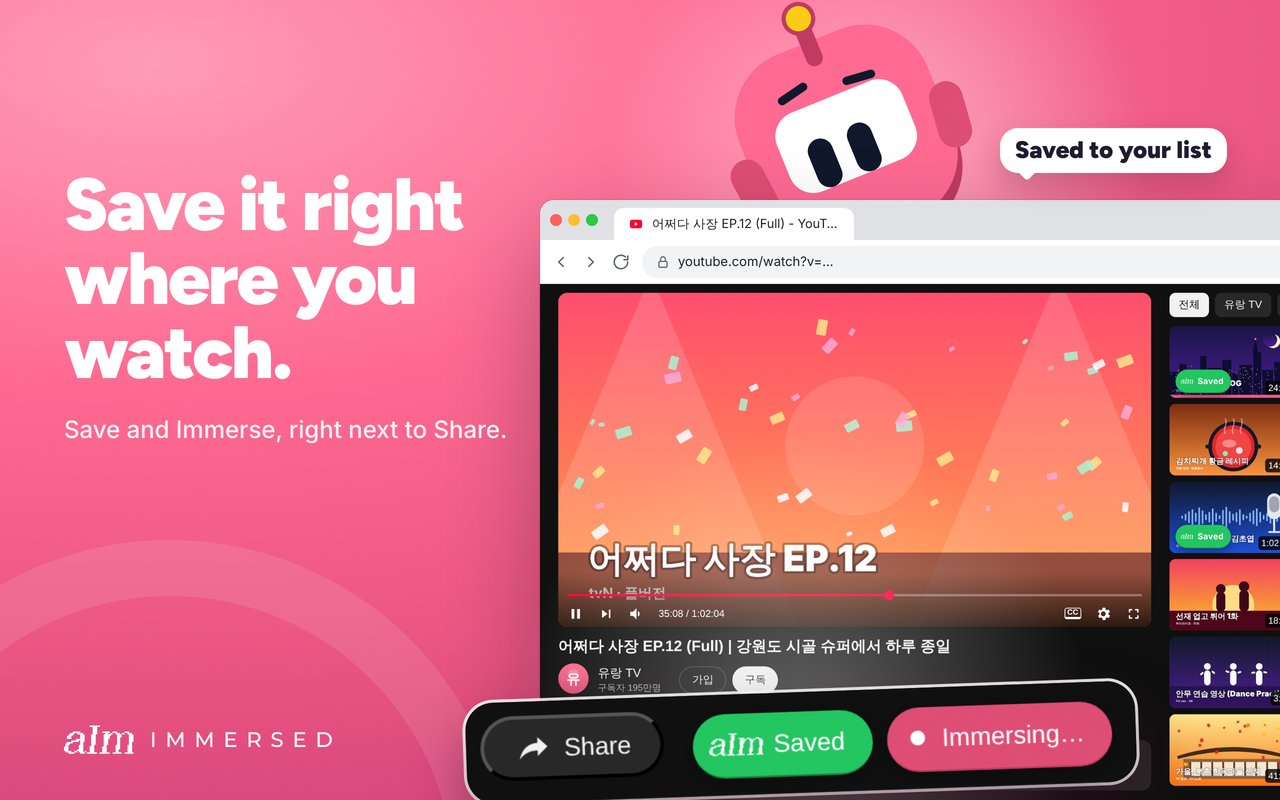
My own Toggl routine on YouTube was to copy the video or channel title, switch to Toggl, paste it and press start. Immersed for Chrome takes those steps out. It is on the Chrome Web Store, unlisted for now, and works in Chrome, Edge, Brave and Arc.
On YouTube, the Immerse button under the video starts a session with that video in one click. On 73 other media sites, Netflix, Viki, Spotify, webtoon sites and NHK among them, an Add button captures the title, picture and language for you. A session pill follows you from tab to tab. Nothing starts on its own: every session starts with a press, and Immersed never reads your viewing history. Saving and sessions need Immersed Pro.
Bring your Toggl history into Immersed
You don't lose a single hour by moving. Immersed imports Toggl CSV files, and a setup built with this guide maps across almost by itself, because your projects already have the activity names.
One thing to check on Toggl's side first: their help center says CSV export is a paid plan feature and the free plan exports PDF only. Export your time entries as CSV from the Detailed report, for the whole range you want.
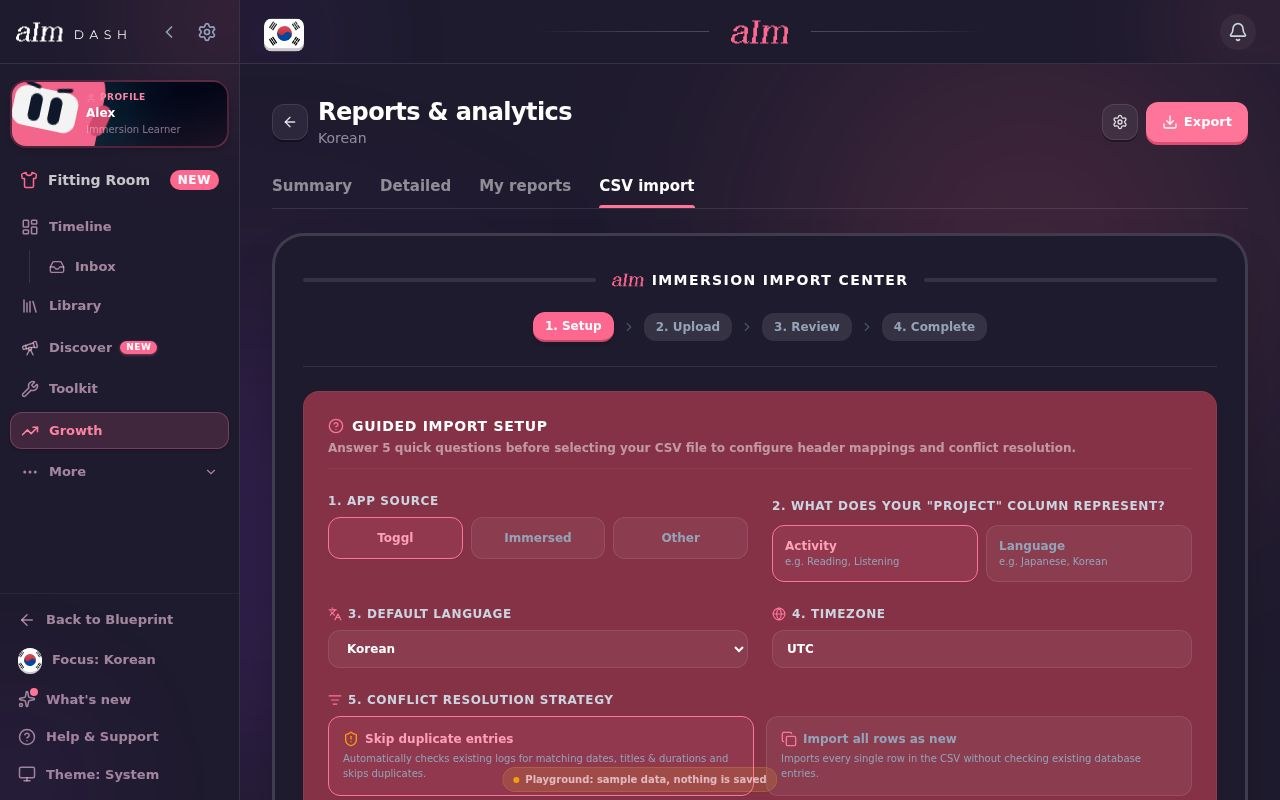
- In Immersed, open Growth, then Reports & analytics, then the CSV import tab
- In Setup, pick Toggl as the source, say your project column means Activity, and set your language, time zone and what to do with duplicates
- Drop in the CSV. Immersed lists every Toggl project it found and guesses the activity from the name; check each one and change any that are wrong
- Your descriptions become session titles, so your shows and channels carry over
- Review and import. At the end you see how many rows were imported, skipped or failed
FAQ
Questions people ask.
How do I set up Toggl Track for language immersion?+
Install Toggl on every device, then create one project per activity: Active Listening, Active Subtitles, Passive Listening, Reading, Study and SRS, plus Writing, Speaking and Shadowing when you start output. Use the show, book or YouTube channel as the description of each entry. This is the setup I shared in the Refold Korean Discord in January 2022.
Should my Toggl projects be languages or activities?+
Activities, if you study one language. A single "Korean" project hides what your time was made of, and you end up adding up each activity by hand. If you study two languages, keep projects as activities and separate the languages with a workspace or tags.
What should I write in the Toggl description?+
The name of the show, book or film, or the YouTube or Twitch channel. Not the platform. Toggl suggests past descriptions after one character, so each name is typed once. Keep one catch-all description, like 기타 or "Other", for entries you can't remember.
Is Toggl Track free for tracking immersion?+
Yes. The free plan covers timers on web, desktop, phone and the browser extension, and reports on your own time. Toggl's help center lists stacking the chart by project as a Premium feature and CSV and Excel exports as paid; the free plan exports PDF.
Can I import my Toggl history into Immersed?+
Yes. Export your time entries from Toggl's Detailed report as a CSV, then in Immersed open Growth, Reports & analytics, CSV import, and pick Toggl. Map each Toggl project to one of the nine activities and a language. It reads the file only; there is no connection to your Toggl account. Importing is part of Immersed Pro.
Why did Immersed choose nine activities?+
They are the nine Toggl projects I used to track my Korean: six from the start and three added for output. Immersed makes them standard so every learner's hours can be read the same way, and the mix of those nine shows what your time was actually made of.
Do I need the Immersed Chrome extension to use Immersed?+
No. You can press play in the Immersed web app or log a session afterward. Immersed for Chrome saves you the copy and paste: on YouTube it starts a session with the video in one click, and on 73 media sites it captures the title, picture and language. It is on the Chrome Web Store, unlisted for now, and saving and sessions need Immersed Pro.