How do I get a report or export my data?

Go to Growth, tap Reports & analytics, then tap Export. Pick a PDF report, an Excel file or a CSV. Your monthly reports wait for you in My reports.
Reports are part of Pro (or your free week).
Open Reports & analytics
-
Open Growth.
-
Tap Reports & analytics in the top right. On a phone the button just says Reports.

You land on four tabs: Summary, Detailed, My reports and CSV import. The arrow in the top left takes you back to Growth.
What's on Summary?
- Pick a range at the top: Week, Month, Year or All time. The arrows step back and forward. The calendar button lets you pick any dates you like.
- Total immersion is your time in that range, with the number of sessions. Daily average here only counts the days you immersed. It says On days you immersed underneath.
- Immersion over time is a chart of the range. Switch between Total and By activity. Tap Comprehension to lay your comprehension ratings over it.
- Consistency is a grid of your recent days. The darker the square, the more you did. It shows how many days you immersed, your streak and your best.
- Activity distribution shows what your time went to. Top items shows the 10 things you spent the most time on. Everything else is grouped as "Other entries". On a phone these two share one Breakdown card with a toggle.
The gear next to Export is Analytics settings. You can turn the activity colours on the chart on or off there, and the comprehension line.
How do I export a PDF, Excel or CSV?
-
On Summary, pick the range you want first. The export uses it.
-
Tap Export (top right).
-
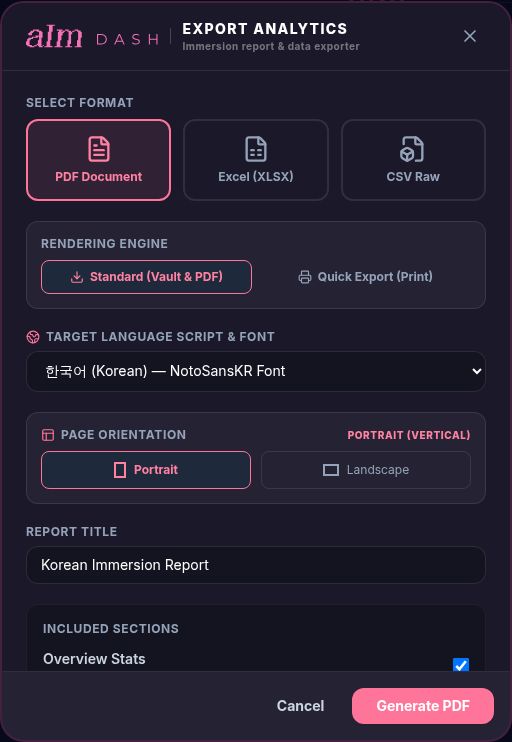
Choose PDF Document, Excel (XLSX) or CSV Raw.
-
For a PDF, set it up:
- Rendering engine. Standard (Vault & PDF) builds the report, shows you a preview and saves it to My reports. Quick Export (Print) opens your browser's print window, so you can print it or save it as a PDF yourself.
- Target language script & font. Pick the one for your language so Korean, Japanese or Chinese titles print properly.
- Page orientation. Portrait or Landscape.
- Report title. It starts as "Korean Immersion Report" (with your language). Change it if you like.
- Included sections. Tick what goes in: Overview Stats, Immersion Graph, Activities Breakdown, Top Items, Detailed Entries and Clickable Item Links.
-
Tap Generate PDF (or Generate XLSX / Generate CSV).
-
For a Standard PDF, check the preview and tap DOWNLOAD & SAVE. It downloads, and a copy goes into My reports.
Excel and CSV files download straight to your device. They don't go into My reports.
How do I export every session as a spreadsheet?
-
Open the Detailed tab. It lists every session in the range. Search by title, note or platform, use Filters (activity, type, comprehension), group by Date, Activity or Type, and sort. Tap a session to see its notes and a Revisit link.
-
Tap CSV at the end of the toolbar. The Export CSV (v1) window opens.
-
Want the raw link details too? Turn on Include advanced fields. That adds a "Link metadata" column.
-
Tap Export CSV.
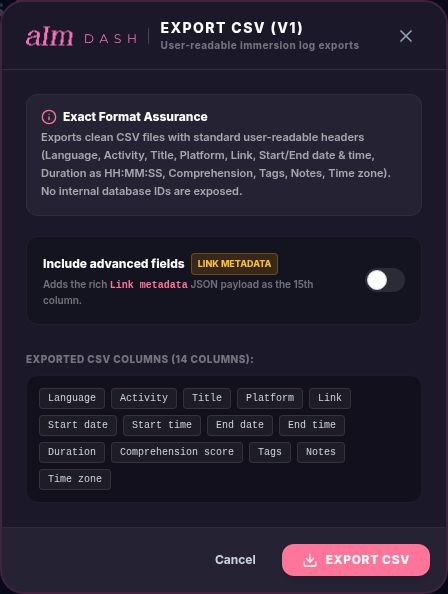
You get one row per session with: Language, Activity, Title, Platform, Link, Start date, Start time, End date, End time, Duration, Comprehension score, Tags, Notes and Time zone. This one exports your whole log, not just the range or filters on screen.
Where are my reports?
Open the My reports tab.
- Ready to generate. After your first seven days, a 7-Day Free Trial Report shows up here. After every full month, so does a Monthly Immersion Report for that month. After every week, a weekly report for it. Pick Portrait or Landscape and tap Generate. I save it here.
- Your reports. Every PDF you've saved. The chips at the top filter by language. On each report:
- Read opens it right in the app, phones included.
- Share makes a link (see below).
- Download PDF.
- Delete removes it after you confirm.
How do I share a report?
-
In My reports, tap Share on the report.
-
The Share PDF Report window makes a short link for it, like
app.adeimmersed.com/r/…. Whoever opens it doesn't need an account. -
Tap Copy Link, or Share via... to send it with your phone's share sheet. Test Link opens it so you can see what they'll see.
The link works for 7 days. Regenerate makes a fresh 7-day link. Disable turns it off, so nobody can open it any more. If the short link can't be made, you can Copy Direct Link instead. That one works for 24 hours.
How do I bring in sessions from another app?
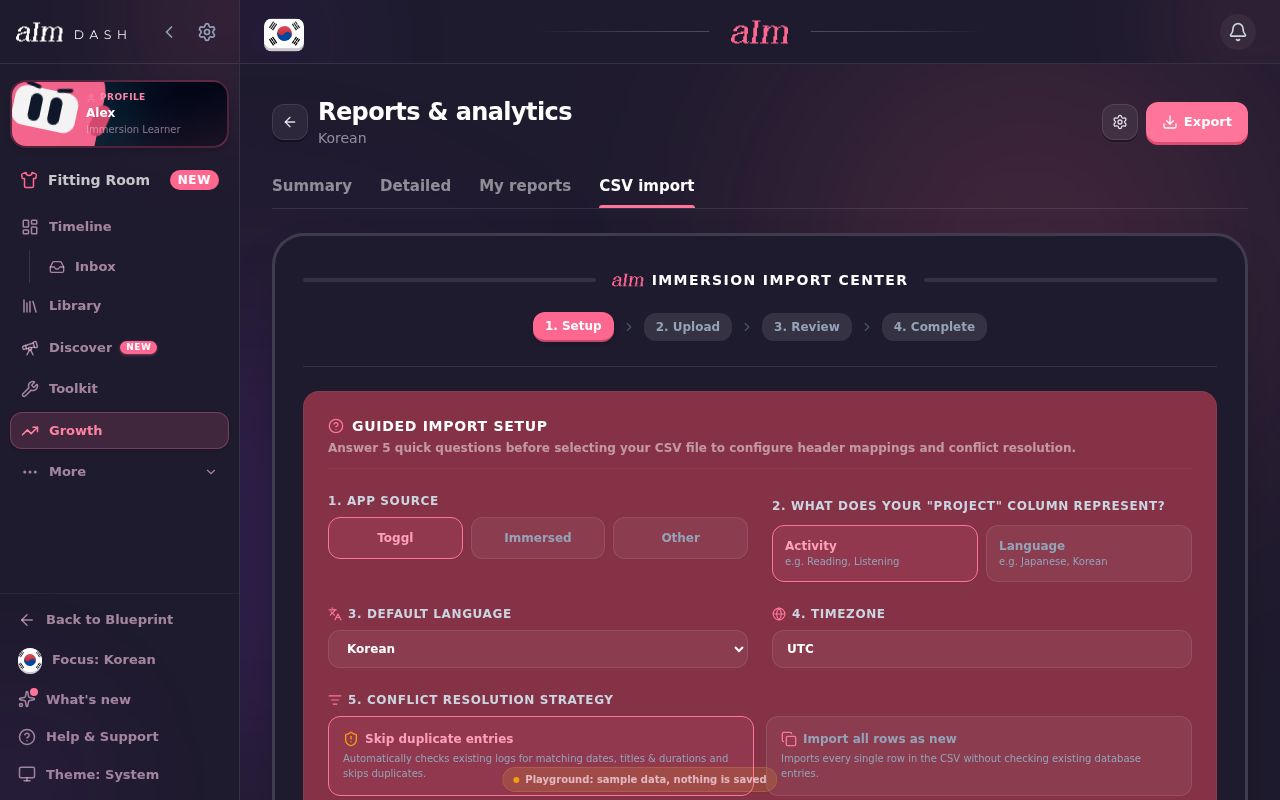
Open the CSV import tab. It walks you through four steps: Setup, Upload, Review and Complete.
- In Setup, answer five questions: where the file comes from (Toggl, Immersed or Other), what your "project" column means (activity or language), your default language, your time zone, and what to do with duplicates (Skip duplicate entries or Import all rows as new).
- Drop your CSV or TSV file in, check how the rows map, and import. At the end you see how many rows were imported, skipped or failed.
What does an "All time" export cover?
Everything. If the range at the top is All time when you tap Export, the PDF, Excel or CSV runs from the month of your first session up to today.
Good to know
- One language at a time. Summary, Detailed and Export use the language you're focused on. My reports can show all your languages.
- Daily average. Here it only counts the days you immersed. On the Growth page, days off count too, so that number is lower.
- The monthly reports are built from your numbers. Nobody reads your logs to write them.
- Excel and CSV stay on your device. They download, and that's it. Only Standard PDFs are saved to My reports.